
Note: This article contains affiliate links. If you click on these links and make a purchase, we may earn a small commission at no extra cost to you. This helps support our research and content. Read our full affiliate disclosure here.
Picking the right wireless all-in-one printer for home use affects everything from school projects to important household documents. You want dependable print quality, straightforward wireless setup, and scanning and copy features that actually fit daily routines. This guide shortlists the top choices in the category and explains why each type of feature matters for homeowners. We evaluated practical factors like print speed, connectivity reliability, and ease of use to assemble a concise set of top picks. Read on for an overview of what to expect from the best home-focused all-in-one printers and which features to prioritize.
Top Picks at a Glance
| Best Overall The best all-around choice for most situations | Epson EcoTank ET-2980 |  |
| Best Quality Built to a higher standard if you want something more solid | Epson EcoTank ET-2800 | 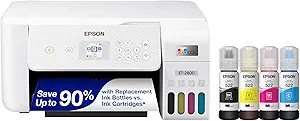 |
| Best Value The sweet spot between price and what you get | HP DeskJet 2955 All-in-One Printer |  |
| Top Rated A top-rated pick with lots of positive feedback | Canon PIXMA TR4720 |  |
| Most Popular A crowd favorite that many people choose with confidence | Canon PIXMA TR4720 |  |
| Best Seller A high-volume bestseller chosen again and again | Brother DCP-L2640DW Laser Printer |  |
Epson EcoTank ET-2980

| Printer Type | Inkjet |
|---|---|
| Print Resolution | 4800 x 1200 |
| B&W Pages per Minute | 15 pages_per_minute |
| Color Pages per Minute | 8 pages_per_minute |
| Printer Connectivity Type | USB, Wi-Fi |
The Epson EcoTank ET-2980 is a cartridge-free wireless all-in-one that handles printing, scanning and copying for everyday home use. It uses large refillable ink tanks and includes bottles that Epson says will cover up to three years of typical home printing, which cuts the need for frequent cartridge changes and lowers ongoing ink costs. Print quality is high for text and photos with a 4800 x 1200 dpi resolution, and the PrecisionCore print technology plus an automatic duplexer make two-sided documents and borderless photos straightforward. Setup and mobile printing are handled through built-in Wi-Fi and the Epson Smart Panel app, and the 100-sheet input and 15 ppm black / 8 ppm color speeds suit moderate family workloads. Trade-offs are mainly size and throughput: it is aimed at home and small-office volumes rather than heavy daily office printing, and some advanced workflow features like an ADF or Ethernet are not present. The permanent printhead design and factory-supplied ink reduce waste and running cost, making the ET-2980 a practical choice for balanced home users.
Best for: Buyers who want a dependable, lower-cost-per-page home all-in-one that balances photo-capable print quality with easy wireless mobile printing and reduced ink maintenance.
Less Ideal for: Users who need heavy daily printing, multi-page scanning workflows, or advanced business network features should consider higher-capacity office models instead.
- Refillable EcoTank system with enough included ink for up to three years of typical home printing
- High 4800 x 1200 dpi resolution for sharp text and photo-quality color prints
- Built-in Wi-Fi and Epson Smart Panel app for easy mobile printing and scanning
- Automatic duplex printing for two-sided documents
- Permanent PrecisionCore printhead designed for long-term reliability
- No automatic document feeder for multi-page scanning or copying
- Not optimized for high-volume office throughput compared with larger workgroup models
Verdict: Choose the ET-2980 if you want a user-friendly wireless all-in-one that delivers photo-capable prints and much lower ink replacement hassle for typical home use.
Epson EcoTank ET-2800

| Printer Type | Inkjet |
|---|---|
| Printer Connectivity Type | wired, wireless |
| B&W Pages per Minute | 10 |
| Color Pages per Minute | 5 pages_per_minute |
| Maximum print Resolution Color | 5760 x 1440 dots_per_inch |
The Epson EcoTank ET-2800 is a cartridge-free wireless all-in-one designed for everyday home printing, copying and scanning. It uses high-capacity refillable ink tanks and ships with starter bottles that equal many cartridge replacements, so you can run longer between refills and lower ongoing ink costs. Print quality is sharp for text and good for color photos thanks to Epson's Micro Piezo heat-free printhead and high maximum resolution, and the flatbed scanner handles documents and photos reliably. Setup and mobile printing are straightforward with app and wireless support, and a small color LCD makes basic copying and navigation easy. Speed is modest — about 10 ppm for black and 5 ppm for color — and duplex printing is manual, so it is better suited to moderate home workloads than heavy office use. The ET-2800 sacrifices advanced paper handling and automatic duplex for compact, low-cost operation and very low ink spend over time.
Best for: Home buyers who prioritize low long-term ink costs and reliable everyday print quality and prefer a compact wireless all-in-one for typical household tasks.
Less Ideal for: Users who need fast duplex productivity, heavy monthly volumes, or advanced paper handling for small office environments should look at larger workgroup printers instead.
- Cartridge-free EcoTank system with high-capacity refillable ink bottles for very low running costs
- Wireless and mobile printing with app control and hands-free voice printing
- High maximum print resolution for sharp text and detailed color prints
- Includes flatbed scanner and color LCD for easy copying and setup
- Relatively slow color print speed compared with higher-end all-in-ones
Verdict: Choose the ET-2800 if you want a compact wireless all-in-one that cuts ink costs dramatically while delivering solid home print and scan performance.
HP DeskJet 2955 All-in-One Printer

| Printer Type | HP Thermal Inkjet |
|---|---|
| Maximum Sheet Capacity | 60 |
| Scanner Type | Flatbed |
| Connectivity | Apple AirPrint; USB; Wireless (Wi-Fi); Wireless direct printing; Mopria |
| Compatible Cartridge | HP 68 / 68e |
The HP DeskJet 2955 is a compact all-in-one designed for basic home printing, scanning, and copying tasks. It connects via dual-band Wi‑Fi, AirPrint, Mopria or USB and supports mobile printing through the HP app, making it easy to print documents and photos from a phone or laptop. The 60-sheet input tray and flatbed scanner handle day-to-day jobs like homework, recipes, letters and occasional photo prints, and HP includes a three-month Instant Ink trial to simplify ink replacement. Print quality is reasonable for documents with up to 4800 x 1200 optimized color and 1200 x 1200 black, though its print speeds are modest at roughly 7.5 ppm black and 5.5 ppm color. Duplex printing is manual, so two-sided jobs require extra handling. The control panel is simple and the unit's recycled-plastic construction and ENERGY STAR certification are convenient if you prefer a smaller environmental footprint. If you need a straightforward, space-saving home printer with reliable wireless features, the DeskJet 2955 covers core needs without extra complexity.
Best for: Buyers who want a simple, space-saving home multifunction printer that handles everyday documents and occasional scans with straightforward wireless setup and low-maintenance ink delivery.
Less Ideal for: Those who frequently print large volumes, need fast duplexing or expect high photo-quality output should consider higher-end or dedicated models instead.
- Compact footprint suitable for small desks or counters
- Wireless and mobile printing support including AirPrint and HP app
- Includes 3-month Instant Ink trial to simplify cartridge replacement
- Flatbed scanner and copy functions for basic home tasks
- Made with recycled plastics and ENERGY STAR certified
- Manual duplex requires flipping pages for two-sided prints
- Modest print speed compared with faster home office models
Verdict: A compact, no-frills wireless all-in-one that reliably covers basic home printing, scanning, and copying needs with easy mobile printing and an Instant Ink trial.
Canon PIXMA TR4720

| Printer Type | Inkjet |
|---|---|
| Other Special Features of the Product | Auto Document Feeder |
| Printer Connectivity Type | Wi‑Fi |
| Duplex | Automatic |
| Maximum print Resolution Color | 4800 x 1200 dpi |
The Canon PIXMA TR4720 is a small home all‑in‑one inkjet that handles everyday printing, scanning, copying and faxing without much fuss. Setup is straightforward via the Canon PRINT app and built‑in Wi‑Fi, and the automatic duplex printing and 2‑sided ADF make it convenient for multi‑page jobs like school forms or bills. Print resolution is strong for an entry model, with up to 4800 x 1200 dpi for color output, and Canon supplies starter PG‑275/CL‑276 cartridges in the box so you can get started right away. Practical benefits include a single paper tray with up to 100‑sheet capacity and an LCD control for basic jobs without a computer. Expect typical inkjet behavior: color photos and graphics look good for home use but cost per page will be higher than laser printers, and heavy daily volume will push its small tray and cartridge sizes. For users who value simple, reliable home printing and the convenience of wireless mobile printing, the TR4720 covers core needs cleanly; power users or small offices needing high monthly duty cycles should consider a higher‑capacity model instead.
Best for: Home users who want a straightforward, reliable multifunction printer for occasional to moderate household printing and easy mobile connectivity.
Less Ideal for: Users who need very high monthly page counts, large paper handling, or lowest long‑term cost per page should look at higher‑capacity laser or business‑class printers.
- All‑in‑one functions: print, copy, scan and fax in one compact unit
- Wi‑Fi and Canon PRINT app support for easy mobile printing and setup
- Automatic duplex printing and an auto document feeder for multi‑page tasks
- Included starter PG‑275/CL‑276 cartridges let you start printing immediately
- Small paper tray and starter cartridges mean more frequent refills for higher volume users
- Inkjet cost per page is higher than comparable monochrome laser printers
Verdict: A compact, no‑nonsense wireless all‑in‑one that reliably covers everyday home printing, scanning and faxing needs.
Canon PIXMA TR4720

| Printer Type | Inkjet |
|---|---|
| Functions | Print, Copy, Scan, Fax |
| Paper Capacity | 100 sheets |
| Connectivity | USB, Wi-Fi |
| Compatible Cartridge | Canon CL-276, Canon PG-275 |
The Canon PIXMA TR4720 is a space-conscious 4-in-1 inkjet aimed at home users who need occasional photo and document work. It connects via Wi-Fi or USB and supports mobile printing through Canon apps, making it easy to print from phones and cloud services. Notable conveniences include a 100-sheet front paper tray, an auto document feeder for multi-page scans and faxes, and automatic two-sided printing to save paper. Print quality is good for everyday documents and borderless photos up to letter size thanks to Canon's hybrid ink system, though color photo speeds are modest compared with higher-end models. Setup is straightforward with the Canon Print app and a simple 2-line LCD interface, but heavy users will notice relatively slow color throughput and the limited 100-sheet capacity. The TR4720 is energy efficient at low power draw and uses Canon CL-276/PG-275 cartridges, which keeps replacement supplies standardized but can be costly over time. For a small home office or family that values easy mobile printing, scanning and occasional faxing in a compact footprint, the TR4720 delivers a sensible balance of features and practicality.
Best for: Buyers who want a compact, easy-to-setup all-in-one for home or small home-office use with reliable mobile printing and modest photo capability backed by many real-user experiences.
Less Ideal for: People who print large volumes, need fast color throughput, or require heavy-duty paper handling should choose a higher-capacity or faster office-oriented model.
- Compact 4-in-1 design with print, copy, scan and fax in a small footprint
- Auto document feeder and automatic duplex printing for multi-page tasks
- Wireless and mobile printing via Canon Print app and Wi-Fi connectivity
- 100-sheet front paper tray and borderless photo printing up to 8.5 x 11"
- Low power consumption (7 watts) for energy-efficient operation
- Slow color print speed compared with faster home/office models
- 100-sheet capacity and consumer-grade ink system may not suit high-volume users
Verdict: A compact, user-friendly wireless all-in-one that fits home and small home-office needs with mobile printing and auto duplexing as its main strengths.
Brother DCP-L2640DW Laser Printer

| Printer Type | Laser |
|---|---|
| Printer Output Type | Monochrome |
| B&W Pages per Minute | 36 pages_per_minute |
| Auto Document Feeder Capacity | 50 pages |
| Maximum Sheet Capacity | 250 |
The Brother DCP-L2640DW is a compact black-and-white laser all-in-one designed for home and small-office use where fast text printing and reliable scanning matter. It prints up to 36 ppm and delivers sharp 1200 x 1200 dpi black-and-white output, while a 50-page automatic document feeder and 250-sheet tray reduce hands-on time for multi-page jobs. Connectivity is flexible with dual-band Wi-Fi, Ethernet, and USB, plus mobile printing via the Brother Mobile Connect app for remote jobs and supply management. Practical features include automatic duplexing to save paper, a toner-saver mode to extend cartridge life, and support for Brother Genuine TN830/TN830XL cartridges or the Refresh subscription for automatic replenishment. Trade-offs are typical for monochrome lasers: no color printing, a somewhat utilitarian LCD rather than a large touchscreen, and the need to use replacement drum and toner units over time which adds running costs. For buyers who prioritize dependable monochrome output, straightforward network setup, and efficient handling of multi-page documents, this model is a sensible, low-risk choice.
Best for: Buyers who want a dependable, no-frills monochrome all-in-one for home or small-office use and prioritize fast text printing, straightforward network setup, and low-maintenance workflows.
Less Ideal for: Users who need color printing, photo-quality output, or a touchscreen-driven interface should look at color inkjet or color laser alternatives.
- Fast black-and-white printing up to 36 pages per minute.
- 50-page auto document feeder speeds multi-page scanning and copying.
- Automatic duplex printing reduces paper use and manual work.
- Multiple connectivity options including dual-band Wi-Fi, Ethernet, and USB plus mobile app control.
- No color printing capability.
- In-box toner yield is modest so replacement toner will be needed for heavier use.
Verdict: Choose the DCP-L2640DW if you need a reliable, fast monochrome wireless all-in-one that simplifies multi-page workflows for home or small-office use.
Choosing the Right Wireless All-in-One Printer for Home: Key Factors to Consider
Wireless Connectivity and Setup
A reliable wireless connection is essential for a home all-in-one printer because most household devices print from phones, tablets, and laptops. Check whether the printer supports both 2.4 GHz and 5 GHz Wi-Fi bands and whether it offers Wi-Fi Direct or a dedicated mobile printing protocol. Faster bands and robust signal handling reduce dropped jobs and slow transfers when multiple devices are connected.
Setup processes vary widely. Look for straightforward guided setup via a mobile app or a clear touchscreen interface. Printers that include WPS, QR-code setup, or built-in web servers can simplify adding new devices. Poor wireless implementation can lead to frequent reconnects and troubleshooting, so prioritize models with a reputation for stable network behavior.
Print Speed and Output Quality
Print speed affects how long you wait for documents and homework. For homes, pages-per-minute ratings for black-and-white documents are a useful baseline, while first-page-out time matters for occasional use. Higher speed often comes with tradeoffs in cost and noise, so decide whether throughput or quiet operation is more important for your location.
Output quality is important for text legibility and occasional color prints or photos. Look for printers that produce crisp black text and reasonably accurate color for casual photo printing. Duplex printing capability is also worth considering for saving paper and handling two-sided tasks without manual flipping.
Scanner Features and Performance
A built-in scanner is one of the main reasons shoppers choose an all-in-one. For home use, look at optical resolution, document feeder capacity, and scan speed. A flatbed scanner is necessary for books and delicate originals, while an automatic document feeder is helpful for multi-page scanning jobs like school packets or tax documents.
Also check supported scan destinations and formats. Basic scan-to-email, scan-to-cloud, and scan-to-PDF options streamline digitizing paperwork. Color accuracy and OCR capability can matter if you frequently convert scans into searchable documents.
Running Costs and Ink Management
Long-term ink or toner costs often outweigh the initial purchase price for home printers. Consider page yield per cartridge and whether high-capacity or XL cartridges are available. Some models offer subscription or refillable ink tank systems that lower per-page costs but may require a larger upfront commitment.
Also examine how the printer handles ink maintenance routines. Frequent automatic printhead cleanings can waste ink on seldom-used color cartridges, so if you print infrequently, models with replaceable printheads or separate cartridges for each color tend to be more economical.
Physical Size, Noise, and Placement
Home printers live in kitchens, home offices, or bedrooms, so footprint and noise are practical concerns. Measure available shelf or desk space before choosing a model, and note whether the printer needs clearance for document feeders and output trays.
Operational noise levels affect where the device can be placed. Faster printers often run louder, especially when warming up or during duplexing. Smaller units may be quieter but offer fewer features, so balance space constraints with the functionality you need.
User Interface and Mobile App Support
A usable interface reduces frustration during everyday tasks. Touchscreens, clear status lights, and an intuitive web interface make routine tasks like copying, scanning, or checking ink levels simpler. Consider whether the mobile app supports cloud services you use, such as cloud storage or email scanning.
Look for printers that provide meaningful status notifications and easy firmware updates. App-based printing and scanning workflows that require minimal steps are especially helpful for households where several people will operate the device.
Best Ways to Set Up a Home Printer on Your Wi-Fi
Start by placing the printer near your router for the initial setup to reduce connection failures. Use the vendor app or the printer touchscreen setup wizard and follow prompts to join your home network. If your router supports both 2.4 GHz and 5 GHz, try the band that the printer supports reliably; many home printers prefer 2.4 GHz for broader range.
If the printer and your device cannot see each other, temporarily connect the printer via USB or Ethernet to complete setup and then switch to wireless. Enable any required permissions on your phone or computer, such as location access for Wi-Fi scanning, and update firmware after the first connection to improve stability.
- Place the printer close to the router for initial setup
- Use app-guided setup or touchscreen wizards
- Temporarily use USB or Ethernet if wireless setup fails
- Update firmware immediately after connecting
Managing Ink and Reducing Waste
To minimize wasted ink, print a calibration or nozzle check only when necessary, and use draft or economy mode for everyday text documents. For households that print irregularly, consider models with individual color cartridges so you only replace what you use.
Keep spare cartridges or a plan for quick replacement, and store cartridges according to manufacturer guidelines to prevent premature drying. If your printer supports refill tanks, consider whether the tradeoff of larger upfront supplies for lower per-page cost fits your household printing patterns.
- Use draft mode for routine text prints
- Prefer individual color cartridges over tri-color packs
- Store spares correctly to avoid drying
- Consider refill tanks for high-volume home printing
Scanning Tips for Home Document Organization
Scan receipts, schoolwork, and important documents regularly to maintain a manageable digital archive. Use OCR features to create searchable PDFs that make it easier to find documents later. When scanning multi-page documents, an automatic document feeder speeds the job, but double-check alignment to avoid skewed pages.
Name scanned files consistently and use cloud backups to prevent data loss. If privacy is a concern, disable automatic cloud upload and store sensitive scans on a local encrypted drive.
- Use OCR for searchable PDFs
- Scan in consistent file formats and naming schemes
- Backup scanned files to cloud or encrypted local storage
- Verify alignment when using the document feeder
Placement, Noise Considerations, and Shared Use
Decide whether the printer will be in a dedicated home office or a shared family area. In shared spaces, prioritize quieter models and those with lower warm-up times to avoid disturbing others. Consider placing the printer on a shelf with vibration-dampening pads to reduce noise.
If multiple household members will print from their phones, test mobile printing workflows during setup and teach basic troubleshooting steps like reconnecting to Wi-Fi or restarting the printer to avoid repeated calls for help.
- Choose quieter models for shared spaces
- Use vibration-dampening placement
- Test and document mobile printing steps for household members
- Keep a simple troubleshooting checklist nearby
Security and Privacy for Home Printing
Home printers often store scanned documents and may expose network services. Keep printer firmware up to date to close security holes and change default administrative passwords. Disable unnecessary network services like FTP or insecure printing protocols if they are not required.
If guests need to print, set up a guest Wi-Fi network to isolate the printer from personal devices. Review app permissions and cloud integrations to ensure that sensitive documents are not unintentionally synced to third-party services.
- Keep firmware current and change default passwords
- Disable unused network services
- Use a guest Wi-Fi network for visitor printing
- Audit app permissions and cloud sync settings
How We Chose the Best Wireless All-in-One Printer for Home
We prioritized attributes that matter to typical home users and removed options that target office fleets or specialty photo studios. The shortlist favors devices that combine dependable wireless connectivity with basic multifunction features that homeowners use most often. Evaluation criteria included wireless setup and reliability, which determines how easily a printer integrates with phones, tablets, and laptops; print and scan performance under everyday home workloads; ink or toner efficiency and typical monthly operating costs; physical footprint and noise, since many units sit in shared living spaces; and usability features such as touchscreen menus, mobile app support, and one-touch copying/scan-to-email. We excluded heavy-duty commercial machines, print-only units without scanning, and niche specialty printers whose primary strengths do not align with typical home needs. Models that required proprietary ecosystem lock-in or unreliable wireless drivers were also removed from consideration. The final picks reflect a balance of speed, connectivity, running cost, and user-friendly operation.
Our full evaluation process is outlined in our review methodology.
FAQ
Will a wireless all-in-one printer for home work with my phone and tablet?
Usually yes. Most home-focused wireless all-in-one printers support mobile printing protocols or an official mobile app that allows printing and scanning from phones and tablets. Success depends on a stable Wi-Fi network and enabling required app permissions.
How often should I replace ink or toner in a household printer?
Replacement frequency depends on your monthly page volume and whether you use color frequently. Light home users may replace cartridges every few months, while high-volume households will need replacements more often. Choosing higher-capacity cartridges or refillable tanks can lower replacement frequency.
Is a scanner with an automatic document feeder necessary for home use?
An automatic document feeder is useful if you regularly scan multi-page documents such as school packets or bills. For occasional single-page scans or bound items, a flatbed scanner is sufficient. Consider your typical scanning tasks before deciding.
How can I reduce paper jams and printing errors at home?
Use good-quality paper that matches the printer's specifications, avoid overfilling the input tray, and keep paper guides aligned. Regularly clean feed rollers if the printer manual recommends it and ensure firmware is up to date to address known issues.
Are wireless printers secure to use on a home network?
They can be secure if you follow basic practices. Keep firmware updated, change default admin passwords, use strong Wi-Fi encryption, and consider isolating guest devices on a separate network. Disabling unnecessary services and auditing cloud integrations also improves security.
Final Verdict
Focus on the features that match how your household uses a printer. Prioritize reliable wireless connectivity and sensible running costs if you print regularly. If scanning multi-page documents is common, favor models with an automatic document feeder and good OCR support. Balance print speed, noise, and footprint against your workspace and budget. By weighing the connectivity, consumable costs, and usability factors covered above, you can confidently pick a wireless all-in-one printer for home that fits your daily routines.