
Note: This article contains affiliate links. If you click on these links and make a purchase, we may earn a small commission at no extra cost to you. This helps support our research and content. Read our full affiliate disclosure here.
When you teach from home, a dependable printer becomes a core classroom tool. You need crisp text for worksheets, decent color for activity pages, and low ongoing ink or toner cost because family printing volumes can add up quickly. This guide covers seven shortlisted printers for homeschool use, selected for everyday reliability, affordable upkeep, and classroom-style feature sets like duplexing and mobile printing. Below we summarize what matters most for homeschooling printing tasks and explain how each shortlisted option meets those needs. Read on to find a model that fits your workflow, paper types, and household budget.
Top Picks at a Glance
| Best Overall The best all-around choice for most situations | Canon PIXMA TS6520 |  |
| Best Quality Built to a higher standard if you want something more solid | Epson EcoTank ET-2400 |  |
| Best Value The sweet spot between price and what you get | HP LaserJet Pro MFP 3105sdw |  |
| Best Budget The cheapest option that still gets the job done reliably | HP DeskJet 2955 All-in-One |  |
| Top Rated A top-rated pick with lots of positive feedback | Epson EcoTank ET-2800 |  |
| Most Popular A crowd favorite that many people choose with confidence | Canon PIXMA TR4720 |  |
| Best Seller A high-volume bestseller chosen again and again | Brother DCP-L2640DW |  |
Canon PIXMA TS6520

| Printer Type | Inkjet |
|---|---|
| Duplex | Automatic |
| Printer Connectivity Type | USB, Wi-Fi |
| Display Type | OLED |
| Compatible Cartridge | PG-295 & CL-286 |
The Canon PIXMA TS6520 is a small, straightforward all-in-one aimed at home and student use. It prints color documents and photos with a 2-cartridge hybrid ink system for sharp text and vibrant color, and includes a flatbed scanner and basic copying. Setup is simple via the Canon PRINT app, AirPrint, or Wi‑Fi, and the 1.42-inch OLED and intuitive controls make status checks and basic adjustments easy. Automatic two-sided printing helps reduce paper use for worksheets and school handouts, while borderless printing up to letter size is handy for photos or project pages. It lacks an automatic document feeder, so multi-page scans or copies require manual placement, and the single-sheet tray and modest sheet capacity mean frequent refills for heavier use. Print speeds are modest but acceptable for home tasks, and compatible PG-295/CL-286 ink tanks are standard for replacement. Overall, it balances good print quality, compact footprint, and easy mobile printing for everyday homeschool tasks, with the main compromises being capacity and lack of advanced office features.
Best for: Parents or caregivers who need a reliable, easy-to-use printer for school assignments, project pages, and occasional photo printing in a compact home workspace.
Less Ideal for: Families or small classrooms that need high-volume, multi-page scanning or heavy daily printing where an ADF and larger paper capacity are important.
- Compact footprint fits small home workspaces
- Automatic duplex printing saves paper for worksheets and handouts
- Reliable wireless and mobile printing via Wi‑Fi, Canon PRINT, AirPrint, and Mopria
- Good color and text quality from the 2-cartridge hybrid ink system
- Simple setup and clear OLED display for basic status and settings
- No automatic document feeder for multi-page scanning or copying
- Small input capacity requires frequent paper refills under heavier use
Verdict: A compact, user-friendly all-in-one that delivers good print and photo quality with convenient mobile printing, ideal for homeschool families needing a versatile everyday printer.
Epson EcoTank ET-2400

| Printer Type | Inkjet |
|---|---|
| Printer Connectivity Type | USB, Wi-Fi |
| B&W Pages per Minute | 10 pages_per_minute |
| Color Pages per Minute | 5 pages_per_minute |
| Maximum print Resolution Color | 5760 x 1440 dpi |
The Epson EcoTank ET-2400 is a cartridge-free all-in-one designed for steady home use where frequent printing is expected. It uses large refillable ink tanks and includes starter bottles that Epson rates for thousands of pages, so you can print longer between refills and avoid the cost and waste of cartridges. Setup and daily use are straightforward: the printer supports USB and Wi-Fi, prints up to 10 ppm for black and 5 ppm for color, and offers a flatbed scanner and manual duplex capability. Print quality is strong for text and decent for photos thanks to Epson Micro Piezo technology and a high maximum resolution of 5760 x 1440 dpi. The rear-feed tray holds up to 100 sheets for larger jobs, and the 30-sheet output keeps stacks tidy. Trade-offs for performance-focused buyers are mostly around speed and features: it is not as fast as business-class models, it lacks automatic duplexing, and it has only one USB port and no ADF. For homeschool use where high page counts, low running cost, and reliable color/text output matter more than speed or advanced office features, the ET-2400 is a practical choice.
Best for: Parents or tutors who print high volumes of worksheets, lesson materials, and occasional color pages and want low ongoing ink cost and reliable quality over raw speed.
Less Ideal for: Households that need fast, high-volume color production, automatic duplexing, or multi-page scanning workflows should consider more business-oriented models with ADFs and faster ppm ratings.
- Cartridge-free EcoTank system with high-capacity refill bottles for very low running costs
- Includes starter ink set rated for thousands of pages so you can print longer before refilling
- Good print resolution (5760 x 1440 dpi) for sharp text and competent color graphics
- Rear-feed 100-sheet tray suits longer homeschool print jobs without frequent reloads
- Wi-Fi and USB connectivity plus app control for mobile printing from tablets and phones
- No automatic duplexing; double-sided printing is manual
- Relatively modest color print speed (about 5 ppm) compared with faster office models
- Lacks an automatic document feeder for multi-page scanning or copying
Verdict: For homeschoolers who prioritize low running costs and consistent print quality over speed, the EcoTank ET-2400 delivers long-lasting, cartridge-free printing that keeps supplies interruptions to a minimum.
HP LaserJet Pro MFP 3105sdw

| Printer Type | Laser |
|---|---|
| Print Output | Black and white |
| Print Speed | 33 pages per minute |
| Maximum Print Resolution | Up to 1200 x 1200 dpi |
| Maximum Sheet Capacity | 250 |
The HP LaserJet Pro MFP 3105sdw is a compact black-and-white multifunction laser designed for busy home or small team environments. It handles printing, copying and scanning via a flatbed and ADF, and delivers fast output—up to the low 30s pages per minute—with a quick first page time. Built-in automatic two-sided printing and a 250-sheet input capacity reduce paper handling for bulk homework and handouts, while the scanner supports one-pass ADF scanning for multi-page student packets. Connectivity includes Wi‑Fi, Ethernet and mobile printing through AirPrint and Mopria, plus app control for remote printing and scan-to-email. Security features and HP Wolf Pro help protect documents in shared networks. Practical limitations include monochrome-only output, so color worksheets or photos require a separate printer, and the printer uses HP original cartridges exclusively, which can raise replacement costs. For homeschoolers who need reliable, fast black-and-white output and simple networked workflows, this MFP is a sensible, space-efficient choice.
Best for: Homeschool households that prioritize fast, reliable black-and-white printing, streamlined multi-page scanning, and simple networked sharing for lesson plans and handouts.
Less Ideal for: Families who need color printing or the lowest possible running costs from third‑party toner options should consider alternative printers or a dedicated color device instead.
- Fast monochrome printing up to 33 ppm for quick batch jobs
- Automatic two-sided printing and 250-sheet paper capacity reduce manual handling
- ADF plus flatbed scanner for easy multi-page scanning and copying
- Wi‑Fi, Ethernet and mobile printing support convenient shared use and app-based control
- Built-in security features to protect networked documents
- Prints only in black and white so no color output for photos or colored worksheets
- Requires original HP cartridges with chip/firmware enforcement which may increase consumable costs
Verdict: A fast, networked monochrome MFP that streamlines homeschool printing and multi-page scanning for families who need dependable black-and-white output.
HP DeskJet 2955 All-in-One

| Printer Type | HP Thermal Inkjet |
|---|---|
| Print Output Type | Color |
| Maximum Sheet Capacity | 60 |
| Connectivity | AirPrint; USB; Wireless; Wireless direct; Mopria |
| Compatible Cartridge | HP 68 / HP 68e |
The HP DeskJet 2955 is a small, budget-focused all-in-one inkjet designed for light home and homeschool use. It prints color and black-and-white documents, scans on a flatbed, and makes basic copies, all from a compact footprint that fits a desk or shelf. Setup and mobile printing are straightforward thanks to the HP App, AirPrint, and wireless direct printing, and the 60-sheet input tray is adequate for daily assignments and handouts. Print speeds are modest, roughly 7.5 ppm black and 5.5 ppm color, so large class sets will take time, and duplex printing is manual which means two-sided jobs require flipping pages. The printer supports HP 68 cartridges and includes a three-month trial of Instant Ink, which can simplify ink replenishment for steady low-volume users. Build and feature set prioritize simplicity over advanced options, but the AI formatting tools and recycled-plastic construction add practical value for home classrooms focused on basic printing tasks.
Best for: Parents or caregivers setting up a low-cost home classroom who need a simple, space-saving printer for occasional worksheets, assignments, and scans and value easy mobile printing and ink delivery options.
Less Ideal for: Teachers or households that print large volumes, need fast throughput, or require automatic duplexing and advanced office features should consider more capable models.
- Compact all-in-one design for print, scan, and copy fits small home spaces
- Wireless printing including AirPrint and HP App makes mobile workflow easy
- Includes 3-month Instant Ink trial to simplify ink replacement
- 60-sheet input tray suitable for everyday homeschool worksheets
- Sustainable design with substantial recycled-plastic content and ENERGY STAR certification
- Slow print speeds for large jobs compared with higher-end models
- No automatic duplexer; two-sided printing requires manual page flipping
Verdict: A compact, budget-minded all-in-one that suits low-volume homeschool printing with easy mobile setup and an Instant Ink trial to keep supplies simple.
Epson EcoTank ET-2800
| Printer Type | Inkjet |
|---|---|
| Functions | Print, Copy, Scan |
| Connectivity | USB, Wi-Fi |
| Color Resolution | 5760 x 1440 dpi |
| Print Speed (B&W) | 10 pages_per_minute |
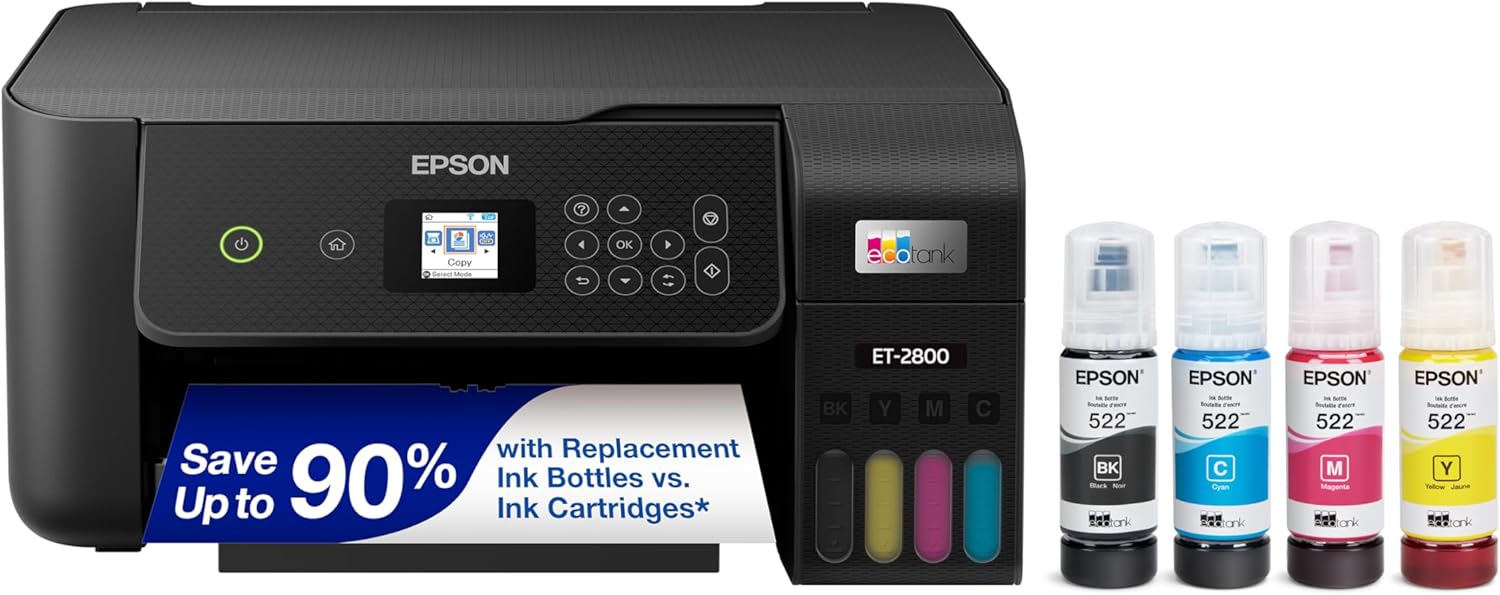
The EcoTank ET-2800 replaces cartridges with refillable high-capacity ink tanks, making it a low-maintenance all-in-one for home printing, scanning and copying. It connects via Wi-Fi or USB and supports mobile and voice-activated printing, so students can print assignments from phones, tablets or a PC without fuss. Print quality is strong for text and photos thanks to PrecisionCore Micro Piezo technology and up to 5760 x 1440 dpi color resolution, while a 10 ppm black/10 ppm color ISO speed keeps moderate homework loads moving. The front-facing refill tanks and bundled ink bottles mean far fewer interruptions for replacements and lower ongoing ink cost versus cartridges. Limitations include simplex-only printing for duplex chores and a modest paper capacity, so heavy double-sided or large-format jobs will be less efficient. The ET-2800 is best where reliability, low running cost, and straightforward wireless setup matter more than advanced office features.
Best for: Parents and homeschoolers who prioritize a reliable, low-maintenance printer that keeps ink replacement interruptions and running costs to a minimum while handling everyday school documents and photos.
Less Ideal for: Families who need built-in automatic duplexing, large paper capacity, or heavy daily office workloads should consider higher-capacity models with ADFs and duplex support.
- Cartridge-free EcoTank system with high-capacity refillable ink tanks reduces frequency of replacements
- Wireless and mobile printing plus voice-activated support for easy classroom and homeschool device use
- High print resolution and Micro Piezo PrecisionCore tech deliver sharp text and good photo quality
- Includes starter ink bottles that provide many printed pages out of the box
- No automatic duplex (two-sided) printing, so two-sided jobs require manual flipping
- Paper tray and overall sheet capacity are modest for sustained high-volume print runs
Verdict: Choose the ET-2800 if you want a dependable, low-running-cost home all-in-one that minimizes ink hassles for homeschooling and everyday printing.
Canon PIXMA TR4720

| Printer Type | Inkjet |
|---|---|
| Functions | Print, Copy, Scan, Fax |
| Resolution | 4800 x 1200 |
| Paper Capacity | 100-sheet front tray |
| Connectivity | USB, Wi-Fi |
The Canon PIXMA TR4720 is a small, straightforward 4-in-1 inkjet designed for home and light office use, and it suits homeschool families who need basic document and photo printing. Setup is simple via the Canon Print app or Wi-Fi, and the front 100-sheet tray plus automatic duplex and a multi-page auto document feeder make routine tasks like printing worksheets, scanning graded papers, and copying or faxing forms convenient. Print quality is good for text and casual photos thanks to Canon's hybrid ink system and a 4800 x 1200 dpi resolution spec, though color photo speeds are modest at roughly 4.4 ppm. The unit is energy efficient with low power draw and includes support for mobile printing and Alexa notifications for low ink. Limitations to note are modest color speed and a basic 2-line LCD interface that lacks advanced touchscreen controls, so anyone wanting fast photo production or heavy monthly volume should consider a higher-end model. For everyday homeschool printing, the TR4720 balances useful automation and easy mobile connectivity in a compact footprint.
Best for: Home and homeschool users who want an easy-to-set-up, space-saving multifunction printer for printing worksheets, scanning student work, and occasional photos without complex setup.
Less Ideal for: Families or users who need high-volume printing, professional photo output, or faster color throughput should look at higher-performance models.
- All-in-one functionality (print, copy, scan, fax) for common homeschool tasks
- Auto document feeder and automatic duplex printing streamline multi-page jobs
- Easy wireless and mobile printing via Canon Print app and Alexa support
- Compact footprint with a 100-sheet front tray fits small home workspaces
- Relatively slow color print speed compared with faster photo-oriented models
- Basic 2-line LCD and simple controls lack touchscreen convenience
Verdict: A compact, easy-to-use all-in-one that covers the everyday printing, scanning, and copying needs of homeschool families with helpful automation features.
Brother DCP-L2640DW

| Printer Type | Laser |
|---|---|
| B&W Pages per Minute | 36 pages_per_minute |
| Auto Document Feeder Capacity | 50 pages |
| Maximum Sheet Capacity | 250 |
| Printer Connectivity Type | Ethernet, USB, Wi-Fi |
The Brother DCP-L2640DW is a small-footprint monochrome laser multifunction built for reliable home or small office use. It prints up to 36 ppm, has a 250-sheet tray and a 50-page automatic document feeder for batch copy and scan jobs, and supports duplex printing to save paper. Connectivity options include dual-band Wi-Fi, Ethernet, and USB, and the Brother Mobile Connect app lets you print and scan from mobile devices. In practice the printer handles high-volume black-and-white homework packets, handouts, and scanned assignments quickly and with crisp 1200 x 1200 dpi output for text. Practical benefits include toner-saver modes and support for Brother Genuine TN830/TN830XL cartridges plus an optional Refresh subscription for automatic toner delivery. Trade-offs are that it is monochrome only, so color materials require a separate printer, and the machine is a bit heavy compared with consumer inkjets, so it is better placed on a stable shelf or desktop.
Best for: Families or homeschoolers who want a durable, no-nonsense monochrome printer for high-volume text printing, scanning, and copying with reliable connectivity and low ongoing maintenance risk.
Less Ideal for: People who need color printing for projects or very compact, lightweight devices for frequent moving between rooms should look elsewhere.
- Fast black-and-white printing up to 36 pages per minute for quick homework batches
- 50-page automatic document feeder speeds multi-page scans and copies
- Automatic duplex printing reduces paper use for double-sided assignments
- Multiple connectivity options including dual-band Wi-Fi, Ethernet, USB, and a mobile app
- Monochrome only so it cannot print color materials
- Relatively heavy and larger footprint than typical home inkjet printers
Verdict: A reliable, fast monochrome multifunction laser designed for high-volume homework and scanning tasks where dependable text printing and low maintenance matter most.
Choosing the Right Printer for Homeschool: Key Factors to Consider
Print Quality
Print quality determines how readable worksheets and educational handouts look and how vibrant activity pages and charts appear. For homeschool use, sharp black text is the highest priority because many materials are text-heavy, while decent color reproduction helps with diagrams, maps, and craft templates.
Resolution, ink formulation, and the printer's rendering of small fonts affect everyday legibility. Higher resolution and better color engines matter more if you plan to print visuals frequently, but for mostly text-based work a reliable monochrome output may be sufficient and more cost effective.
Operating Cost
Operating cost covers ink or toner price, page yield, and how often you will need to replace supplies. Homeschooling often involves printing dozens of pages weekly, so low cost per page reduces long-term expense.
Consider whether a printer supports high-yield cartridges or refillable tanks, and whether third-party supplies are commonly available. Also factor in how often maintenance cycles or printhead replacements are required, since those add to lifetime costs.
Connectivity and Mobile Printing
A homeschool environment usually has multiple devices: laptops, tablets, and phones. Flexible connectivity makes it easy for parents and older kids to print without transferring files via USB. Look for wireless networking, AirPrint or similar mobile printing, and a reliable Wi-Fi setup process.
Some printers offer direct wireless printing or a guest access mode for visiting devices. For households with spotty Wi-Fi, a wired Ethernet option or a robust USB workflow can be helpful to avoid interruptions during lesson prep.
Paper Handling and Duty Cycle
Paper handling affects how often you refill the tray and whether the machine can manage assorted media sizes. Duplex printing saves paper and is useful for printable booklets and multipage handouts. A larger input tray reduces daily refills when you produce many worksheets.
Also consider the types of media you will use. If you plan to make laminated teaching aids, greeting cards, or craft projects, check the printer's supported paper weights and manual feed options for heavier cardstock.
Speed and Responsiveness
Printing speed matters when you are preparing lessons on the fly or need to print multiple copies between activities. Look at typical pages-per-minute numbers for both black-and-white and color, but also consider first-page-out time, which affects perceived responsiveness.
Real-world speed varies with print mode and complexity of the document. For most homeschool needs, moderate speeds are acceptable, but if you frequently print large workbooks, a faster engine will save active prep time.
Ease of Use and Maintenance
A straightforward setup and simple maintenance reduce downtime and frustration for busy households. Clear front-facing controls, intuitive mobile apps, and easy-to-replace cartridges or tanks make the printer more pleasant to live with.
Also check how accessible the paper path and ink modules are for quick jams and replacements. Devices with self-cleaning cycles that run quietly or on a schedule are preferable so maintenance does not interrupt lessons.
Which Printer Type Suits a Homeschool
There are generally two practical printer types for homeschooling: inkjet machines and laser printers. Inkjets tend to excel at color printing and can handle a variety of paper types, while laser printers typically deliver faster black-and-white output and lower per-page costs for text-heavy printing.
If your curriculum relies heavily on color worksheets, craft templates, or printable visuals, an inkjet with refillable tanks or high-yield cartridges can be a strong match. For predominantly text-based materials and many daily copies, a monochrome laser often offers lower maintenance and faster throughput.
- Inkjets: better for color, more media flexibility, may have higher cost per page unless using refill tanks.
- Lasers: faster for text, usually lower cost per black page, simpler long-run upkeep for heavy daily use.
Setting Up a Homeschool Print Station
Place the printer where it is easily accessible to the primary user and has room for paper storage and a clear paper path. Keep common supplies nearby, including extra paper and a spare cartridge or toner if you print frequently.
Organize a simple workflow that mirrors your lesson preparation: a designated folder for printable resources, a routine for refilling the tray, and a schedule for checking ink or toner levels. If multiple family members print, create device permissions or labeled profiles to avoid accidental settings changes.
- Keep the printer on a stable surface with ventilation space.
- Store spare supplies in a dry, cool spot to preserve ink and toner life.
- Label commonly used paper sizes and store them in an easy-to-reach place.
Managing Print Costs Over Time
Track how many pages you print weekly for both black-and-white and color. Multiply those numbers by the cost per page to estimate monthly expenditure and decide whether high-yield cartridges or refillable tanks will save money over time.
Also consider one-off tasks that spike usage, such as printing complete workbooks or color posters. For those occasional heavy jobs, plan ahead by borrowing an alternate device or scheduling printing when supplies are full to avoid repeated cartridge swaps.
- Use draft mode for internal worksheets to reduce ink use.
- Print multi-up pages when possible to save paper.
- Turn on duplexing to reduce paper consumption.
Paper Choices and Media Handling
Choose a standard everyday paper for worksheets and a heavier cardstock for flashcards or reusable templates. Check the printer's supported paper weight and recommended feed methods to avoid jams when using thicker stock.
If you plan to laminate or mount prints, pick a paper with a slightly heavier weight and a matte finish for better adhesion. For photos or glossy charts, select photo-specific media and use color-optimized print settings to improve output quality.
- Standard 20 lb paper is fine for daily worksheets.
- Use 60–110 lb cardstock for flashcards and hands-on materials.
- Reserve glossy photo paper for special visuals only.
Maintenance Tips to Keep Printing Smooth
Run routine nozzle checks or alignment procedures during low-usage times to avoid interfering with lesson delivery. Keep a compact cleaning kit or lint-free cloth handy to clear paper dust from trays and rollers.
Address paper jams immediately by following the manufacturer guidance to avoid tearing internal components. Regularly inspect the feed path and replace worn rollers if you notice repeated misfeeds.
- Schedule a weekly supply check for ink or toner levels.
- Perform a gentle paper path clean after heavy printing sessions.
- Keep firmware and mobile app updates current for stability improvements.
How We Chose the Best Printer for Homeschool
We focused on attributes that matter to families running lessons from home. Selection prioritized print quality for text and graphics, operating cost per page including ink or toner yield, and connectivity options that make it easy to print from multiple devices and tablets in a teaching environment. We also screened for paper handling features such as duplex printing, sheet capacity, and the ability to handle heavier paper for craft projects. Reliability and ease of use were evaluated through manufacturer specifications and common user-reported experiences about uptime and maintenance. Safety and simple setup for nontechnical users were considered, including usable control panels and clear mobile app flows. Excluded from the shortlist were specialty photo printers, large-format office machines, and devices designed primarily for commercial high-volume printing; those fall outside typical homeschool needs. The final picks balance classroom-style versatility with lower run costs and straightforward operation so families get consistent results without complicated administration.
Our full evaluation process is outlined in our review methodology.
FAQ
Do I need a color printer for homeschool use?
It depends on your curriculum. Color printing is useful for craft pages and visual aids, but if most materials are text-based, a monochrome printer can be more cost effective and faster.
How can I keep ink costs down when printing lots of worksheets?
Use draft or economy print modes for daily worksheets, enable duplexing to save paper, and consider printers that accept high-yield cartridges or refillable ink tanks to lower the cost per page.
Is wireless printing reliable enough for multiple devices in a homeschool?
Wireless printing is usually reliable if your home network is stable. For consistent access, place the printer near the router or use a wired connection when possible to avoid interruptions during critical lesson prep.
What paper weight should I use for flashcards and hands-on materials?
Cardstock between roughly 60 and 110 lb works well for flashcards and reusable materials. Check the printer's supported weight range and use the manual feed if required to reduce jams.
How often should I replace ink or toner cartridges?
Replacement frequency depends on volume and cartridge yield. Monitor estimated levels and keep spares on hand if you have predictable high-volume weeks, such as unit project weeks or busy term starts.
Final Verdict
For homeschool printing, prioritize the features that match your daily workflow: reliable text quality, low operating cost if you print frequently, and straightforward connectivity so everyone in the household can send jobs without friction. Balance color capability against ongoing ink expenses and choose paper handling that supports the types of materials you create most often. Decide which tradeoffs matter to you and pick the printer type that aligns with them. If you want the lowest cost per black page and faster throughput for lots of worksheets, a monochrome solution may be best. If color visuals and media flexibility are important, choose a well-supported inkjet with cost-saving supply options.