
Note: This article contains affiliate links. If you click on these links and make a purchase, we may earn a small commission at no extra cost to you. This helps support our research and content. Read our full affiliate disclosure here.
Choosing the right printer for a laptop matters because portability and connectivity are central to how you work. A well-matched printer makes it simple to print documents, receipts, and images directly from a laptop without fuss. This guide highlights seven shortlisted printers that are appropriate for laptop users, emphasizing reliable wireless setup, print quality, and day-to-day usability. We evaluated options that make laptop printing straightforward for remote work, study, and home offices. Below you will find concise evaluations and the criteria we used to judge each unit, so you can pick the best device for your workflow and printing needs.
Top Picks at a Glance
| Best Overall The best all-around choice for most situations | HP DeskJet 2855e All-in-One Printer |  |
| Best Quality Built to a higher standard if you want something more solid | Epson Expression Premium XP-7100 |  |
| Best Value The sweet spot between price and what you get | Epson EcoTank ET-2400 |  |
| Best Budget The cheapest option that still gets the job done reliably | Canon PIXMA TS3720 | 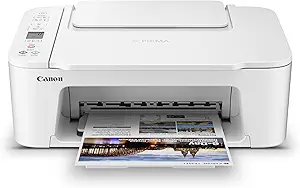 |
| Top Rated A top-rated pick with lots of positive feedback | Rongta F11 Portable Thermal Printer |  |
| Most Popular A crowd favorite that many people choose with confidence | Canon PIXMA TR4720 |  |
| Best Seller A high-volume bestseller chosen again and again | Brother DCP-L2640DW Laser MFP |  |
HP DeskJet 2855e All-in-One Printer

| Printer Type | Inkjet |
|---|---|
| Print Output Type | Color |
| Compatible Cartridge | HP 67 |
| Maximum print Resolution Color | 4800 x 1200 dpi |
| Printer Connectivity Type | single band wi-fi (2.4ghz only) |
The HP DeskJet 2855e is a compact home-focused all‑in‑one that handles everyday printing, scanning, and copying from laptops and mobile devices. It connects via single‑band 2.4 GHz Wi‑Fi or USB 2.0 and works with the HP app for phone-based scanning and printing; HP AI formatting helps remove clutter from web pages and emails before printing. The 60‑sheet input tray and flatbed scanner make it suitable for occasional document and photo tasks, while print speeds are modest at about 7.5 ppm black and 5.5 ppm color. It ships with starter HP 67 setup cartridges and includes a 3‑month Instant Ink trial when you enable HP+. Manual duplexing is available but automatic two‑sided printing is not, and advanced photo or heavy office throughput users will notice the limited paper capacity and lower color speed. For general laptop owners needing a space‑efficient, app-friendly printer for documents and light color jobs, the 2855e delivers simple setup and reliable basic performance.
Best for: Laptop users who want a compact, app-friendly multifunction printer for everyday documents, occasional color pages, and easy mobile printing.
Less Ideal for: Users who need fast, high-volume printing, advanced photo quality, or automatic two‑sided printing should consider more capable office models.
- Compact all‑in‑one design with print, scan, and copy functions
- Wi‑Fi and HP app support for easy printing from laptops and smartphones
- Includes 3 months of Instant Ink with HP+ activation for upfront ink supply
- 60‑sheet input tray fits typical home printing needs
- HP AI formatting to remove unwanted web content before printing
- Only single‑band 2.4 GHz Wi‑Fi and no automatic duplexing
- Modest print speeds and limited paper capacity for heavy use
Verdict: A compact, laptop-friendly all‑in‑one that prioritizes simple setup, mobile printing, and basic home use with an included Instant Ink trial.
Epson Expression Premium XP-7100

| Printer Type | Inkjet |
|---|---|
| Print Resolution | 4800 dpi |
| Maximum Copy Speed Black and White | 15.8 pages_per_minute |
| Print media | Paper (plain) |
| Printer Connectivity Type | Wireless |
The Epson XP-7100 is a compact all-in-one aimed at home users who want photo-quality color plus everyday document productivity. It uses a five-cartridge Claria Premium ink set and can print borderless photos up to 8 x 10 inches, while a 30-sheet auto document feeder and automatic duplexing speed routine office tasks like multi-page scanning and two-sided printing. The 4.3-inch touchscreen, SD card slot and USB access make printing from memory cards or flash drives straightforward, and wireless plus Ethernet and Wi-Fi Direct give flexible laptop connectivity. Photo resolution is strong at up to 4800 dpi, though color photo throughput is slower than plain-document speed and some users will find color prints costlier because the printer requires Epson Genuine cartridges. The XP-7100 works well for a mixed workload of documents and occasional high-quality photos, but it prioritizes image quality and convenience over raw page-per-minute color throughput.
Best for: Buyers who prioritize print quality for photos and need a compact all-in-one that also handles multi-page scanning and duplex document work from a laptop-friendly wireless setup.
Less Ideal for: Users who print large volumes of color documents quickly or need the lowest per-page ink cost should consider a high-speed office laser or a printer with high-capacity ink tanks instead.
- High maximum print resolution (4800 dpi) for sharp photos and detailed graphics.
- 30-sheet auto document feeder and automatic duplexing speed multi-page scanning and two-sided printing.
- Wireless connectivity plus Ethernet and Wi-Fi Direct for easy laptop printing.
- 4.3-inch touchscreen and built-in card/USB slots let you print photos without a computer.
- Color photo printing is relatively slow compared with plain document speeds.
- Requires Epson Genuine ink cartridges, which can raise operating cost for heavy photo use.
Verdict: Choose the XP-7100 when you want laptop-friendly wireless printing with strong photo quality plus basic office features in a compact all-in-one.
Epson EcoTank ET-2400

| Printer Type | Inkjet |
|---|---|
| Printer Connectivity Type | USB, Wi-Fi |
| Maximum Sheet Capacity | 100 |
| B&W Pages per Minute | 10 pages_per_minute |
| Color Pages per Minute | 5 pages_per_minute |
The Epson EcoTank ET-2400 is a cartridge-free wireless all-in-one that combines printing, scanning and copying with large refillable ink tanks intended to cut refill frequency and running costs. It connects over Wi-Fi or USB and works with laptops, tablets and smartphones via Epson's app for straightforward mobile printing, while the rear-feed tray holds up to 100 sheets for longer unattended runs. Print quality is strong thanks to PrecisionCore Micro Piezo technology and a high maximum resolution, so text and photos look sharp for typical home and student tasks. Speed is modest — about 10 ppm mono and 5 ppm color — and duplexing is manual, so it is not optimized for heavy office throughput or fast two-sided workflows. The included starter ink bottles supply a lot of pages out of the box, which reduces trips for replacements and lowers waste compared with cartridge printers. For everyday laptop users who value low ongoing ink cost and reliable wireless printing, the ET-2400 is a practical, economical choice, but power users who need fast automatic duplexing or ADF scanning should consider a higher-tier model.
Best for: Laptop users who prioritize low ongoing ink cost and reliable wireless printing for home, student, or light remote-work tasks and who prefer fewer interruptions to refill ink.
Less Ideal for: Businesses or users who need fast two-sided printing, high-volume daily throughput, or advanced office features like an automatic document feeder.
- Cartridge-free EcoTank system with high-capacity refillable ink bottles reduces frequency of replacements
- Wireless and USB connectivity with app control for easy printing from laptops and mobile devices
- Includes starter ink bottles that provide thousands of pages before needing replacement
- High maximum print resolution delivers sharp text and good photo/graphics quality
- No automatic duplexing; two-sided printing must be done manually
- Print speeds are moderate, especially for color documents
Verdict: Choose the ET-2400 if you want a budget-friendly, cartridge-free printer that minimizes refill frequency and printing cost for everyday laptop use.
Canon PIXMA TS3720

| Printer Type | Inkjet |
|---|---|
| Maximum print Resolution Color | 4800 x 1200 dots_per_inch |
| Printer Connectivity Type | USB, Wi-Fi |
| Maximum Sheet Capacity | 60 |
| Compatible Cartridge | Canon CL-276, Canon PG-275 |
The Canon PIXMA TS3720 is an entry-level all-in-one inkjet that handles printing, copying, and flatbed scanning in a small footprint for home use. It uses a two-cartridge hybrid ink system with a pigment black for sharp text and dye-based color inks for photos, and supports borderless photo printing up to 5 x 7 and documents up to 8.5 x 14. Setup is straightforward via the Canon PRINT app, AirPrint, or USB, and the rear tray holds up to 60 sheets for occasional desktop use. Print speeds are modest at about 7.7 ppm for black and 4 ppm for color, so it suits light daily tasks rather than heavy office workloads. The 1.5-inch LCD and single-button controls keep operation simple, but printing is single-sided only and there is no automatic duplex. For buyers prioritizing a low-cost, compact wireless printer for schoolwork, photos, and basic document printing, the TS3720 provides reliable results with minimal fuss, while users with high-volume or automatic two-sided needs should consider a different model.
Best for: Buyers looking for an affordable, compact wireless printer to handle light home printing, schoolwork, and occasional photos from laptops and mobile devices.
Less Ideal for: Power users who print large volumes, need fast color throughput, or require automatic two-sided printing should look at more capable office-focused models.
- Compact all-in-one design saves desk space while offering print, copy, and scan
- Easy wireless printing from phones and laptops via Canon PRINT, AirPrint, and Wi‑Fi
- Hybrid ink system produces sharp black text and vivid color photos
- Simple setup and a 60-sheet rear tray make it convenient for light home use
- Single-sided printing only with no automatic duplex capability
- Relatively slow color print speed compared with higher-tier models
Verdict: A budget-friendly, compact all-in-one that gives reliable wireless printing and good photo quality for light laptop-driven home use.
Rongta F11 Portable Thermal Printer

| Printer Type | Thermal |
|---|---|
| Maximum Media Size | 8.5 x 11 inch |
| Printer Connectivity Type | Bluetooth, USB |
| Maximum Print Resolution Black and White | 203 dots_per_inch |
| B&W Pages per Minute | 15 pages_per_minute |
The Rongta F11 is a lightweight thermal printer built for on-the-go printing from phones, tablets, and laptops via USB or Bluetooth. It uses inkless thermal paper and supports media up to 8.5 x 11 inches, making it suitable for printing receipts, forms, labels, or single-page documents without cartridges. Setup is straightforward: mobile users can print through the RONGTA app over Bluetooth while PC and laptop printing use a USB driver, and the printer produces monochrome output at 203 dpi and roughly 15 pages per minute. The compact, low-weight design makes it easy to carry for travel or field work, and the inkless thermal technology reduces ongoing consumable complexity. Limitations include reliance on thermal paper (no ink-based color or long archival prints) and the need to install drivers for USB printing on computers, which may complicate occasional laptop use without prior setup. For those prioritizing simple, reliable black-and-white printing from mobile devices or a dedicated travel laptop, the F11 is a practical choice.
Best for: Buyers who need a dependable, low-maintenance printer for mobile or travel use and want straightforward black-and-white printing from phones and tablets with occasional laptop USB printing.
Less Ideal for: Users who require color prints, long-term archival documents, or instant plug-and-play Bluetooth printing from a laptop without installing drivers should look elsewhere.
- Inkless thermal printing eliminates cartridges and reduces maintenance
- Supports Bluetooth for direct mobile printing via the RONGTA app
- Compact and lightweight for easy travel and field use
- Accepts up to 8.5 x 11 inch thermal media for full-page prints
- Prints only monochrome thermal output with no color capability
- Requires thermal paper which can fade over long-term archival storage
- PC/laptop Bluetooth printing is not supported without using USB and drivers
Verdict: A small, low-maintenance thermal printer that reliably delivers inkless black-and-white prints from mobile devices and laptops via USB for travel-focused laptop users.
Canon PIXMA TR4720

| Printer Type | Inkjet |
|---|---|
| Maximum print Resolution Color | 4800 x 1200 dots_per_inch |
| B&W Pages per Minute | 8.8 |
| Printer Connectivity Type | USB, Wi-Fi |
| Maximum Sheet Capacity | 100 |
The Canon PIXMA TR4720 is a small, budget-focused all-in-one inkjet designed for home or light office use. It handles basic document and photo printing, copying, scanning and faxing, and includes a 100-sheet front tray and an automatic document feeder for multi-page jobs. Wireless and USB connectivity plus Canon's mobile app make printing from a laptop or smartphone straightforward, and automatic duplex (two-sided) printing helps save paper. Print quality is good for sharp black text and decent color photos thanks to Canon's hybrid ink system, though color photo speeds and page-per-minute rates are modest. The 2-line LCD and simple buttons keep operation easy, but advanced users will miss faster ISO print speeds and larger paper handling. Replacement uses PG-275/CL-276 cartridges, so ongoing ink cost and yield are factors to watch. For users who want straightforward wireless printing from a laptop with occasional photo printing and a built-in ADF, the TR4720 covers the essentials in a compact footprint.
Best for: Buyers who prioritize a compact, easy-to-use all-in-one for everyday laptop printing, occasional photos, and simple multi-page scanning or faxing backed by many user reviews for reliability.
Less Ideal for: Users who need high-volume, high-speed printing or lowest possible running costs should consider a higher-capacity office printer or a laser alternative.
- All-in-one functions: print, copy, scan and fax in one compact unit.
- Automatic document feeder and auto duplex save time on multi-page jobs and reduce paper use.
- Wi-Fi and USB connectivity plus Canon Print app support easy laptop and mobile printing.
- 100-sheet front paper tray suits light home or small office workloads.
- Borderless photo printing up to 8.5 x 11 inches for casual photo output.
- Modest print speeds, especially for color pages and photos.
- Uses specific Canon cartridge models that can be more costly over time.
Verdict: A compact, user-friendly all-in-one that makes wireless laptop printing and basic photo work simple and reliable.
Brother DCP-L2640DW Laser MFP

| Printer Type | Laser |
|---|---|
| Print Speed | 36 pages_per_minute |
| Paper Capacity | 250 sheets |
| Auto Document Feeder | 50 pages |
| Connectivity | Ethernet, USB, Wi-Fi |
The Brother DCP-L2640DW is a small-footprint monochrome laser multi-function printer designed for reliable everyday office use. It prints at up to 36 ppm and supports automatic duplexing, a 250-sheet tray, and a 50-page auto document feeder to keep batch print, scan, and copy jobs moving without constant refills. Connectivity covers dual-band Wi-Fi, Ethernet, and USB so laptops and mobile devices can print or scan from wherever they sit, and the Brother Mobile Connect app adds on-device management and remote printing. Print quality is sharp for black-and-white documents thanks to a 1200 x 1200 dpi maximum and Brother-recommended TN830/TN830XL toners are available in standard and high-yield sizes. Practical benefits include a compact footprint for tight desks, toner-save and energy-efficient settings, and routine workflow features like an LCD for basic control. Limitations are that it only prints in black and white and it lacks a color output option or an advanced touchscreen interface, so it is less suited to color graphics and photo tasks.
Best for: Buyers who want a dependable, low-maintenance laser MFP for laptop-driven offices or home workspaces where fast black-and-white printing and reliable network connectivity matter most.
Less Ideal for: Users who need color printing or photo-quality output or those who require an advanced touchscreen and color scanning features.
- Fast monochrome printing up to 36 pages per minute for high-volume documents
- Automatic duplex and 250-sheet tray reduce paper handling and refills
- 50-page auto document feeder speeds multi-page scanning and copying
- Dual-band Wi-Fi, Ethernet, and USB give flexible laptop and mobile connectivity
- Supports Brother Mobile Connect app for remote printing and supply management
- Monochrome only so no color printing or color scanning output
- Initial in-box toner yield is limited compared with high-yield replacement cartridges
Verdict: A dependable, fast black-and-white laser MFP that gives risk-averse laptop users reliable networked printing, scanning, and copying in a compact footprint.
Choosing the Right Printer for Laptops: Key Factors to Consider
Wireless Connectivity
A laptop-focused printer must offer dependable wireless connectivity. Look for robust Wi-Fi performance and simple Bluetooth or direct-print options to avoid constant cable juggling. Strong wireless also reduces connection dropouts during large documents or photo transfers.
Ease of setup matters because many laptop users are not connecting via a desktop or network administrator. Clear support for laptop operating systems and mobile printing standards makes daily use smoother and reduces time spent troubleshooting connections.
Print Quality for Typical Laptop Tasks
Assess print resolution and color fidelity based on how you will use the printer. If you mostly print documents, prioritize crisp black text and clear small fonts. If you also print photos or color materials, look for higher DPI and accurate color handling.
Photo printing on small-format paper requires a different approach than text output. Consider whether you need glossy-optimized printing or profile support, and balance quality against speed and consumable costs depending on your primary use.
Speed and Duty Cycle
Print speed affects productivity when you need quick physical copies from your laptop. Measured in pages per minute for text and separate rates for color, speed matters more if you print multi-page reports or frequent batches.
Duty cycle indicates the recommended monthly volume the printer can handle without accelerated wear. Match the duty cycle to your expected monthly output to avoid excessive maintenance or premature replacement.
Driver Support and Compatibility
Driver availability and ease of software installation directly affect how smoothly a printer works with a laptop. Native drivers built into the operating system reduce setup time, while regularly updated drivers help with new OS releases.
Check for support of common laptop printing protocols such as AirPrint, Mopria, and manufacturer mobile apps. These options let you print from laptops, tablets, and phones without manual driver installs, which is especially useful for mixed-device households.
Running Costs and Consumable Options
Consumable costs quickly dominate a printer's lifetime expense. Compare cartridge yields, toner efficiency, and the availability of high-yield or third-party options. Also consider whether the printer supports refillable tanks or subscription-style supply plans.
Lower upfront cost can be offset by higher per-page expenses, so estimate annual page volume and calculate expected cost per page to make a sound purchase decision.
Size, Portability, and Desk Footprint
Laptop users often value compact devices that fit on small desks or that can be moved when needed. Consider the printer's physical dimensions and weight, especially if you plan to relocate it between rooms or store it when not in use.
A smaller footprint may mean fewer paper trays or slower speeds, so balance physical convenience against the features you cannot compromise on.
Setting Up Wireless Printing From a Laptop
Most modern printers provide multiple wireless setup methods. The easiest are operating-system native protocols that let a laptop discover and configure the printer automatically. Alternatively, a company's setup app can guide you through Wi-Fi credentials and cloud-print linking.
When connecting for the first time, place the printer near your router and laptop to minimize interference. If the printer supports both 2.4 GHz and 5 GHz bands, try the band that gives stable throughput for your environment. Avoid using public guest networks for initial setup to reduce the chance of connection failures.
- Use AirPrint or Mopria when available for driverless printing.
- Temporarily connect via USB for initial driver installation if wireless fails.
- Keep firmware updated to maintain network stability.
Balancing Photo Quality and Document Needs
If you print occasional photos from a laptop, choose a printer with dedicated photo modes and color management features. These modes often sacrifice speed for improved color gradation and detail.
For primarily text-based work, prioritize printers that render small fonts sharply and handle mixed documents with consistent margin accuracy. Duplex printing can preserve paper and improve workflow for multi-page documents.
- Select photo paper appropriate to the printer for best results.
- Use the correct print mode in the driver to match your task.
Managing Consumables and Ongoing Costs
Estimate your monthly page volume and then compare cartridge yields or toner life to determine expected running cost per page. High-yield cartridges and refillable ink tank systems usually offer lower long-term costs, but they may increase the initial outlay or footprint.
Keep spare consumables on hand if printing important documents frequently. Also check how easy it is to replace cartridges and whether front or top access fits your available desk space.
- Look for high-yield or bulk ink options to reduce per-page costs.
- Factor in the availability of cartridges locally or through common supply channels.
Security and Privacy for Laptop Printing
When printing sensitive documents from a laptop, prioritize printers that offer secure network protocols and optional PIN-locked release. Networked printers should support WPA2 or better and receive firmware patches to reduce vulnerability exposure.
Avoid leaving uncollected documents in output trays in shared spaces. If you need to print confidential material often, consider models with user authentication or secure print release features.
- Enable automatic firmware updates where possible.
- Use encrypted Wi-Fi and avoid open networks for regular printing.
Ergonomics and Daily Use Tips
Place the printer where you can easily reach paper trays and controls without bending or obstructing airflow. Keep a small area cleared for printed output and spare paper so you do not interrupt ongoing jobs.
Regularly run simple maintenance tasks such as nozzle checks and alignment from your laptop to maintain print quality. Store paper in a dry place and use the appropriate tray settings for different paper types to avoid jams.
- Run periodic nozzle cleans if you print rarely to prevent clogs.
- Match paper type settings to avoid feeding issues.
How We Chose the Best Printer for Laptops
We focused on features and real-world behavior that matter when pairing a printer with a laptop. Key evaluation dimensions included wireless connectivity and setup, because most laptop users rely on Wi-Fi or Bluetooth rather than wired connections. Print quality for text and photos was measured by resolution and expected output fidelity. Speed and duty suitability were used to gauge how well each printer handles typical laptop workloads, from occasional documents to steady home-office use. Usability factors covered driver support, mobile-device printing protocols, and the clarity of setup instructions. Running costs and consumable options were assessed through cartridge or toner yield and common replacement paths. We excluded specialty wide-format and high-volume production printers that exceed typical laptop user needs. We also filtered out models lacking consistent wireless support or modern driver compatibility. The final list prioritizes balanced machines that pair easily with laptops while offering reliable performance across the criteria above.
Our full evaluation process is outlined in our review methodology.
FAQ
Can any printer connect to my laptop wirelessly?
Many modern printers support wireless connections, but compatibility depends on the printer's wireless standards and your laptop's network. Check for support of common protocols like AirPrint or Mopria and ensure your Wi-Fi network is accessible to both devices.
How do I reduce the cost per page for laptop printing?
Lower per-page costs come from using high-yield cartridges, refillable ink systems, or efficient monochrome printing for text-heavy workloads. Estimate your monthly volume to choose consumable options that minimize long-term expense.
Is photo printing from a laptop different than document printing?
Yes, photo printing typically requires higher DPI, color management, and sometimes specialty paper. Use the printer's photo mode and appropriate paper for the best results, accepting slower speeds for improved quality.
What should I do if my laptop cannot find the printer on the network?
Restart the printer, laptop, and router, then ensure both devices are on the same Wi-Fi band and network. Temporarily connect with USB to install drivers if automatic discovery fails, and confirm firmware is up to date.
Do I need special drivers to print from a Chromebook or tablet?
Many Chromebooks and tablets rely on built-in printing standards like cloud printing or Mopria. If a printer supports these protocols, you may not need additional drivers. Check compatibility with your specific device's printing options.
Final Verdict
For laptop users, prioritize printers that make wireless setup painless and deliver the print quality you need for documents or photos. Balance speed and duty cycle against your expected monthly volume, and consider long-term consumable costs when selecting a model. Focus on strong driver support, reliable connectivity, and manageable running costs. With those priorities in mind, you can confidently choose a printer that fits your laptop-based workflow and daily printing habits.