
Note: This article contains affiliate links. If you click on these links and make a purchase, we may earn a small commission at no extra cost to you. This helps support our research and content. Read our full affiliate disclosure here.
If you make prints for clients, galleries, or personal portfolios, picking the right printer for photographers changes the final presentation of your work. The right device affects color accuracy, fine-detail resolution, paper compatibility, and how long prints remain stable under display conditions. This guide shortlists seven top-performing printers for photographers and explains the practical tradeoffs involved in resolution, color management, and media handling. Use the evaluation notes to match a printer to your workflow, whether you need consistent proofing, large-format fine art prints, or compact lab-style output.
Top Picks at a Glance
| Best Overall The best all-around choice for most situations | Canon PIXMA PRO-200S |  |
| Best Quality Built to a higher standard if you want something more solid | Epson SureColor P700 |  |
| Best Value The sweet spot between price and what you get | Liene 4×6 Photo Printer DHP513 |  |
| Best Budget The cheapest option that still gets the job done reliably | HP Envy Photo 7975 |  |
| Top Rated A top-rated pick with lots of positive feedback | Canon imagePROGRAF PRO-2100 |  |
| Most Popular A crowd favorite that many people choose with confidence | KODAK Dock Plus PD460 |  |
| Best Seller A high-volume bestseller chosen again and again | Epson EcoTank ET-2800 | 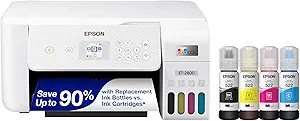 |
Canon PIXMA PRO-200S

| Maximum print Resolution Color | 4800 x 2400dpi |
|---|---|
| Printer Connectivity Type | Wi-Fi |
| Hardware Interface | Ethernet, USB |
| Maximum Media Size | A4 |
| Maximum Sheet Capacity | 100 |
The Canon PIXMA PRO-200S is a dedicated photo inkjet built for photographers who need vivid, large-format color output. It uses an 8-color dye-based ink set and supports borderless prints from small sizes up to 13" x 19", making it suitable for proof prints, gallery prints, and portfolio pieces. The printer offers Wi‑Fi connectivity plus Ethernet and USB for flexible workflows, and a 3.0" color LCD for quick status checks and settings. Print quality is the main strength: the high 4800 x 2400 maximum resolution and extra color inks help deliver smooth gradients and vibrant tones on a variety of media. It also handles heavier stock and specialty sizes with intuitive paper feeding and a 100-sheet capacity for longer runs. Expect modest speeds around 2 pages per minute for detailed color work, and simplex-only output, so automatic duplex photo printing is not available. The unit is relatively large and heavier than typical home printers, which is a consideration for small studios. For photographers prioritizing color accuracy and large borderless prints, the PRO-200S is a focused, reliable workhorse.
Best for: Photographers and visual artists who need large, gallery-quality color prints and prioritize accurate, vibrant results over top print speed.
Less Ideal for: Users who need fast draft printing, automatic duplex for two-sided documents, or a compact, lightweight printer for tight spaces.
- 8-color dye-based ink system for richer, more accurate color and smoother gradients
- Borderless printing up to 13" x 19" for large photos and portfolio prints
- Multiple connectivity options including Wi‑Fi, Ethernet, and USB for flexible workflows
- 3.0" color LCD for on-device status, settings, and quick checks
- Print speed is modest for high-resolution color prints at about 2 pages per minute
- No automatic duplex printing; only simplex output
Verdict: Choose the PIXMA PRO-200S when you want reliable, large borderless photo prints with rich color fidelity for professional-looking results.
Epson SureColor P700

| Maximum print Resolution Color | 5760 x 1440 |
|---|---|
| Printer Connectivity Type | Wi-Fi |
| Hardware Interface | Ethernet |
| Duplex | Automatic |
| Ink Color | Violet, Photo Black, Matte Black, plus other colors |
The Epson SureColor P700 is a compact desktop photo printer aimed at photographers who need exhibition-quality prints from a smaller footprint. It uses UltraChrome PRO10 pigment inks with a dedicated Violet channel and separate Photo Black and Matte Black nozzles to deliver a wide color gamut and deep blacks without ink switching, and the 10-channel MicroPiezo AMC printhead maintains consistent, high-resolution output up to 5760 x 1440. Practical features for studio use include wireless and Ethernet connectivity, a 4.3-inch customizable touchscreen, interior LED lighting, automatic duplexing, and support for roll and thick fine-art sheets up to 1.5 mm. The printer is designed to work with Epson cartridges only, and its focus is on color-managed workflows, including iOS printing for color-managed files. Trade-offs for performance buyers are modest size and slower page-per-minute throughput, since this model prioritizes print quality and archival permanence over speed or high-volume office use.
Best for: Photographers and fine-art printmakers who prioritize maximum print quality, wide color gamut, and archival permanence in a compact desktop printer for studio or small-gallery use.
Less Ideal for: Users who need high-volume, fast production printing or who prefer flexibility to use third-party inks should consider other models aimed at throughput or cost-per-print.
- UltraChrome PRO10 pigment inks with Violet channel for a wide color gamut and richer color reproduction
- Dedicated Photo Black and Matte Black nozzles eliminate ink switching and improve workflow consistency
- High maximum resolution (5760 x 1440) and 10-channel MicroPiezo AMC printhead for fine detail
- Supports roll media and thick fine-art sheets up to 1.5 mm for professional media handling
- Built-in wireless and Ethernet plus a customizable 4.3-inch touchscreen for easy studio integration
- Designed to use only genuine Epson cartridges which limits third-party ink options
- Print speed is low, reflecting a focus on quality over throughput
Verdict: Buy the P700 if you want a compact, studio-grade photo printer that prioritizes color fidelity, deep blacks, and archival-quality output for professional photographic work.
Liene 4×6 Photo Printer DHP513

| Printer Type | Dye Sublimation |
|---|---|
| Maximum Media Size | 4 x 6 inch |
| Print Resolution | 300 x 300 dpi |
| Printer Connectivity Type | USB, Wi-Fi |
| Maximum Sheet Capacity | 20 |
The Liene DHP513 is a small desktop dye-sublimation printer that turns phone and laptop photos into durable 4×6 prints using a thermal dye process and laminated finish. It connects via built-in Wi‑Fi hotspot or USB‑C and prints directly from the Liene app or a device photo album, making it useful for casual photographers who want quick physical prints without a computer setup. The unit ships with cartridges and photo paper and holds about 20 sheets in the cassette, so you can run short batches at home or at events; full kits with larger paper bundles are available if you print often. Print quality is driven by the 300×300 dpi dye‑sublimation engine, producing vibrant, water and scratch resistant photos, though each print takes about a minute so throughput is modest. The printer relies on proprietary cartridges and paper, which keeps color consistency high but adds ongoing consumable costs and some dependency on the brand. For someone who values straightforward, app-driven 4×6 output and portability within a home or studio, this is a practical, space-saving choice.
Best for: Photographers who want a compact, app-driven way to produce high-quality 4×6 prints at home or in a small studio without complex setup and who prioritize print durability and color consistency.
Less Ideal for: Photographers who need fast, high-volume output or who prefer printers that accept third‑party papers and cartridges should consider alternative studio printers with higher throughput and standard consumables support.
- Dye‑sublimation prints with laminated finish for water and scratch resistance
- Built‑in Wi‑Fi hotspot plus USB‑C for easy phone and laptop connections
- Compact, minimalist design suitable for small studios or home desks
- Includes starter cartridges and photo paper so you can print out of the box
- Print speed is slow at about one minute per 4×6 print, which limits high-volume use
- Uses proprietary cartridges and paper, increasing ongoing supply costs
Verdict: A space‑saving dye‑sublimation 4×6 printer that delivers durable, app-controlled photo prints for photographers who want simple, high-quality home or small-studio output.
HP Envy Photo 7975

| Printer Type | HP Thermal Inkjet |
|---|---|
| Scanner Type | ADF; Flatbed |
| Resolution | 4800 x 1200 dpi (Color), 1200 x 1200 dpi (B/W) |
| Printer Connectivity Type | USB, Wi-Fi |
| Duplex | Automatic |
The HP Envy Photo 7975 is a multifunction inkjet aimed at home users who want better-than-average photo output alongside everyday document printing. It prints, copies, scans and offers an automatic duplex plus a 35-sheet ADF for batch scanning or copying; a dedicated photo tray and borderless printing make it straightforward to produce 4×6 and other photo sizes. The 2.7-inch color touchscreen and Wi‑Fi support make setup and mobile printing easy, and HPs AI formatting can clean up web pages and remove unwanted elements before printing. Photo resolution tops out at an optimized 4800 x 1200 dpi for color and the printer uses HP 64/64XL cartridges. Practical limits include modest sheet capacity and average speed compared with prosumer photo printers, and running costs depend on HP cartridge pricing and usage. For hobbyist photographers who want reliable borderless photos and convenient home scanning, the Envy Photo 7975 is a capable, user-friendly option.
Best for: Photographers who want an affordable home all-in-one that can produce borderless, true-to-screen photos and also handle everyday document tasks with easy mobile printing.
Less Ideal for: Professional studios or photographers who need high-volume throughput, the lowest per-print cost, or large-format color control for critical proofing.
- Dedicated photo tray and borderless printing for true-to-edge photos
- High optimized color resolution up to 4800 x 1200 dpi for detailed photo output
- Automatic duplex and 35-sheet ADF speed routine document jobs and scans
- Touchscreen and Wi‑Fi make mobile setup and printing straightforward
- AI formatting simplifies printing web content and removes unwanted elements
- Ink uses proprietary HP 64/64XL cartridges which affect long-term running costs
- Sheet capacity and print speed are modest compared with dedicated prosumer photo printers
Verdict: A user-friendly home photo all‑in‑one that delivers borderless, high-resolution prints with convenient mobile and AI features at a budget-friendly entry point for hobbyist photographers.
Canon imagePROGRAF PRO-2100

| Printer Type | Inkjet |
|---|---|
| Maximum Media Size | 24 x 59 inches |
| Maximum Sheet Capacity | 100 |
| Maximum print Resolution Color | 2400 x 1200 dpi |
| Power Consumption | 93 watts |
The Canon imagePROGRAF PRO-2100 is a dedicated 24-inch wide-format inkjet built for photographers and fine art printers who need consistent, gallery-quality output. It uses a 12-channel PF-10 print head and the LUCIA PRO ink set plus Chroma Optimizer to deliver high color accuracy, deep blacks, and smooth tonal gradients, and the L-COA PRO processor balances print speed with image detail. Media handling is thoughtful for studio workflows with a roll system, rotary cutter, and support for long media up to 24 x 59 inches, while a 100-sheet capacity helps print short runs without constant reloading. Connectivity is primarily USB with app control and an LCD panel for on-device operation, and the unit is designed to work with Canon PFI ink tanks and factory maintenance cartridges for reliability. Practical drawbacks are its size and requirement for genuine Canon inks and service items, which raise operating costs and mean it needs a dedicated studio space and occasional maintenance attention. For photographers who prioritize archival color accuracy and professional handling, it is a capable, production-ready printer.
Best for: Photographers and fine-art printmakers who need dependable, gallery-quality large-format prints and prefer a studio-grade, factory-supported device for consistent color and media handling.
Less Ideal for: Casual users or small home-office buyers who need a compact, low-cost printer or who want to use third-party inks and minimal maintenance.
- High-quality color and gradation using a 12-channel PF-10 print head and LUCIA PRO inks with Chroma Optimizer
- Supports wide media up to 24 x 59 inches and includes roll handling and rotary cutter for large-format prints
- 100-sheet maximum sheet capacity and a robust mechanical platform suited for short production runs
- Designed for reliable studio use with factory maintenance cartridge and integrated media handling features
- Requires genuine Canon inks and maintenance parts, increasing ongoing operating costs
- Large footprint and studio-only size make it impractical for small home offices
Verdict: Choose the PRO-2100 when you need a studio-grade 24-inch printer that consistently delivers gallery-quality photographic prints with factory-supported reliability.
KODAK Dock Plus PD460

| Printer Type | 4PASS Dye Sublimation |
|---|---|
| Maximum Media Size | 4 x 6 inches |
| Print Resolution | 300 dpi |
| Printer Connectivity Type | Bluetooth, Docking |
| Hardware Interface | USB Type C |
The KODAK Dock Plus PD460 is a compact desktop photo printer built to produce 4×6 prints from smartphones using 4PASS dye-sublimation with a protective lamination layer. You dock or pair your iPhone or Android device via Bluetooth and use the Kodak Photo Printer app to edit and send images; the integrated dock holds and charges your phone while printing. Prints take about a minute and are finished with a laminated coating intended to resist water, fingerprints, and fading, which makes them suitable for albums, frames, and gifting. Paper and color cartridges are combined into an all-in-one system for simple refills and straightforward setup, and the unit connects over USB-C for power and has a modest paper tray capacity. The trade-offs are typical for a dedicated 4×6 dye-sub system: it is optimized for quick snapshot prints rather than high-volume document tasks, and print speed and capacity are limited compared with larger photo labs or sheet-fed printers. For photographers wanting easy, durable 4×6 prints at home the Dock Plus delivers reliable, fuss-free output with app editing and dock convenience.
Best for: Photographers and hobbyists who value instant, durable 4×6 prints straight from a phone and want a simple, app-driven desktop solution for albums, gifts, and client proofs.
Less Ideal for: Those who need large-format prints, high daily throughput, or multifunction office features should look at larger lab-style or sheet-fed photo printers instead.
- 4PASS dye-sublimation with laminated finish for water, fingerprint, and fade resistance
- Smartphone docking that charges the device during printing for stable, hands-free use
- Bluetooth and app control with basic editing before print
- All-in-one cartridge and paper system simplifies refills and setup
- Limited to 4×6 borderless prints and modest sheet capacity, so not suited for varied print sizes or high-volume runs
- Print speed and throughput are modest compared with larger photo printers
Verdict: If you want quick, durable borderless 4×6 prints from a smartphone with the convenience of a charging dock and simple app controls, the Dock Plus is a compact, practical choice.
Epson EcoTank ET-2800

| Printer Type | Inkjet |
|---|---|
| Print Resolution | 5760 x 1440 dpi |
| Print Speed (B&W) | 10 pages_per_minute |
| Connectivity | wired, wireless |
| Maximum Media Size | 8.5 x 14 inch |
The Epson EcoTank ET-2800 is a compact all‑in‑one inkjet that replaces cartridges with high‑capacity refillable tanks and ships with starter bottles to reduce refill frequency. It prints color documents and photos, scans on a flatbed, and copies with a basic color LCD and push‑button controls. Print quality benefits from Epson's Micro Piezo heat‑free print technology and high maximum resolution, so text and color graphics look sharp on plain paper and gloss photo stocks; photo output is usable for small borderless prints. Connectivity includes wired USB and wireless plus mobile and voice print options for easy phone or laptop use. The big upside is operating cost: the included ink volume and EcoFit bottles yield thousands of pages before a replacement set is needed, which is convenient for users that want low running costs and less maintenance. Limits include manual duplexing only and modest photo speed, and while the ET-2800 does good everyday photo prints, enthusiasts who need gallery‑grade large photos or automatic duplex scanning should look higher up the line.
Best for: Photographers who prioritize low ongoing ink cost and reliable, low‑maintenance printing for everyday photo projects and proofs rather than professional fine‑art output.
Less Ideal for: Fine‑art or studio photographers who need large format, archival‑level photo prints or built‑in automatic duplexing and advanced color management should choose a higher‑end photo printer.
- Cartridge-free EcoTank system with high-capacity ink bottles reduces refill frequency and waste
- Produces sharp text and good color graphics using Micro Piezo print tech and high resolution
- Built‑in flatbed scanner and color display add simple copy/scan functionality
- Wireless, mobile and voice printing make phone and laptop workflows straightforward
- Manual duplex only; no automatic two‑sided printing
- Not optimized for large, gallery‑quality photo prints or professional photo paper workflows
Verdict: Choose the ET-2800 if you want everyday photo and document printing with very low ink costs and minimal maintenance.
Choosing the Right Printer for Photographers: Key Factors to Consider
Color Fidelity
Accurate color rendering is central for photographic output because small shifts in hue or saturation can change the mood of an image. Look for printers that support extended color gamuts and multiple ink channels beyond basic CMYK. Additional cyan, magenta, light cyan, and light magenta or dedicated photo black inks help reproduce subtle gradations and neutral tones.
For photographers who proof work before printing commercially, the ability to create and apply custom ICC profiles is crucial. Consistent color across batches reduces waste and speeds up client approvals.
Print Longevity and Ink Type
Print permanence depends largely on ink chemistry and the paper selected. Pigment-based inks typically offer superior fade resistance compared with dye inks, especially when paired with archival-quality fine-art papers. If your work will be sold or displayed, prioritize printers that are designed for pigment inks and that cite longevity or archival testing.
Consider how environmental factors like light exposure and humidity will affect prints. Some inks and media combinations have third-party permanence ratings or manufacturer guidance on display conditions, which helps set client expectations and framing recommendations.
Media Versatility and Size Handling
Photographers use many paper types and sizes, from heavyweight rag stock to glossy RC photo sheets and canvas. Make sure a printer supports the substrates you plan to use, including maximum sheet and roll widths. If you intend to print panoramas or gallery wraps, look for roll-feed capability and borderless printing options.
Also evaluate thickness limits, manual feed paths for delicate papers, and whether the printer can handle single-sheet feeding without curl or misalignment. The easier it is to swap media and get a predictable first print, the less time you waste on test runs.
Resolution and Fine Detail
High photographic detail requires both high native resolution and halftone or screening methods that preserve tonal transitions. Printers with smaller droplet sizes and technologies that modulate droplet placement will render sharp edges and textured details more faithfully. Resolution numbers alone do not tell the whole story, but they are a useful indicator when paired with tested output quality.
If you frequently crop tightly or print large enlargements, prioritize devices known for crisp microcontrast and minimal banding. Also check how the printer handles shadow and highlight gradation to avoid blocked blacks or blown highlights.
Workflow Integration and Color Management
A photographer's workflow includes camera calibration, editing, soft-proofing, and final print output. Good printers integrate with professional color-management workflows, offering ICC profile support, compatibility with RIP software, and options for manual or automatic color correction. Built-in or third-party RIPs provide more precise control over rendering intent and ink limiting, which is useful for complex proofing tasks.
Also consider connectivity options like Ethernet, USB, and direct-from-storage printing, along with how a printer handles queued jobs and large files. A device that fits smoothly into your existing workflow reduces friction and speeds delivery to clients.
Operating Costs and Maintenance
Running a high-quality photo printer involves recurring costs for inks, maintenance cartridges, and occasionally replacement parts. Compare ink yield and whether printers use individual color tanks versus combined cartridges. Individual tanks reduce waste by letting you replace only the depleted color.
Maintenance tasks such as head cleanings, nozzle checks, and periodic service should be straightforward. Consider whether the machine allows user-replaceable maintenance items and how easy routine upkeep is for a small studio that needs to minimize downtime.
Choosing the Right Paper for Your Prints
Paper choice changes the final look and feel of a photograph as much as the printer. Matte, luster, glossy, and textured fine-art stocks each interact with light differently and affect perceived contrast, color saturation, and shadow detail. Match paper finish to the subject and intended display context.
For archival portrait and landscape work, heavyweight cotton rag or alpha-cellulose fine-art papers often provide superior longevity and a premium tactile feel. Glossy and luster finishes are better for punchy color and high apparent sharpness on smaller prints.
- Matte and textured papers mute reflections and are forgiving for gallery lighting.
- Glossy papers increase apparent color saturation and sharpness but can show glare.
- Check the paper's thickness and profile availability for accurate color reproduction.
Managing Color Profiles and Soft Proofing
Soft proofing helps you anticipate how an image will render on a specific paper and printer. Use calibrated monitors and the printer or paper ICC profile within your editing software to preview print output. Adjust shadows, highlights, and saturation while soft-proofing to avoid surprises.
If a printer supports custom profiling, create test charts and have profiles made for each paper type and finish you use regularly. This reduces test prints and produces more consistent results, especially for client work where repeatability matters.
- Always use a calibrated monitor when soft-proofing.
- Create or download accurate ICC profiles for each paper type.
- Consider a separate profile for black-and-white printing to control tonality.
Studio Setup and Environmental Considerations
Where you place and operate a photo printer affects print drying, dust pickup, and longevity. Avoid high-humidity areas that can cause ink bleed or paper cockling. Provide space for prints to dry flat and ventilated areas for solvent and pigment odors if present.
Lighting for quality checks should be neutral and consistent. Use daylight-balanced lamps when evaluating prints to minimize perceptual shifts caused by mixed lighting. Also plan for storage: proper sleeves, archival mats, and acid-free envelopes extend the life of finished prints.
- Allow adequate flat drying space for freshly printed sheets.
- Use neutral, consistent lighting for proofing and quality checks.
- Store finished prints in archival sleeves away from direct sunlight.
Scaling Up: From Single Prints to Small Batch Production
If you move from occasional prints to limited runs or client batches, look for features that streamline throughput. Automatic feeding, roll support, and larger ink tanks reduce hands-on time and interruptions during multi-print jobs. Examine how the printer handles long print runs to avoid head overheating or frequent maintenance cycles.
Batch jobs benefit from reliable color stability across multiple prints. Use consistent profiling and a stable workflow to reproduce identical prints for series or editioned works.
- Roll support is useful for panorama and large-format continuous printing.
- Large-capacity ink systems reduce refill frequency for high-volume output.
- Test batch consistency before committing to editioned prints.
Black-and-White Printing and Dedicated Channels
Achieving neutral and rich black-and-white prints is often easier with printers that include dedicated gray or matte black channels. These channels reduce metamerism and color casts in monochrome work and improve tonal gradation in shadows and midtones.
When producing black-and-white editions, consider custom profiles tailored to a monochrome workflow and papers that complement tonal range. Some workflows use driver-level settings or RIP adjustments to fine-tune black-and-white output without altering the original file.
- Dedicated black or gray inks improve neutrality in monochrome prints.
- Soft-proof and create mono-specific profiles for best results.
- Choose papers that show smooth tonal transitions in grayscale.
How We Chose the Best Printer for Photographers
We narrowed the field by focusing on features that matter to working photographers and serious hobbyists. Key evaluation criteria included color fidelity and gamut, measured by support for wide color spaces and multiple ink channels; print permanence, looking at pigment inks and archival ratings; media versatility, including maximum sheet sizes, roll-paper handling, and compatibility with fine-art substrates; output resolution and detail reproduction for high-contrast edges and fine textures; workflow and connectivity options such as color profiling support, RIP compatibility, and tethered printing; and running costs including ink yield and ease of maintenance. We excluded consumer-oriented all-in-one machines that prioritize scanning and copying over print quality and compact photo kiosks not intended for archival or gallery work. We also filtered out models lacking robust color management tools or limited media support. Across the shortlist, we prioritized printers that give predictable color across multiple sessions, handle heavier fine-art papers, and offer practical long-term maintenance features for studios and small labs.
Our full evaluation process is outlined in our review methodology.
FAQ
Do pigment inks always last longer than dye inks?
Pigment inks generally provide better fade resistance and are preferred for archival prints, though longevity also depends on the paper, display conditions, and ink formulation. Dye inks can offer more vivid colors but usually require lamination or careful display conditions to approach pigment permanence.
Can I get gallery-quality prints from a desktop printer?
Yes, many desktop photo printers are capable of gallery-quality output when paired with the right paper and careful color management. Make sure the printer supports the paper weight you need and that you use accurate ICC profiles and a calibrated monitor.
How important is it to use roll paper versus cut sheets?
Roll paper is useful for panoramas and large continuous prints and can be more efficient for batch runs. Cut sheets are better for short runs and single archival prints because they reduce handling and make it easier to manage different paper types and thicknesses.
What maintenance should I expect with a dedicated photo printer?
Expect routine head checks, occasional nozzle cleanings, and periodic maintenance cycles that can consume ink. Some printers require replacement of maintenance cartridges or dampers over time. Regular use and following the manufacturer's maintenance guidance help minimize clogs.
Is a RIP necessary for professional photo printing?
A RIP is not strictly necessary for all photographers, but it offers finer control over color rendering, ink limits, and print order for complex or high-volume workflows. For precise proofing and edition control, a RIP can significantly improve consistency.
Final Verdict
Prioritize the factors that match how you work: color fidelity and ink permanence for archival and gallery output, media handling if you use heavy fine-art sheets or rolls, and workflow features if you need consistent batch production. Balance resolution and droplet technology against operating costs to find a system that fits both your aesthetic goals and your studio routine. With clear priorities and proper color-management practices, you can select a printer for photographers that delivers predictable, professional prints for clients and exhibitions.