
Note: This article contains affiliate links. If you click on these links and make a purchase, we may earn a small commission at no extra cost to you. This helps support our research and content. Read our full affiliate disclosure here.
If you want prints that look like they came from a photo lab, choosing the right printer for photos matters more than you might think. The best options balance accurate color, reliable paper handling, and affordable ink or dye costs so you can produce consistent, frame-ready images without frequent reprints. This guide covers seven shortlisted printers for photos that excel in color accuracy, print resolution, and ongoing operating cost. Below you will find what we evaluated and practical guidance to pick the right model for your home studio or hobbyist setup.
Top Picks at a Glance
| Best Overall The best all-around choice for most situations | Epson Expression Photo HD XP-15000 |  |
| Best Quality Built to a higher standard if you want something more solid | Epson EcoTank Photo ET-8550 |  |
| Best Value The sweet spot between price and what you get | HP Envy 6155 All-in-One Printer |  |
| Best Budget The cheapest option that still gets the job done reliably | Canon PIXMA TS3720 | 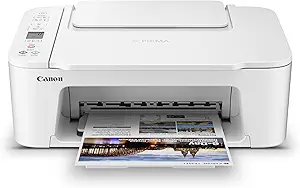 |
| Top Rated A top-rated pick with lots of positive feedback | Canon Selphy CP1300 |  |
| Most Popular A crowd favorite that many people choose with confidence | KODAK Step Instant Photo Printer |  |
| Best Seller A high-volume bestseller chosen again and again | Liene 4×6 Photo Printer DHP513 |  |
Epson Expression Photo HD XP-15000

| Maximum Media Size | 13 x 19 inch |
|---|---|
| Resolution | 5760 x 1440 dpi |
| Printer Connectivity Type | wired, wireless |
| Duplex | Automatic |
| Maximum Sheet Capacity | 200 |
The Epson Expression Photo HD XP-15000 is a dedicated wide-format photo inkjet designed to deliver pro-quality borderless prints up to 13 x 19 inches from a compact desktop footprint. It uses an individual six-color Claria Photo HD ink set that adds red and gray inks for a wider color gamut and improved black-and-white tones, and it supports cardstock and specialty media via a 50-sheet rear tray while holding 200 sheets in the front tray for regular printing. Connectivity includes both wireless and Ethernet, plus simple mobile printing from iOS and Android devices, and the 2.4-inch color LCD helps with setup and basic navigation. Photo resolution tops out at 5760 x 1440 dpi so prints show fine detail, and automatic duplexing and a modest document print speed make it useful for mixed office and photo projects. Important limitations are Epson's insistence on genuine cartridges and the relatively large physical footprint compared with smaller photo printers, so ongoing ink costs and space should be considered before buying.
Best for: Photographers and hobbyists who want pro-quality, large-format borderless prints from a compact desktop machine and value color range and B&W fidelity for photo projects.
Less Ideal for: Casual users who only print occasional 4×6 or letter-size photos or buyers seeking the lowest ongoing ink costs or the smallest possible footprint.
- 6-color Claria Photo HD inks including red and gray for a wider gamut and better B&W prints
- Borderless wide-format printing up to 13 x 19 inches for large photo projects
- Supports specialty media and cardstock via a 50-sheet rear tray
- Wireless and Ethernet connectivity with mobile printing support
- Automatic duplexing and a high-resolution 5760 x 1440 dpi output for detailed photos
- Requires genuine Epson cartridges which can raise operating costs
- Relatively large and heavier than basic photo printers, needing dedicated desk space
Verdict: Buy this if you need a compact wide-format photo printer that delivers pro-quality borderless prints and a wider color gamut for serious photo work.
Epson EcoTank Photo ET-8550

| Printer Type | Inkjet |
|---|---|
| Print Resolution (Color) | 1440 dpi |
| Color Pages per Minute | 12 pages_per_minute |
| Maximum Media Size | 13 x 19 inch |
| Duplex | auto |
The Epson EcoTank Photo ET-8550 is a six-color, refillable-tank inkjet all-in-one built for photographers and creators who need wide-format, lab-style prints at lower running costs. It prints borderless photos up to 13 x 19 inches, supports a variety of photo media and cardstock up to 1.3 mm thick, and includes a scanner and copier for studio workflows. The Claria ET Premium 6-color ink set and the printer's high-resolution printhead deliver fine detail and strong color gradations, and the large ink bottles mean far fewer interruptions and much lower per-photo ink costs than cartridge models. Connectivity includes USB and mobile printing support, and automatic duplexing helps with two-sided document jobs. Trade-offs are typical for a photo-focused inkjet: it is relatively large and uses more power than compact printers, and Epson recommends genuine ink to maintain print quality and warranty coverage, limiting third-party ink flexibility. For users prioritizing image quality and low ongoing ink expense, it balances excellent output and economical operation.
Best for: Photographers and home studio creators who prioritize high-quality, wide-format photo output and low long-term ink costs over a compact footprint.
Less Ideal for: Casual users who only print occasional snapshots or need a compact, portable photo printer should consider smaller dye-sub or cartridge-based models instead.
- Six-color Claria ET ink system for improved color accuracy and smooth gradations
- Cartridge-free high-capacity ink bottles deliver much lower cost per photo
- Supports wide-format borderless printing up to 13 x 19 inches and thicker media
- Built-in scanner and copier add studio workflow flexibility
- Automatic duplex printing and mobile device support for convenience
- Large physical footprint compared with consumer photo printers
- Manufacturer recommends genuine ink which limits third-party refill options
Verdict: Choose the ET-8550 if you want lab-quality, wide-format photo prints with dramatically lower ink costs for frequent, studio-style printing.
HP Envy 6155 All-in-One Printer

| Printer Type | Inkjet |
|---|---|
| Color Pages per Minute | 7 pages_per_minute |
| B&W Pages per Minute | 10 pages_per_minute |
| Maximum print Resolution Color | 4800 x 1200 dots_per_inch |
| Duplex | Automatic |
The HP Envy 6155 is a home-focused all-in-one inkjet that handles everyday documents and photos with straightforward wireless setup and a 2.4" color touchscreen for basic control. It prints color at up to 7 ppm and black at up to 10 ppm, supports automatic two-sided printing, and accepts common media including envelopes, labels, and borderless photo sizes up to letter. Photo quality benefits from HP's P3 true-to-screen technology and a high maximum color resolution of 4800 x 1200 dpi, so snapshots and school projects come out more vibrant than typical budget printers. The unit is compact and energy efficient, offers USB and dual-band Wi-Fi connectivity plus mobile printing via the HP app, and ships with starter HP 68 cartridges. Limitations include a modest 100-sheet input capacity and relatively slow color speed compared with dedicated photo printers, and it requires original HP cartridges to avoid cartridge blocking. For buyers who want decent photo prints from a single compact machine alongside scanning and copying, the Envy 6155 is a practical choice.
Best for: Buyers who want a compact multifunction printer that can produce better-than-average home photos alongside everyday printing, and who prioritize simple wireless setup and easy phone printing.
Less Ideal for: Photographers or users who need high-volume, fast photo production or professional color accuracy should choose a dedicated photo printer instead.
- High maximum color resolution (4800 x 1200 dpi) for detailed photo and document prints
- Automatic duplex printing saves paper on two-sided documents
- Wireless dual-band Wi-Fi and HP app support easy mobile printing and setup
- Compact footprint and intuitive 2.4" color touchscreen for simple daily use
- Small 100-sheet input capacity limits high-volume printing sessions
- Color print speed is modest compared with dedicated photo printers
- Requires original HP cartridges and may block third-party cartridges
Verdict: A compact, easy-to-use all-in-one that delivers solid home photo prints with convenient wireless and mobile features.
Canon PIXMA TS3720

| Printer Type | Inkjet |
|---|---|
| Maximum print Resolution Color | 4800 x 1200 dpi |
| Printer Connectivity Type | USB, Wi-Fi |
| Compatible Cartridge | Canon CL-276, Canon PG-275 |
| Maximum Sheet Capacity | 60 |
The Canon PIXMA TS3720 is a small, budget-friendly all-in-one inkjet aimed at everyday home use and casual photo printing. It uses a two-cartridge hybrid FINE ink system with pigment black for sharp text and dye-based color for photos, and it supports borderless prints up to 5 x 7 inches and media up to 8.5 x 14 inches. Setup is straightforward with the Canon PRINT app, AirPrint and Mopria support, plus USB and dual-band Wi-Fi for reliable connections. The rear paper tray holds about 60 sheets and the 1.5-inch LCD makes basic tasks and copying easy without a computer. Print speed is modest at about 7.7 ppm black and 4 ppm color, so it is better suited to occasional photo jobs and documents rather than high-volume work. Photo quality is good for casual snapshots and small borderless prints, but professional labs or higher-end photo printers will deliver richer color depth and larger formats. Overall, the TS3720 balances compact size, simple maintenance, and wireless convenience for budget-minded users who want decent home photo prints without extra frills.
Best for: Buyers on a tight budget who want a compact, easy-to-use all-in-one that can produce good small photo prints and handle everyday document tasks at home.
Less Ideal for: Photographers who need large-format, gallery-quality prints, fast batch photo production, or advanced color management should look at higher-end photo printers.
- Compact footprint that fits small home workspaces
- Hybrid two-cartridge ink system for sharp text and decent color photos
- Supports borderless photo printing up to 5 x 7 inches
- Easy wireless setup and printing from mobile devices via Canon PRINT, AirPrint, and Mopria
- Only single-sided printing (no duplex)
- Slower color print speed compared with higher-end photo printers
Verdict: A wallet-friendly compact all-in-one that delivers respectable small photo prints and easy wireless printing for home users.
Canon Selphy CP1300

| Printer Type | Dye Sublimation |
|---|---|
| Maximum Media Size | 4 x 6 inch |
| Resolution | 300 x 300 |
| Printer Connectivity Type | USB, Wi-Fi |
| Maximum Sheet Capacity | 18 |
The Canon Selphy CP1300 is a portable dye-sublimation photo printer built to make quick, long-lasting 4×6 prints and smaller square or sticker-style photos. It connects over Wi‑Fi for printing from smartphones via AirPrint, Mopria, or the Canon Print app, and also accepts USB drives and camera memory cards for direct printing. The tilting 3.2-inch LCD makes previewing and basic edits easy, and dye-sub output produces water-resistant prints rated to last up to 100 years. Paper handling is simple: load 4×6 paper or smaller sheets and print up to 18 output sheets before reloading. Print speed is modest at about one page per minute, so it is better for occasional batches than high-volume studio work. The optional battery pack adds genuine portability for events or parties, and party-shuffle and photo-booth layout modes are convenient for social use. Expect accurate color and durable photos, but not fast throughput or desktop office multifunction features since this is print-only and simplex.
Best for: Buyers who prioritize dependable, high-quality photo prints for home use or occasional events and want simple wireless printing from phones or memory cards.
Less Ideal for: Those who need fast high-volume output, multifunction office features, or a full-size photo-lab workflow should look at higher-capacity or studio-focused printers.
- Dye-sublimation printing yields water-resistant photos with long archival life
- Multiple connectivity options including Wi‑Fi, AirPrint/Mopria, USB and memory card slot
- Compact, lightweight design with tilting LCD for easy preview and basic edits
- Optional battery pack enables true portable use for events and parties
- Supports various print sizes including 4×6 and square/sticker formats
- Print speed is around one page per minute, so large batches take time
- Print-only device with no scanning or copying functions
Verdict: Pick the Selphy CP1300 when you want a compact, reliable photo printer that produces durable, true-to-color 4×6 prints from phones or cards with minimal fuss.
KODAK Step Instant Photo Printer
| Maximum Media Size | 2×3 |
|---|---|
| Maximum Sheet Capacity | 10 |
| Print Resolution | 313 x 400 dpi |
| Connectivity | Bluetooth, NFC |
| Battery Prints per Charge | Up to 25 prints |
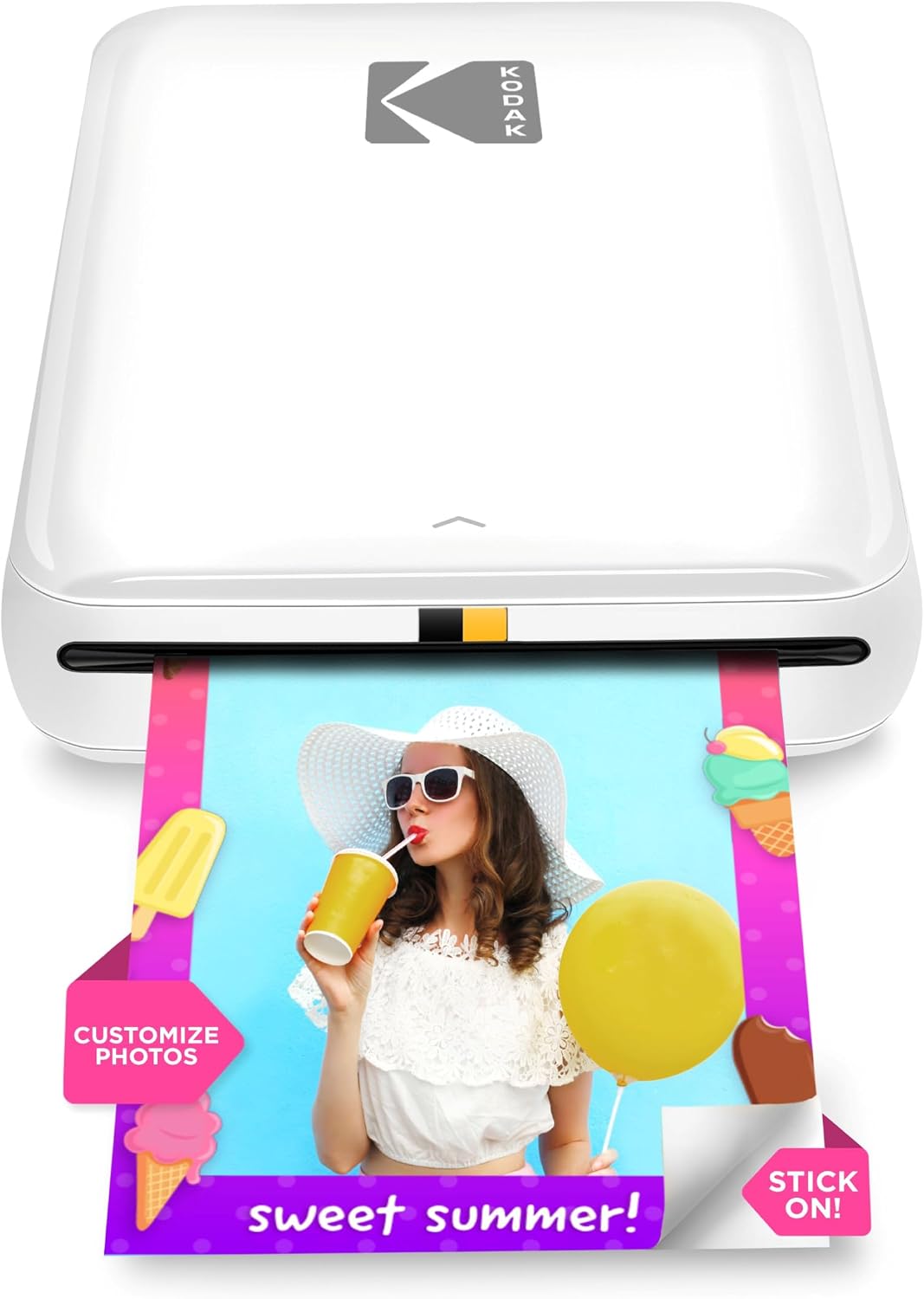
The KODAK Step is a compact, battery-powered mobile photo printer that uses ZINK zero-ink technology to deliver 2×3-inch sticky-backed color prints directly from your smartphone via Bluetooth or NFC. It is controlled through the KODAK STEP PRINTS app, which offers editing tools, collage mode, filters, stickers and direct access to social media images before printing. The unit is genuinely portable, charges via the included USB cable, and the built-in battery handles roughly 25 prints per charge, making it convenient for parties, travel, and quick craft projects. Prints come out in under a minute and are coated to resist smudges, water and tears, though the small 2×3 size limits framing or large-format uses. Because it relies on proprietary ZINK paper, ongoing cost and supply of paper are the main recurring considerations, and print resolution is modest compared with larger photo printers, so expect slightly softer detail on highly detailed images. For instant, sticker-backed photos and easy on-the-go printing, it is a solid pick.
Best for: Buyers who want quick, shareable physical photos from their phone for parties, scrapbooks, or social-post mementos and who value portability and easy editing via an app.
Less Ideal for: Photographers or hobbyists who need larger, high-resolution prints or a low-cost per-print solution for heavy-volume printing should look at dedicated photo printers instead.
- Truly portable with built-in rechargeable battery and USB charging
- No ink required thanks to ZINK paper, simplifying maintenance
- Fast prints in about 60 seconds with protective, sticky-backed photos
- App-based editing and collage features let you customize images before printing
- Prints are small 2×3 inches and not suitable for larger photo needs
- Dependent on proprietary ZINK paper, which is an ongoing consumable cost
- Print resolution and fine detail are lower than larger dedicated photo printers
Verdict: Choose the KODAK Step when you want a pocketable printer that turns phone photos into instant, sticky-backed keepsakes with simple app editing.
Liene 4×6 Photo Printer DHP513

| Printer Type | Dye Sublimation |
|---|---|
| Maximum Media Size | 4 x 6 inch |
| Maximum Sheet Capacity | 20 |
| Printer Connectivity Type | USB, Wi-Fi |
| Resolution | 300 x 300 |
The Liene DHP513 is a portable dye‑sublimation photo printer built to produce borderless 4×6 prints from phones, laptops, or desktops. It connects via built‑in Wi‑Fi hotspot or USB‑C and is controlled through the Liene app or direct device printing, so you can quickly send photos from iPhone, Android, Windows or Mac. The dye‑sublimation process and laminated output create vivid, water‑ and scratch‑resistant prints, and the printer includes a paper cassette and one cartridge with additional paper/cartridge bundle options available. Setup is straightforward: install the cartridge and paper, power on, connect to the hotspot or Wi‑Fi, and print from the app. Practical limits are its modest 20‑sheet tray capacity and roughly one‑minute first page time, so it is best for small batches or occasional high‑quality prints rather than heavy throughput. The unit also relies on Liene proprietary cartridges and paper, which makes replacements a recurring cost to plan for. Overall it is a user‑friendly option for anyone who wants quick, durable 4×6 color photos at home or small events.
Best for: Buyers who prioritize easy, high‑quality 4×6 photo prints from phones or computers and want a simple, low‑setup device for home use or small events.
Less Ideal for: People who need fast, high‑volume photo production or who prefer standard third‑party inks and paper ecosystems.
- Dye‑sublimation printing yields vibrant, laminated photos resistant to water and scratches.
- Built‑in Wi‑Fi hotspot plus USB‑C lets phones and computers connect without extra networking.
- Includes starter cartridge and photo paper cassette for out‑of‑box printing.
- Compact, portable design with an app for simple editing and print controls.
- Small 20‑sheet paper capacity limits continuous high‑volume printing.
- Uses proprietary cartridges and paper, adding recurring consumable costs.
Verdict: A portable, easy‑to‑use dye‑sublimation printer that delivers durable 4×6 photos from phones and PCs with minimal setup.
Choosing the Right Printer for Photos: Key Factors to Consider
Color Accuracy
Accurate color reproduction is central for photographic prints because small shifts in hue or saturation can change the mood and intent of an image. Look for printers that provide wide color gamut inks and support for ICC profiles so you can match monitor previews to final prints. Printers that let you choose color modes, use manufacturer or custom profiles, and disable automatic color correction give you more control when critical color fidelity matters.
Poor color accuracy leads to reprints and wasted materials. If you shoot in RAW or use calibrated monitors, a printer that supports soft-proofing and color-managed workflows will produce more predictable results and save time during editing and proofing.
Print Resolution and Detail
Resolution and how a printer renders fine detail affects how sharp and finely textured prints appear, especially for large prints or images with intricate patterns. Native DPI, droplet size, and the number of ink channels combine to determine how smooth gradients and small details reproduce. Printers with smaller droplet sizes and higher effective resolutions typically render smoother tonal gradations and finer lines.
Consider how large you plan to print. For snapshots and small prints, midrange resolution may suffice, but for enlargements or gallery prints you want a device that sustains detail without banding or posterization.
Paper Handling and Size Support
Photographers use a variety of media: glossy, satin, luster, matte, and heavyweight fine art papers. A photo-focused printer should accept the media types and thicknesses you use and reliably feed them without curling or jamming. Look for printers with straight-through paths or manual feed options for thicker stock and borderless printing if you need edge-to-edge photos.
Also check maximum and minimum printable sizes. If you plan on printing common photo sizes like 4×6, 5×7, and 8×10 as well as large-format posters, confirm the device supports those dimensions without workarounds that degrade quality.
Ink Efficiency and Running Cost
The price of ink and how much yield you get per cartridge or tank is a major ongoing expense for photo printing. Pigment and dye-based inks behave differently on various papers, and some systems use multiple grayscale or photo-specific cartridges to improve tonality at the expense of higher ink usage. Consider whether a printer offers high-yield cartridges or refillable tanks and the relative cost per print for typical photo sizes.
A more efficient ink system reduces long-term cost and waste. If you print frequently, calculate expected cost per 4×6 and 8×10 prints based on manufacturer yield estimates and the typical coverage of your images to assess real operating expense.
Ease of Color Management
Color-managed workflows make it possible to get predictable prints from your edited images. Printers that support ICC profiles, provide good built-in or downloadable profiles for common papers, and allow users to disable automatic color adjustments are easier to integrate into a photographic workflow. Software and driver features like previewing profiles, soft-proofing, and selectable rendering intents help fine-tune prints without guesswork.
If you use third-party RIP software or need precise control over curves and color transforms, verify that the printer and driver support those tools. Ease of calibration and the availability of profiles for your preferred papers will speed up proofing and improve consistency across print runs.
Connectivity and Workflow
A printer that fits your workflow reduces friction from file to print. Look for support for common connections such as USB and wired Ethernet for reliable transfers, and robust wireless options if you need convenience for mobile or multi-device access. Compatibility with image-editing software, direct printing from memory cards, or support for USB thumb drives can simplify short runs and quick proofs.
Also consider driver stability and whether the printer integrates with your operating system and color-management tools. A device that isolates you from needed workflows or has limited driver support will cost time and introduce avoidable errors.
Choosing Ink Type: Dye Vs Pigment
Ink chemistry affects longevity, color, and how prints look on different papers. Dye inks often yield more vibrant colors and smoother blends on glossy papers, while pigment inks typically offer better longevity and resistance to fading, especially on coated fine art papers.
When selecting a printer, consider the balance you need between vibrancy and archival properties. If prints will be displayed behind glass or intended for short-term exhibition, dye-based systems can be an attractive option. For archival prints or those displayed without protective glazing, pigment inks provide greater stability.
- Dye inks: vivid color, smoother blends on glossy media
- Pigment inks: superior fade resistance, better on matte or fine art papers
- Some printers use mixed systems with dedicated photo blacks for improved tonal range
Paper Choices and Finish Effects
The same image can look dramatically different on glossy, satin, luster, or matte papers. Glossy finishes boost perceived contrast and color saturation, while matte and fine art papers offer texture and a softer, more subdued look. Consider sample packs from paper manufacturers to evaluate how your images translate to different surfaces.
Weight and paper composition also influence ink absorption and drying. Heavier, cotton-based fine art papers often require printers that can handle thicker media and may need a slow, controlled drying process to prevent gloss differential.
- Glossy: punchy color and contrast
- Luster/satin: reduced glare with strong color
- Matte/fine art: textured look, subdued highlights
Size Planning and Print Formats
Decide what sizes you will print most often before choosing a device. Compact photo printers are fine for 4×6 and 5×7 prints, but larger borderless prints and enlargements require wide-format support or dedicated photo printers that handle up to 13×19 inches or more.
If you plan to crop or mat images, factor in paper size flexibility and whether the printer supports custom dimensions. Also consider borderless printing options if you prefer edge-to-edge images without mounting.
- Small prints: 4×6, 5×7 convenience
- Medium enlargements: 8×10, 11×14
- Large prints: 13×19 and above for gallery work
Workflow Tips for Consistent Results
Establish a repeatable workflow that includes monitor calibration, profile selection, and consistent paper handling. Calibrating your monitor and using ICC profiles tailored to the paper and printer combination reduces surprises between screen and print.
Print test strips and small proofs before committing to large runs. Keep notes of driver settings, color modes, and paper types that produced the best results so you can reproduce them later.
- Calibrate monitor regularly
- Use ICC profiles for specific paper and printer pairings
- Print small proofs to verify color and exposure
Maintenance and Long-Term Care
Regular maintenance keeps a photographic printer performing reliably. This includes routine printhead checks, cleaning cycles, and running occasional nozzle tests to prevent clogs. Some printers require occasional manual maintenance for heavy-use environments.
Consider the availability of replaceable maintenance parts and the ease of performing routine tasks. Proper storage of photo paper and controlling humidity in your printing area also affect final print quality and longevity.
- Run nozzle checks and cleanings periodically
- Store paper in a cool, dry place
- Follow manufacturer guidance for head servicing
How We Chose the Best Printer for Photos
We shortlisted printers that are specifically suited to photographic printing by focusing on measurable, camera-to-print concerns. Key evaluation criteria were color accuracy and gamut, which determine how faithfully a printer reproduces hues from your files; print resolution and dot structure, which affect fine detail and perceived sharpness; paper handling and size support, since photographers need reliable feeding for glossy, matte, and heavyweight photo papers; and running cost and ink yield, because long-term affordability matters for frequent printing. We also considered file and connectivity support, including common color-management workflows like ICC profiles and direct printing from standard file formats. Excluded from consideration were general-purpose office printers that lack photographic color controls or support for heavyweight photo media. We filtered out printers without any user-accessible color management options or those that cannot print at common photo sizes. The resulting candidates represent devices that satisfy practical studio needs while keeping operating costs and usability in mind.
Our full evaluation process is outlined in our review methodology.
FAQ
What resolution do I need to print sharp photo enlargements?
For sharp enlargements, higher native DPI and smaller ink droplet sizes help render detail. Aim for printers that advertise high effective resolution combined with lists of supported print sizes. Image resolution also matters; use high-megapixel source files for larger prints.
Is borderless printing necessary for photos?
Borderless printing is useful when you want edge-to-edge images without trimming. It is not strictly necessary if you plan to mat or frame with borders. Borderless modes can slightly crop or scale images, so check how your printer handles margins for precise compositions.
How can I make prints more fade resistant?
Fade resistance depends on ink chemistry, paper choice, and display conditions. Pigment inks on archival papers typically last longer, and displaying prints behind UV-filtering glass or away from direct sunlight will extend longevity. Proper drying and curing of prints before display also help.
Do I need special drivers or software for color management?
Most photo-capable printers offer drivers that support ICC profiles and color-management settings. For precise control, use image-editing software that supports soft-proofing and export using the correct profile. Third-party RIP software can provide advanced controls for professionals.
How often should I run maintenance on a photo printer?
Frequency depends on usage. For regular printing, run nozzle checks weekly and perform cleaning cycles as needed. For occasional use, run a short print and a nozzle check before important jobs to prevent clogs and ensure consistent output.
Final Verdict
Prioritize color accuracy, paper support, and realistic running costs when choosing a printer for photos. Your intended print sizes and the type of paper you prefer should drive most of the decision, because they determine necessary resolution, feed paths, and ink chemistry. Balance upfront convenience features like wireless connectivity and borderless printing with long-term concerns like ink yield and maintenance. Choose a printer that aligns with how often you print and the finishes you value most. For studio-quality, consistent results focus on devices that support proper color-management workflows and the paper types you will use most often.