
Note: This article contains affiliate links. If you click on these links and make a purchase, we may earn a small commission at no extra cost to you. This helps support our research and content. Read our full affiliate disclosure here.
If you frequently print invitations, business cards, or heavy-weight craft projects, choosing a printer that reliably handles thick cardstock matters. A printer that jams, misfeeds, or flattens texture can ruin long runs and waste expensive stock. This guide narrows the field to seven top options that balance dependable paper handling with strong print quality and reasonable running demands. We shortlisted printers that excel at accepting heavier paper weights, maintaining accurate color and edge detail, and offering practical feeding paths and tray options. Read on for a clear explanation of the features that matter and which machines meet those needs.
Top Picks at a Glance
| Best Overall The best all-around choice for most situations | HP OfficeJet Pro 9730 |  |
| Best Quality Built to a higher standard if you want something more solid | Epson Expression Photo HD XP-15000 |  |
| Best Value The sweet spot between price and what you get | HP OfficeJet Pro 8125e | 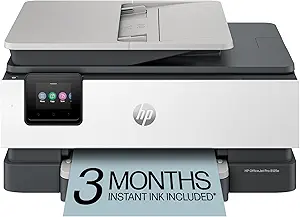 |
| Best Budget The cheapest option that still gets the job done reliably | Brother Work Smart 1360 MFC-J1360DW |  |
| Top Rated A top-rated pick with lots of positive feedback | Canon PIXMA TS6520 |  |
| Most Popular A crowd favorite that many people choose with confidence | Canon PIXMA TR4720 |  |
| Best Seller A high-volume bestseller chosen again and again | Epson EcoTank ET-2800 | 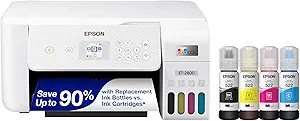 |
HP OfficeJet Pro 9730

| Maximum Media Size | Legal (8.5 x 14 inches) |
|---|---|
| Maximum print Resolution Color | 4800 x 1200 dots_per_inch |
| Color Pages per Minute | 18 pages_per_minute |
| B&W Pages per Minute | 22 pages_per_minute |
| Printer Connectivity Type | Wi-Fi |
The HP OfficeJet Pro 9730 is a wide-format all-in-one inkjet built for small office workflows that need larger-than-letter prints and routine scanning. It handles printing, copying, faxing, and single-pass duplex scanning via the ADF, and its two 250-sheet trays give a combined 500-sheet capacity for longer runs. The printer supports up to 11×17 media and a high color resolution for vibrant output, and the 4.3-inch touchscreen plus HP App make job setup and mobile printing straightforward. Practical perks include automatic two-sided printing, Ethernet and dual-band Wi-Fi connectivity, and HP AI formatting to reduce wasted pages. For thick cardstock use, the wide-format feed and high sheet capacity are helpful, but as with most inkjets you should test your specific cardstock weight and finish to avoid feeding issues and to confirm ink absorption and drying time. Cartridge yields and ongoing ink costs are also factors if you print frequently on heavy stock.
Best for: Buyers who need a versatile office all-in-one that can produce larger-format prints and handle moderate volumes while balancing print quality and workflow features.
Less Ideal for: If you exclusively print very heavy or specialty cardstocks at high volume or need pigment-based waterproof prints, a dedicated laser or professional production printer would be a better fit.
- Prints up to 11×17 wide-format output for large layouts and cardstock projects
- Single-pass duplex ADF and automatic two-sided printing for efficient scanning and copying
- Two 250-sheet input trays totaling 500-sheet capacity for longer print runs
- High maximum color resolution (4800 x 1200 dpi) for detailed, vibrant prints
- 4.3-inch touchscreen and mobile app support simplify setup and remote printing
- Inkjet technology may require testing for very thick or coated cardstocks to ensure reliable feed and proper ink drying
- Ongoing ink costs can be significant for heavy-color or frequent cardstock printing
Verdict: Choose the OfficeJet Pro 9730 if you want a wide-format all-in-one that balances large-format print capability and office-focused workflow features for moderate cardstock projects.
Epson Expression Photo HD XP-15000

| Maximum Media Size | 13 x 19 inch |
|---|---|
| Resolution | 5760 x 1440 dpi |
| Printer Connectivity Type | wired, wireless |
| Duplex | Automatic |
| Maximum Sheet Capacity | 200 |
The Epson XP-15000 is a wide-format, photo-focused inkjet that brings six-color Claria Photo HD inks (including red and gray) to desktop printing for a noticeably wider color gamut and richer black-and-white tones. It handles borderless prints up to 13 x 19 inches and offers a rear 50-sheet specialty tray alongside a 200-sheet front tray, making it practical for short runs of cardstock projects and specialty media. Connectivity includes wireless printing, Ethernet and a USB port, and the 2.4-inch color LCD and app control simplify job setup. Photo resolution tops out at 5760 x 1440 dpi for fine detail and smoother gradients, while automatic duplexing and reasonable document speeds make it useful for mixed photo and office tasks. Important limitations are its use of individual Epson cartridges only, which affects ongoing ink choices, and its focus on photo output rather than heavy-duty production printing, so very high-volume postcard or business-card runs may be slower than commercial machines. For hobbyists and small studios doing projects on thick cardstock, it balances quality and practicality well.
Best for: Buyers who prioritize print quality on heavyweight and specialty papers and want a desktop wide-format machine capable of producing near-professional photo and cardstock projects.
Less Ideal for: Businesses that need high-volume, production-speed postcard or business-card runs should consider production printers instead.
- Six-color Claria Photo HD ink set (adds red and gray) for a wide color gamut and improved black-and-white prints
- Supports borderless wide-format printing up to 13 x 19 inches for pro-style photo and project prints
- Rear 50-sheet specialty tray accommodates cardstock and specialty media without constant reloading
- Automatic duplexing and a 200-sheet front tray let you mix document and photo jobs efficiently
- Wired and wireless connectivity including Ethernet and app control for flexible workflows
- Designed to work only with genuine Epson cartridges, limiting third-party ink options
- Not optimized for very high-volume commercial production compared with dedicated production printers
Verdict: Choose the XP-15000 when you want a compact wide-format photo printer that reliably produces high-quality, borderless prints and handles cardstock for small-run projects.
HP OfficeJet Pro 8125e

| Printer Type | HP Thermal Inkjet |
|---|---|
| Maximum Sheet Capacity | 225 |
| Duplex | Automatic (standard) |
| Printer Connectivity Type | Apple AirPrint; Ethernet networking; USB; Wireless (Wi-Fi); Wireless direct printing |
| Color Pages per Minute | 10 pages_per_minute |
The HP OfficeJet Pro 8125e is a compact all-in-one inkjet that handles everyday home-office tasks like printing reports, scanning multi-page documents with its ADF, and copying with automatic two-sided printing. It delivers up to 20 ppm in black and 10 ppm in color, and its 225-sheet input capacity plus 60-sheet output capacity keeps batches moving without frequent refills. The printer supports dual-band Wi-Fi, Ethernet and AirPrint, and the HP app plus AI formatting tools help clean up web pages and emails before printing. For heavier media, the OfficeJet Pro series typically supports a range of paper types, but thick cardstock may require careful feeding and manual tray adjustments to avoid jams and ensure proper alignment. The included touchscreen and quiet mode make daily use straightforward, and HP+ features like Instant Ink integration simplify ink replenishment if you opt in. Expect good color quality for documents and occasional photo prints, though power users who regularly print very heavy or coated cardstock may prefer a light-duty laser or a dedicated wide-format pigment printer for more reliable heavy-stock handling.
Best for: Buyers who want a practical, feature-rich all-in-one for a home office that prioritizes fast everyday printing, mobile convenience, and lower hassle with paper capacity and automated scanning.
Less Ideal for: Users who frequently print very heavy, coated, or specialty cardstock for professional cards or signage should consider a dedicated heavy-media inkjet or a laser printer designed for thick stock.
- Fast print speeds for typical home-office jobs (20 ppm B&W, 10 ppm color)
- 225-sheet input tray reduces refills for medium-volume printing
- Automatic duplexing and 1-sided ADF simplify multi-page scanning and copying
- Multiple connectivity options including dual-band Wi-Fi, Ethernet and AirPrint
- HP app and AI formatting tools streamline mobile printing and layout cleanup
- May need careful manual feeding or tray adjustment for very thick cardstock
- Inkjet inks can be more costly per page than toner for high-volume color printing
Verdict: A well-rounded home-office all-in-one that balances speed, connectivity, and paper capacity for practical everyday printing, though occasional thick-cardstock jobs may require careful manual feeding.
Brother Work Smart 1360 MFC-J1360DW

| Printer Type | Inkjet |
|---|---|
| Duplex | Automatic |
| Maximum Media Size | 8.5 x 14 inch |
| Maximum Sheet Capacity | 150 |
| Printer Connectivity Type | USB, Wi-Fi |
The Brother Work Smart 1360 is a compact all-in-one inkjet aimed at home and small home-office users who need basic color printing, scanning, and copying. It offers wireless and USB connectivity, a 1.8-inch color display, a 20-sheet single-sided automatic document feeder, and a 150-sheet input tray, plus automatic two-sided printing. In practice the printer handles everyday documents and photos with lively color and fast black print speeds; Page Gauge and Brother Mobile Connect simplify ink monitoring and mobile printing. For the article focus on thick cardstock, the tray accommodates media up to legal size and the printer can feed envelopes and glossy paper, but this is an inkjet with a standard 150-sheet tray and no dedicated manual thick-media path, so extremely heavy cardstock or frequent heavy-cardstock jobs may require careful single-sheet feeding and slower drying times. Setup is straightforward and the included starter inks let you start quickly, though ongoing running costs depend on using standard or high-yield Brother LC501 cartridges.
Best for: A buyer looking for an inexpensive, space-saving all-in-one that can handle occasional cardstock projects and everyday documents while keeping upfront cost low.
Less Ideal for: Not a good fit for frequent heavy-cardstock or high-volume commercial print runs where a printer with a dedicated thick-media feed or higher-capacity, lower-cost ink system is required.
- Compact multifunction design for print, copy, and scan in small spaces
- Automatic duplexing and 20-sheet ADF speed up multi-page workflows
- Wireless, Wi‑Fi Direct, and USB connectivity with mobile app integration
- 150-sheet input capacity supports moderate home-office print volumes
- No specified manual feed or dedicated heavy-media path for very thick cardstock
- Starter inks are low-yield so replaceable cartridges are needed for higher-volume color jobs
Verdict: A budget-friendly, compact all-in-one that handles occasional thick-cardstock jobs with careful single-sheet feeding while giving reliable everyday printing and mobile connectivity.
Canon PIXMA TS6520

| Printer Type | Inkjet |
|---|---|
| Printer Connectivity Type | USB, Wi-Fi |
| Duplex | Automatic |
| Maximum Media Size | Letter (8.5 x 11 inches) |
| Compatible Cartridge | PG-295 & CL-286 |
The Canon PIXMA TS6520 is a small, user-friendly all-in-one aimed at home and light office use. It uses a two-cartridge hybrid ink system (pigment black and dye color) to produce sharp text and vibrant color prints, and the 1.42-inch OLED and intuitive control panel make status checks and basic tasks straightforward. Setup is simple via the Canon PRINT app, AirPrint, or Mopria, and dual-band Wi‑Fi keeps mobile printing reliable. Automatic two-sided printing reduces paper use and the flatbed scanner handles occasional scanning and copying jobs. Its compact footprint fits tight workspaces, but the single-sheet paper capacity and lack of an automatic document feeder mean it is not built for heavy batch jobs. The printer supports borderless printing up to letter size and offers respectable photo and document resolution, though very heavy cardstock may require testing to confirm feed reliability. For buyers prioritizing dependable everyday printing, the TS6520 delivers consistent results without complexity.
Best for: Buyers who want a reliable, easy-to-use printer for occasional home or student projects that balances print quality with simple wireless mobile printing.
Less Ideal for: Users who need high-volume batch scanning or frequent multi-page copying or who require guaranteed feed support for very heavy cardstock should consider a different model.
- Compact all-in-one design fits small home workspaces
- Hybrid ink system for sharp black text and vivid color prints
- Automatic duplexing saves paper and speeds two-sided jobs
- Simple mobile setup and stable dual-band Wi‑Fi connectivity
- Intuitive 1.42" OLED display for quick status and ink checks
- Single-sheet input and no ADF limit speed for multi-page jobs
- Not explicitly specified for very heavy or specialty cardstocks
Verdict: Choose the PIXMA TS6520 if you want a compact, dependable all-in-one that delivers solid everyday print and photo quality with easy wireless setup.
Canon PIXMA TR4720

| Printer Type | Inkjet |
|---|---|
| Printer Output Type | Color |
| Maximum Copy Speed Black and White | 8.8 pages_per_minute |
| Color Pages per Minute | 4.4 pages_per_minute |
| Printer Connectivity Type | USB, Wi-Fi |
The Canon PIXMA TR4720 is an entry-level all‑in‑one inkjet aimed at home and small office use; it handles printing, scanning, copying and faxing and adds a 100‑sheet front tray and an auto document feeder to streamline multi‑page jobs. Setup and mobile printing are straightforward through the Canon Print app and Wi‑Fi connectivity, and the hybrid ink system delivers sharp black text and decent color for casual photo and document work. Automatic two‑sided printing saves paper and the compact footprint fits tight desks. For heavier media like thick cardstock, this model can manage single‑sheet runs but is limited by the narrow paper path and front tray design, so feeding very heavy or textured card stock may require care to avoid jams and may not support high‑volume cardstock projects. Print speed is modest — around 8.8 ipm for black and 4.4 ipm for color — so it is better for occasional cardstock printing than continuous production. The TR4720 is a sensible choice if you want a compact, app-friendly multifunction printer that will do occasional heavier paper with careful handling.
Best for: Buyers who want an affordable, space‑saving multifunction printer that can handle occasional heavier paper and mobile printing with minimal setup and reliable everyday document output.
Less Ideal for: Users who need frequent, high‑volume printing on heavy or specialty cardstock or who need a dedicated printer built for thick media handling and fast output.
- Compact all‑in‑one design with print, scan, copy and fax functions
- Auto document feeder and automatic duplexing for multi‑page jobs
- Wireless printing and Canon Print app support for mobile devices
- 100‑sheet front paper tray simplifies everyday paper handling
- Narrow paper path and front tray make feeding very thick or textured cardstock tricky
- Modest color print speed and not optimized for high‑volume cardstock production
Verdict: A compact, app‑friendly all‑in‑one that is a good budget choice for occasional cardstock projects when you can feed heavier sheets carefully.
Epson EcoTank ET-2800

| Printer Type | Inkjet |
|---|---|
| Print media | Envelopes, Glossy photo paper, Paper (plain) |
| Scanner Type | Flatbed |
| Color Pages per Minute | 5 pages_per_minute |
| Printer Connectivity Type | wired, wireless |
The Epson EcoTank ET-2800 is a cartridge-free all-in-one inkjet designed for everyday home printing with refillable high-capacity ink tanks. It prints color and black-and-white documents, copies and scans on the flatbed, and connects via wired or wireless networks and a simple app control. The included ink bottles are sized to cover thousands of pages, which lowers running costs and reduces cartridge waste compared with standard cartridge printers. Print quality is strong for text and basic photos thanks to Epson's Micro Piezo heat-free print technology and high maximum resolution, while manual duplex and a modest 10 ppm black speed keep the unit compact and simple. For heavier stock, the printer accepts a range of paper sizes up to 8.5 x 14 inches, though the single tray and manual duplexing mean you may need to feed thicker sheets carefully. Setup and refillable tanks are user-friendly, making the ET-2800 a practical pick for households that want low ink fuss and reliable daily printing, with the caveat that it is focused on home volumes rather than heavy office throughput.
Best for: Buyers who prioritize low ongoing ink costs, simple setup, and reliable home printing with occasional cardstock projects will appreciate this model.
Less Ideal for: People who need high-volume, high-speed duplex printing of thick media or multi-tray paper handling should consider more robust office-class machines.
- Cartridge-free EcoTank system cuts ongoing ink costs and reduces plastic waste.
- Includes starter ink bottles that provide a large initial page yield.
- Good print resolution for sharp text and decent photo/color output.
- Wireless and USB connectivity plus app control and voice printing support.
- Accepts multiple paper sizes up to 8.5 x 14 inches for cardstock projects.
- Single input tray and manual duplexing limit throughput for frequent heavy printing.
- Color print speed is relatively slow compared with faster office models.
Verdict: Choose the ET-2800 if you want a low-maintenance, cartridge-free home all-in-one that keeps ink costs down while handling occasional thick cardstock projects.
Choosing the Right Printer for Thick Cardstock: Key Factors to Consider
Maximum Supported Media Weight
Thicker cardstock is rated by grams per square meter or pounds, and the maximum supported media weight determines whether a printer can feed your stock without manual workarounds. Choosing a printer with a higher maximum media weight reduces the chance of jams and misfeeds when running single sheets or short jobs. If you plan to print double-sided items, ensure the listed weight applies to duplexing as well, since some printers accept heavier stock only in single-pass manual feeds. Overloading a printer beyond its rated weight often causes poor registration and damaged edges, so match the printer spec to the heaviest stock you expect to use.
Paper Path and Feed Method
The physical path the paper travels through the printer affects how likely heavy stock is to bend, buckle, or jam. Straight-through or rear-feed paths are usually gentler on thick cardstock than tight, curved paths. Manual feed trays and multi-purpose feeders let you feed one sheet at a time and are useful for specialty cards. Trays with adjustable guides and a firm but forgiving feed roller system help maintain alignment on heavier media. For repeated print runs, look for mechanisms designed for mixed media that reduce hand-feeding and keep workflow smooth.
Print Quality on Dense Surfaces
Dense, textured, or coated cardstocks place different demands on ink or toner. Printheads or toner systems must deposit color cleanly without soaking, bleeding, or creating excessive gloss that hides detail. Resolution and color management influence edge sharpness and text legibility on heavy stock, so inspect how a printer handles fine lines and gradients at heavier weights. For coated cardstocks, drying time and ink absorption matter to avoid smudging. If you need accurate colors for brand materials, ensure the printer offers color controls and profiles suitable for heavier substrates.
Duplexing and Double-Sided Capability
If you plan to print double-sided cards, consider whether duplexing is rated for the cardstock weight you intend to use. Automatic duplex units can save time and improve consistency, but some are limited to lighter media. When duplexing heavy stock, the printer must grip and reverse sheets without misaligning or damaging edges. Alternatively, manual duplex routines work but increase handling time and the chance of error. Choose based on whether throughput or absolute control of each sheet is more important to your workflow.
Driver Settings and Media Presets
Good driver software and media presets simplify printing on various stocks by offering built-in settings for cardstock, envelopes, and coated media. The ability to adjust media type, thickness, and platen gap or drying pause affects final output quality. Look for printers that allow custom media entries so you can save settings for specific cardstocks. Clear front-panel prompts and intuitive desktop drivers reduce setup time and minimize trial-and-error, especially when switching frequently between everyday paper and heavy stock.
Maintenance and Consumables Impact
Printing on heavy cardstock can accelerate wear on feed rollers and increase the need for periodic maintenance. Consider how easy it is to access and replace consumable parts like feed rollers, transfer belts, or fuser components. Toner- or ink-related maintenance routines, such as cleaning cycles or nozzle checks, also affect uptime. Consumable life and replacement frequency influence operating cost and downtime, so factor in routine maintenance when estimating the total effort required to keep a heavy-cardstock workflow running smoothly.
How Paper Type Affects Print Finishes
Different cardstock surfaces interact with inks and toners in distinct ways. Uncoated stock soaks ink more readily and yields a matte, tactile finish, while coated cardstock keeps ink on the surface, producing crisper edges and more vibrant color. Heavier coated stocks may need longer drying times or specific print modes to avoid smudging.
Paper texture and absorbency also change how detail appears. Fine halftones and thin serifs may appear sharper on coated surfaces, but inks can pool on gloss coatings if the printer is not set to the appropriate media type.
- Uncoated: matte finish, more absorbent, softer color
- Coated: crisper edges, more vivid color, may need drying time
- Textured: adds visual interest but can reduce fine detail
Single-Sheet Feeding Techniques
Manual or single-sheet feeding gives the best control when working with very heavy or specialty cardstocks. Feeding one sheet at a time reduces the risk of double-feeds and lets you confirm alignment before committing to a run. Use adjustable guides and a clean, flat surface to reduce curl and keep edges square.
Some printers include a dedicated single-sheet or manual feed slot that creates a straighter path through the machine. When available, prefer that option for fragile or very thick stock rather than forcing heavier materials through multi-sheet trays.
- Confirm the manual feed accepts the cardstock weight
- Allow extra time for ink drying when using manual feed
- Test one sheet before running a batch to check registration
Settings to Optimize for Heavy Cardstock
Adjust driver settings to match the media type, thickness, and coating. Selecting a cardstock or heavy paper preset signals the printer to adjust ink density, drying pauses, and fuser temperature where applicable. If the driver allows custom media entries, create and save profiles for each stock weight you use.
When printing double-sided jobs, reduce printing speed or increase drying time between sides if the printer supports those options. For inkjet devices, using a higher-quality print mode can improve color and sharpness but may increase ink usage and production time.
- Use media presets or create custom profiles
- Lower speed or increase drying for duplex prints
- Run a media test print to check color and alignment
Troubleshooting Jams and Misfeeds
Jams with heavy cardstock often stem from incorrect tray loading, worn feed rollers, or a nonoptimal paper path. Ensure guides are snug but not overtightened, and remove any curled or damaged sheets before feeding. If jams persist, inspect rollers for glazing and clean or replace them according to the service guidance.
If registration shifts or skewing occurs, check tray seating and guide alignment. For manual duplexing, allow sheets to fully flatten and dry before reinserting to avoid smudging and misfeeds.
- Inspect and clean feed rollers regularly
- Align guides and avoid overfilling trays
- Let prints dry before manual duplexing to prevent smudges
Workflow Tips for Small-Batch Production
When producing small runs of invitations or cards, organize stock by weight and finish, and label batches to avoid mixing. Pre-test colors and layout on a single sheet to minimize waste. Batch jobs by media type so you can leave the printer configured for that stock rather than switching settings between every job.
Consider using a straight-path feeder or a dedicated manual feed for repetitive tasks involving heavy stock. If you need to cut or fold after printing, allow time for sheets to cure and handle them with clean, dry hands to preserve finish quality.
- Batch by media type to reduce setup time
- Allow curing time before cutting or folding
- Use a clean work area to prevent fingerprints and debris
How We Chose the Best Printer for Thick Cardstock
We focused on attributes that directly affect printing on heavy cardstock and excluded devices that only work with standard-weight paper. Our selection filters prioritized mechanical paper handling, maximum supported media weight, and print output consistency. We also evaluated duplex and manual-feed options because the paper path and feed method change how often heavy stock jams or creases. Print quality measures included resolution and color fidelity for text, photographic elements, and edge sharpness on dense stock. Practical usability factors considered tray capacity, adjustable guides, driver controls for custom media settings, and how easy it is to switch between light and heavy media. Energy efficiency and operating noise were secondary but included where they influence long runs or shared workspaces. We excluded specialty industrial or production printers that require separate finishing equipment, and we did not consider devices that explicitly limit media weight below typical heavy cardstock ranges. The result is a curated set of printers that meet real-world needs for printing on thick cardstock while balancing day-to-day usability and reliability.
Our full evaluation process is outlined in our review methodology.
FAQ
What paper weight is considered "thick cardstock" for printers?
Thick cardstock typically starts around 200 gsm and goes up to 350 gsm or more depending on the context. Many consumer printers list maximums in gsm or pounds; check the printer's media-weight specs for the specific upper limit.
Can I duplex heavy cardstock automatically?
Some printers can duplex heavier stock, but automatic duplexing is often limited to lower weights than single-sided feeding. Verify the duplex media weight rating and, if necessary, use manual duplexing to avoid jams or damage.
Is inkjet or laser better for thick cardstock?
Both technologies can work well. Inkjet tends to handle coated cardstocks with subtle color transitions better, while laser systems provide instant-dry output and sharp text. The right choice depends on your priorities for finish, drying time, and media compatibility.
How do I prevent smudging on coated heavy stock?
Use the correct media preset for coated stock and allow extra drying time when needed. If your printer offers a slower print mode or reduced ink saturation, those settings can help prevent smudging on glossy or semi-gloss coatings.
Will using thick cardstock wear out my printer faster?
Printing heavy stock can increase wear on feed rollers and other handling components, so expect more frequent maintenance over long-term heavy use. Regular cleaning and replacing consumables as recommended will reduce the risk of damage.
Final Verdict
Prioritize a printer that explicitly supports the cardstock weights you use and offers a gentle paper path or manual-feed option for heavier sheets. Balance that mechanical compatibility with good print resolution and driver controls so colors and fine details reproduce accurately on dense stock. Finally, plan for slightly higher maintenance and take steps such as batching jobs and using proper presets to minimize jams and waste. With those tradeoffs in mind, you can pick a printer that reliably produces professional results on thick cardstock.