
Note: This article contains affiliate links. If you click on these links and make a purchase, we may earn a small commission at no extra cost to you. This helps support our research and content. Read our full affiliate disclosure here.
When your team depends on printed documents every day, the right office printer can keep work flowing and reduce unexpected downtime. A Printer for Small Offices needs to balance speed, durability, and operating cost so you do not waste staff time or budget on frequent service or supplies. This guide narrows the field to seven shortlisted printers that suit typical small-office demands, from moderate monthly volumes to occasional heavier jobs. We evaluated each option for practical factors that matter in real-world use, including monthly capacity, running costs, and ease of use. Read on to see the features that set these top picks apart and which criteria we used to evaluate them.
Top Picks at a Glance
| Best Overall The best all-around choice for most situations | HP LaserJet Pro MFP 3101sdw |  |
| Best Quality Built to a higher standard if you want something more solid | Brother MFC-L8930CDW |  |
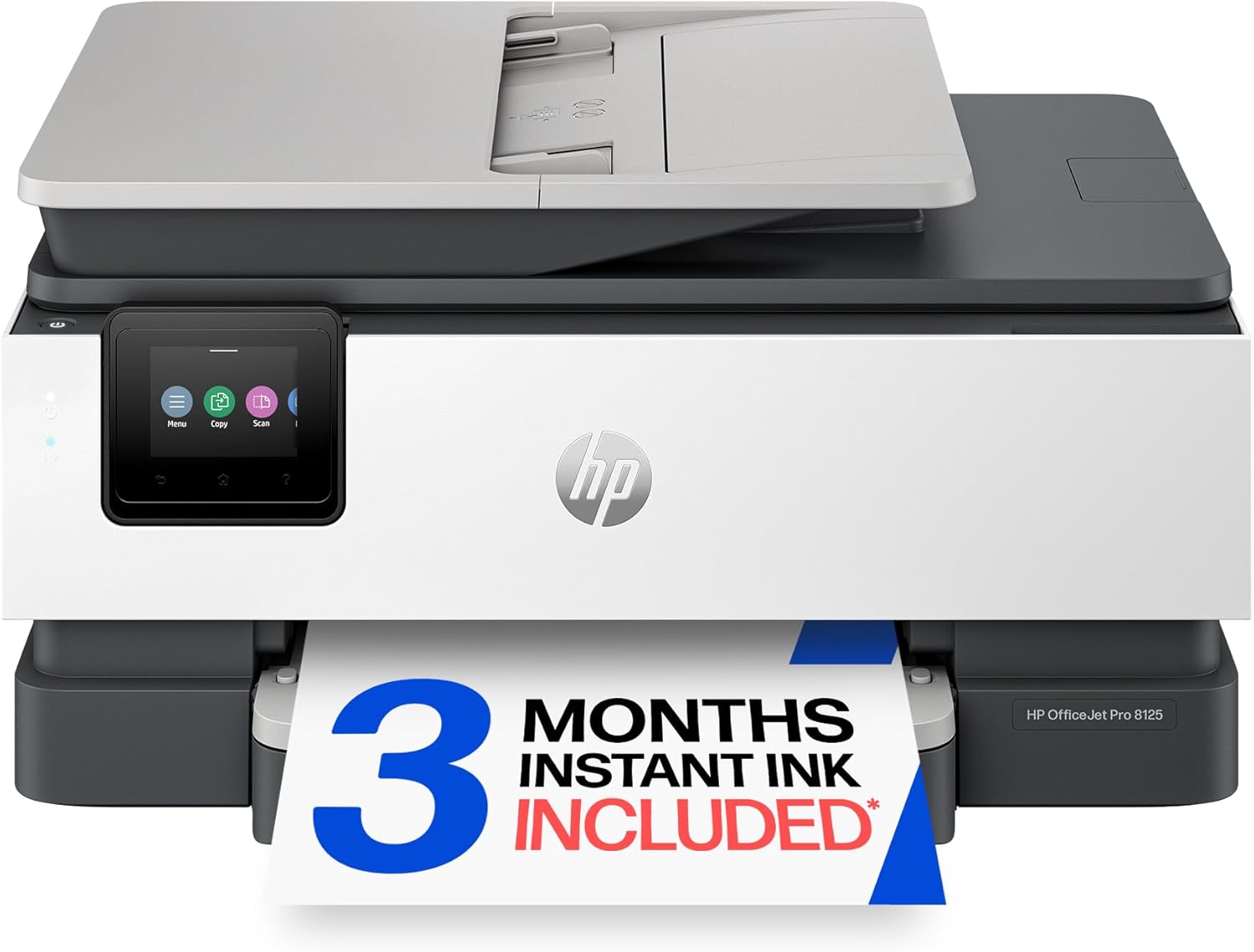
| Best Value The sweet spot between price and what you get | HP OfficeJet Pro 8125 |  |
| Best Budget The cheapest option that still gets the job done reliably | Canon PIXMA TS3720 | 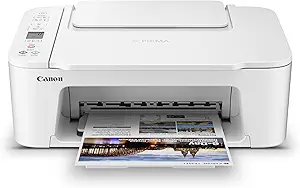 |
| Top Rated A top-rated pick with lots of positive feedback | Brother MFC L2710DW Laser All-in-One |  |
| Most Popular A crowd favorite that many people choose with confidence | Canon PIXMA TR4720 |  |
| Best Seller A high-volume bestseller chosen again and again | Epson EcoTank ET-2800 |  |
HP LaserJet Pro MFP 3101sdw

| Printer Type | Laser |
|---|---|
| Maximum Print Resolution Black and White | Up to 1200 x 1200 dpi |
| B&W Pages per Minute | 40 |
| Maximum Sheet Capacity | 250 |
| Scanner Type | ADF, flatbed |
The HP LaserJet Pro MFP 3101sdw is a compact monochrome multifunction laser designed for small offices that need dependable, speedy document workflows. It prints, scans and copies, and includes an ADF plus flatbed scanner for batch scanning, automatic two-sided printing, and a 250-sheet input tray to handle everyday volumes without constant refills. Connectivity is broad: Wi‑Fi with mobile printing support, Ethernet and USB let you place the unit on a shared office network or print from phones and tablets. Print quality is typical of laser monochrome devices with up to 1200 x 1200 dpi resolution, and quick first-page times and high pages-per-minute keep short runs moving. The unit includes an introductory toner cartridge and works with HP toner that enforces chipset compatibility. Practical trade-offs are that it is black-and-white only and uses HP-chipped cartridges, which limits third-party toner options, but for teams needing reliable, fast B&W output and integrated scanning features it covers the fundamentals well.
Best for: Small office managers or teams who prioritize reliable, high-speed black-and-white printing and built-in scanning for everyday document workflows.
Less Ideal for: Teams that need color printing, photo output, or full support for third-party/compatible toner solutions should look elsewhere.
- Fast monochrome printing with up to 40 pages per minute and quick first-page time
- Multifunction design with ADF and flatbed scanner for easy batch scanning and copying
- 250-sheet input tray reduces paper refills for light to moderate office use
- Flexible connectivity including Wi‑Fi, Ethernet, USB and mobile printing support
- Monochrome only, so no color printing capability
- Requires HP-chipped toner cartridges which restricts third-party cartridge use
Verdict: A fast, dependable monochrome all‑in‑one that gives small offices the core printing and scanning performance they need.
Brother MFC-L8930CDW

| Printer Type | Laser |
|---|---|
| Print Speed (B&W/Color) | 33 ppm / 33 ppm |
| ADF Capacity | 80 pages |
| Connectivity | Ethernet, USB, Wi-Fi |
| Max Print Resolution | 2400 x 600 dpi |
The Brother MFC-L8930CDW is a workhorse designed for small offices that need reliable color laser performance and robust scan features. It handles printing, copying, and two-sided scanning from a 80-sheet single-pass ADF and produces sharp color and black output at up to 33 pages per minute. Practical touches include a 7-inch color touchscreen with customizable shortcuts, built-in dual-band Wi‑Fi and Gigabit Ethernet, NFC badge authentication for secure release, and support for mobile printing and cloud scanning destinations. Brother ships standard-yield toners and offers very high-yield replacement cartridges to lower running costs for busy teams, and optional paper trays expand capacity up to 1,340 sheets. The unit is relatively large and consumes notable power during operation, so it suits a dedicated office environment rather than a casual home desk; setup and network configuration are straightforward but advanced security settings may require some IT time to optimize. For offices prioritizing speed, security, and lower total cost per page, this model is a strong practical choice.
Best for: Small offices and work teams that prioritize fast, secure color printing, high-volume scanning, and lower ongoing consumable costs to support regular document workflows.
Less Ideal for: Users who need a compact, low-power home printer or those with very light printing needs who will not use advanced security or high-capacity features.
- Fast color and mono printing at up to 33 ppm for busy office workflows
- Single-pass duplex ADF for quick two-sided scanning and copying
- Dual-band Wi‑Fi and Gigabit Ethernet plus NFC for flexible, secure connectivity
- Includes standard-yield toners and supports very high-yield replacement cartridges to lower running costs
- 7" color touchscreen with customizable shortcuts simplifies frequent tasks
- Large, heavier footprint and higher power draw make it better suited to a dedicated office area than a small home desk
- Only one standard input tray included; optional trays are required to reach maximum sheet capacity
Verdict: Choose the MFC-L8930CDW when you need fast, secure, and cost-efficient color laser performance for a busy small office.
HP OfficeJet Pro 8125
| Printer Type | HP Thermal Inkjet |
|---|---|
| Maximum Sheet Capacity | 225 |
| Duplex | Automatic (standard) |
| Color Pages per Minute | 10 pages_per_minute |
| Printer Connectivity Type | Apple AirPrint; Ethernet networking; USB; Wireless (Wi-Fi); Wireless direct printing |
The HP OfficeJet Pro 8125 is a compact all-in-one inkjet aimed at home and small office use, combining printing, scanning and copying with a one-sided ADF and automatic two-sided printing. It delivers relatively fast black output and decent color at up to 20 ppm black and 10 ppm color, and the 2.7-inch color touchscreen and mobile app make everyday tasks and remote printing straightforward. The 225-sheet input capacity and ADF help when you have mixed batch jobs, while HP AI tools clean up web and email prints to avoid wasted pages. Connectivity is broad with dual-band Wi-Fi, AirPrint, Ethernet and USB, and HP Wolf security features help keep the device network-safe. Expect the usual inkjet considerations: color photo quality depends on paper choice and original HP cartridges are required for full functionality, and running costs will reflect ink usage for heavy color printing. For a small office that wants an easy-to-use MFP with sensible paper capacity and modern connectivity, this model covers the essentials without excess complexity.
Best for: Small office users who prioritize straightforward setup, reliable connectivity, and useful paper handling for regular document workflows.
Less Ideal for: Users who need lab-grade photo prints or who want the lowest possible ink costs from third-party cartridges.
- Automatic duplex and 225-sheet input tray reduce manual paper handling for multi-page jobs
- 2.7-inch color touchscreen and HP app simplify setup and mobile printing
- Multiple connectivity options including dual-band Wi-Fi, Ethernet, AirPrint and USB
- Includes one-sided ADF for scanning and copying multi-page documents
- Requires original HP cartridges with chips for full functionality which can increase operating costs
- Color photo quality varies with paper and may not match dedicated photo printers
Verdict: A practical, easy-to-use all-in-one that balances speed, paper capacity, and modern connectivity for small office document needs.
Canon PIXMA TS3720

| Printer Type | Inkjet |
|---|---|
| Maximum print Resolution Color | 4800 x 1200 dots_per_inch |
| Color Pages per Minute | 4 pages_per_minute |
| B&W Pages per Minute | 7.7 pages_per_minute |
| Printer Connectivity Type | USB, Wi-Fi |
The Canon PIXMA TS3720 is a small, easy-to-use all-in-one inkjet that handles printing, copying, and flatbed scanning for everyday documents and photos. It uses a two-cartridge hybrid ink system with pigment black for sharp text and dye-based color for photos, and supports borderless prints up to 5 x 7 and document sizes to 8.5 x 14. Setup and mobile printing are straightforward via the Canon PRINT app, Apple AirPrint, or Mopria, and the rear paper tray holds about 60 sheets for light batch jobs. Print speeds are modest — roughly 7.7 ppm for black and 4 ppm for color — so it is best for intermittent office tasks rather than heavy daily volume. The 1.5-inch LCD and simple controls keep basic operation painless, but the printer is simplex only and lacks automated duplexing and a larger paper capacity. Connectivity options include USB and dual-band Wi-Fi, which helps in mixed-device environments. For a low-cost, compact machine that produces crisp text and decent photos, the TS3720 is a practical pick when high volume and duplex are not required.
Best for: Buyers who need an affordable, compact all-in-one that handles occasional office prints, mobile printing, and basic photo tasks without a large footprint.
Less Ideal for: Not a good fit for high-volume offices or teams that require automatic two-sided printing and large paper capacity.
- Compact footprint fits small workspaces
- Hybrid two-cartridge ink system produces sharp black text and good color photos
- Dual-band Wi-Fi plus USB and mobile printing support make setup and wireless use easy
- Supports borderless photo printing and a variety of media sizes
- Simplex only with no automatic duplexing
- Rear tray holds only about 60 sheets, limiting continuous print runs
Verdict: A budget-friendly compact all-in-one that delivers crisp text and easy wireless mobile printing for small offices with light daily print needs.
Brother MFC L2710DW Laser All-in-One

| Printer Type | Laser |
|---|---|
| Printer Output Type | Monochrome |
| Maximum Print Resolution Black and White | 2400 x 600 dpi |
| Maximum Sheet Capacity | 250 |
| Printer Connectivity Type | Wi-Fi, wired |
The Brother MFC L2710DW is a compact monochrome laser all-in-one built for small office use where steady daily output matters. It prints up to about 30 pages per minute, supports wired and Wi-Fi connectivity including AirPrint and Google Cloud Print, and has an automatic duplexer plus a manual feed for thicker media like envelopes and card stock. The included starter toner and compatibility with Brother TN730/TN760 cartridges or the Refresh subscription make ongoing supplies straightforward. Scanning and fax are integrated, and a small LCD and app control simplify common tasks from a phone or workstation. Limitations include a modest 250-sheet capacity and basic 64MB memory, so very large print jobs or heavy multiuser environments may see slower job handling or need more frequent tray refills. The machine favors reliable, no-frills performance and low-maintenance operation rather than advanced color or high-volume enterprise features.
Best for: Small office buyers who prioritize dependable daily black-and-white printing, simple network setup, and low-maintenance supply options for routine document workflows.
Less Ideal for: High-volume print shops or teams that need large tray capacity, color printing, or advanced finishing features should look at higher-capacity laser models.
- Fast monochrome printing around 30 ppm for quick document throughput
- Automatic duplexing and manual feed for envelopes/card stock improve workflow versatility
- Wi-Fi and wired networking plus mobile printing support for flexible connectivity
- Compatible with standard and high-yield Brother TN730/TN760 cartridges and optional Refresh subscription for easy toner replenishment
- 250-sheet input capacity is modest for busier small offices
- Limited memory (64MB) may slow handling of very large or complex print jobs
Verdict: A reliable, compact monochrome all-in-one that delivers steady black-and-white performance and easy toner management for small office duty.
Canon PIXMA TR4720

| Printer Type | Inkjet |
|---|---|
| Print Resolution | 4800 x 1200 |
| B&W Pages per Minute | 8.8 |
| Color Pages per Minute | 4.4 |
| Printer Connectivity Type | USB, Wi-Fi |
The Canon PIXMA TR4720 is a space-conscious 4-in-1 inkjet that covers everyday small-office tasks like printing documents, scanning forms, copying, and sending faxes. It uses a hybrid ink system to produce sharp black text and reasonably vibrant color prints and can make borderless photos up to letter size. Practical features include an automatic duplexer to print two-sided letter pages, an auto document feeder for multi-page scans or copies, a front 100-sheet paper tray, and app-based mobile printing and scanning via Canon Print. Connectivity options include Wi-Fi and USB and a simple 2-line LCD and buttons for basic control. On the downside it is a budget-focused model with modest color speed (about 4.4 ipm) and no high-end display or advanced finishing options, and running costs depend on Canon CL-276 / PG-275 cartridges which can add up with frequent color printing. For small offices that need compact, reliable multifunction capability and occasional photo printing, the TR4720 is a practical pick; teams that need high-volume, fast color throughput or advanced management features should consider higher-tier office models.
Best for: Small office buyers who prioritize a compact, easy-to-set-up multifunction printer for everyday document tasks and occasional photo prints and who value proven, well-known brands and peer validation.
Less Ideal for: Offices that require high-volume fast color production, advanced network management, or a touchscreen control panel should look at larger business-grade models instead.
- Compact 4-in-1 design (print, scan, copy, fax) suitable for small workspaces
- Automatic duplex printing saves paper on two-sided letter documents
- 100-sheet front paper tray and auto document feeder for basic office workflow
- Wireless mobile printing and Canon Print app support convenient remote printing
- Color print speed and output are modest compared with higher-end office printers
- Uses Canon CL-276 / PG-275 cartridges which can be costly with frequent color use
Verdict: A compact, dependable multifunction printer that delivers essential small-office printing, scanning, copying, and faxing in a proven, easy-to-use package.
Epson EcoTank ET-2800

| Printer Type | Inkjet |
|---|---|
| Printer Connectivity Type | USB, Wi-Fi |
| Color | Color |
| B&W Pages per Minute | 10 |
| Maximum print Resolution Color | 5760 x 1440 dpi |
The Epson EcoTank ET-2800 is a cartridge-free all-in-one inkjet that prints, scans, and copies using large refillable ink tanks instead of cartridges. It is intended for everyday home or small office tasks and delivers up to 10 ISO pages per minute for black-and-white jobs and about 5 ppm in color, with high optical resolution and a flatbed scanner for documents and photos. Its refillable EcoTank bottles cut down on how often you change ink and lower ongoing ink cost compared with cartridge-based models, while PrecisionCore Micro Piezo printhead technology supports sharp text and detailed color prints. Connectivity includes USB and Wi-Fi with app control and voice-activated printing for easy mobile workflows. It lacks automatic duplexing and has a modest paper capacity, so it is better suited to light to moderate print volumes rather than high-throughput office workflows. Buyers should also plan to use genuine Epson ink to maintain performance and warranty coverage.
Best for: A cautious buyer looking for a dependable, low-cost-per-page all-in-one for light to moderate small-office print, scan, and copy needs who values reliable factory-quality ink and simple mobile connectivity.
Less Ideal for: Teams that need high-volume daily printing with automatic duplexing and large paper capacity should consider higher-capacity office printers instead.
- Cartridge-free EcoTank system greatly reduces how often you replace ink
- Low running costs with high-yield replacement ink bottles equivalent to many cartridges
- Wireless and app-based printing with voice-activated support for mobile workflows
- High print resolution for detailed documents and photo-quality output
- Includes flatbed scanner for copying and scanning tasks
- No automatic two-sided (duplex) printing
- Paper tray and sheet capacity are limited for heavier office workloads
Verdict: Choose the ET-2800 if you want a reliable cartridge-free all-in-one that cuts ink headaches and operating costs for light to moderate small-office use.
Choosing the Right Printer for Small Offices: Key Factors to Consider
Monthly Print Volume
Estimate your average and peak monthly page counts before choosing a printer. Small offices can range from a few hundred pages per month to several thousand, and selecting a device rated for a higher duty cycle reduces the risk of premature wear.
A printer pushed beyond its recommended monthly volume will need service more often and may suffer shortened component life. Match the rated monthly duty capacity to your realistic usage plus a margin for occasional higher-demand periods to avoid downtime and unexpected maintenance.
Running Costs and Consumables
Calculate the cost per page including toner or ink, drum units, and maintenance kits. Consumable yield estimates matter most when comparing true operating costs because cheaper upfront hardware can be expensive to operate.
Also factor in how easy it is to obtain consumables and whether high-yield or subscription options are available. For small offices, paying slightly more for a higher-yield cartridge can lower service intervals and administrative overhead.
Connectivity and Network Features
Ensure the printer supports the network setup your office uses, such as wired Ethernet, reliable Wi-Fi, or both. Look for features like secure printing, user authentication, and administrative controls if multiple people share the device.
Software compatibility with your operating systems and mobile printing standards affects daily convenience. Built-in support for common network protocols and easy remote management reduces IT time and keeps print services available to staff.
Print Quality and Media Handling
Consider the acceptable print quality for your typical documents. Text-heavy office output prioritizes crisp black text, while marketing materials or client-facing documents may need better color fidelity and paper handling.
Check the supported media sizes and weights, automatic document feeder capacity, duplexing capability, and optional tray expansion. Flexible media handling reduces manual intervention and streamlines workflows for mixed print tasks.
Maintenance and Reliability
A printer that is easy to maintain saves time and disruption. Look for clear access to replaceable parts, modular components like separable fusers or drums, and straightforward error recovery procedures.
Consider manufacturer service options and the availability of local repair resources. In small offices, quick user-replaceable parts and intuitive status alerts are often more valuable than marginal gains in spec sheets.
Security and Administrative Controls
Printers on an office network are potential security weak points. Evaluate options for secure printing, access controls, firmware update mechanisms, and encryption for network traffic.
Administrative features such as usage tracking, quotas, and authentication integration make it easier to monitor costs and restrict access. These controls help protect sensitive documents and maintain operational oversight without adding complexity for end users.
Black-and-White Versus Color for Office Use
Decide whether color printing is essential for your workflows or if monochrome output will suffice. Black-and-white printers typically cost less to operate and are faster for text documents, making them a common choice for invoice printing, internal memos, and reports.
Color devices add flexibility for occasional marketing materials and proposals but bring higher consumable costs and sometimes slower color output. If you only print color occasionally, consider outsourcing occasional high-quality color jobs to a print shop while keeping an in-house monochrome unit.
- Monochrome: lower operating costs, faster text print
- Color: useful for client-facing documents and internal visuals
- Weigh frequency of color needs against ongoing consumable expense
Paper Handling and Tray Configuration
Tray capacity and the ability to handle different media sizes determine how often staff must reload paper and whether specialty stock can be used without manual switching. For small offices, a primary tray with enough capacity for daily use plus a secondary multi-purpose tray for envelopes or heavier media is a practical setup.
Automatic duplexing is important for saving paper and making two-sided documents common practice. Also examine the automatic document feeder for scanning and copying tasks since a larger ADF reduces manual intervention.
- Look for at least one higher-capacity main tray
- Secondary multi-purpose tray for envelopes or labels
- Automatic duplexing for default two-sided printing
Setup, Drivers, and Mobile Printing
Smooth initial setup and reliable drivers cut down on early headaches. Confirm that installers are available for the operating systems in your office and that firmware updates are easy to apply. Printer apps that support secure mobile printing can make a big difference for employees who work from phones or tablets.
Cloud and mobile printing solutions vary between manufacturers, so choose a printer that supports standards compatible with your devices. Simple, guided setup and clear network configuration menus help nontechnical staff connect without IT assistance.
- Verify driver availability for desktop OS versions in use
- Prefer printers with straightforward mobile printing support
- Check whether firmware updates can be installed remotely
Space, Noise, and Physical Footprint
Small offices often have limited space. Measure the intended location and compare against the printer's footprint, including clearance for paper trays and maintenance access. Also consider the weight if you need to move the device occasionally.
Noise levels impact the office environment, especially in open-plan setups. Look for published acoustic ratings or user feedback on noise during high-speed jobs if quiet operation matters for your workspace.
- Measure installation area and required clearance
- Consider quieter models for shared or open spaces
- Account for weight and mobility if you plan to relocate the device
Energy Use and Environmental Considerations
Energy consumption affects long-term operating costs and environmental footprint. Check for low-power sleep modes and quick wake times so the device is not drawing full power while idle. Some printers offer configurable sleep timings to balance readiness with energy savings.
Also consider recyclable consumables and manufacturer take-back programs. Reducing consumable waste and choosing high-yield cartridges can lower both environmental impact and per-page costs.
- Look for efficient sleep modes and configurable power settings
- Prefer high-yield consumables to reduce waste
- Seek out recycling programs for cartridges and parts
How We Chose the Best Printer for Small Offices
We applied a practical, usage-driven filter to identify printers that meet the day-to-day needs of small offices. First, we screened for devices rated to handle typical small-office monthly page volumes so units are sized appropriately for light to moderate workloads. We prioritized models with clear total cost-of-ownership signals, including estimated yield and consumable pricing information, because toner and ink often dominate long-term expense. Reliability and serviceability were next: we favored designs with proven duty cycles, easy access to replaceable parts, and straightforward maintenance procedures. Connectivity and workflow integration were also central. We evaluated network printing features, wireless stability, mobile printing support, and whether common office document workflows are supported natively. Usability and administration mattered for shared devices, so control-panel clarity, consumable monitoring, and user-management features were considered. Finally, we excluded specialty consumer-only units that lack business-class durability or clear consumable cost data. This approach produced a list focused on printers that balance speed, durability, and ongoing affordability for small offices.
Our full evaluation process is outlined in our review methodology.
FAQ
How many pages per month should a small office printer handle?
Small offices typically require devices rated for anywhere from several hundred to a few thousand pages per month. Choose a printer whose rated monthly duty cycle comfortably exceeds your average monthly volume to avoid excess wear.
Are laser printers better than inkjets for small offices?
Laser printers often provide faster text printing and lower per-page costs for high black-and-white volumes, while inkjets can offer better color photo quality. The best choice depends on your mix of document types and how much you print each month.
What is the biggest hidden cost of owning an office printer?
Consumables such as toner or ink and replacement drum or maintenance kits are the most significant ongoing costs. Estimating cost per page and expected yield gives a clearer picture of total ownership expense than the initial purchase price alone.
Do I need business-class service for a small office printer?
Business-class service can be beneficial if your office depends heavily on printing and lacks in-house IT support. However, many small offices are well served by devices designed for light-to-moderate duty with user-replaceable parts and clear maintenance instructions.
How important is duplexing for office printers?
Automatic duplexing is valuable for reducing paper use and streamlining two-sided document workflows. It also helps standardize document formats without manual intervention, which saves time and reduces errors.
Final Verdict
For small offices, prioritize printers that match your realistic monthly pages, offer transparent running costs, and provide easy connectivity for shared use. Tradeoffs are inevitable: faster, more durable machines typically cost more to buy, while lower upfront costs can lead to higher consumable spending over time. Focus on monthly duty capacity, consumable yield, and network features to find a device that minimizes downtime and ongoing expense. Choose a printer sized to your workload with manageable operating costs and straightforward maintenance procedures, and you will get reliable performance without surprise interruptions.