
Note: This article contains affiliate links. If you click on these links and make a purchase, we may earn a small commission at no extra cost to you. This helps support our research and content. Read our full affiliate disclosure here.
Finding a printer on a budget means balancing upfront cost with the ongoing expense and functionality you will actually use. Whether you need basic document printing for home bills and homework or occasional color graphics for projects, the right budget printer can save time and headache without sacrificing acceptable print quality. This guide shortlists the top small-footprint, budget-focused printers that perform well in real-world home and small office workflows. We evaluated options for print quality, running costs, connectivity, and ease of use to help you choose the best fit.
Top Picks at a Glance
| Best Overall The best all-around choice for most situations | HP OfficeJet Pro 8125e | 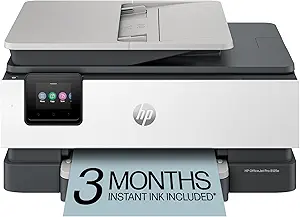 |
| Best Quality Built to a higher standard if you want something more solid | Epson EcoTank ET-2400 |  |
| Best Value The sweet spot between price and what you get | Brother Work Smart 1360 |  |
| Top Rated A top-rated pick with lots of positive feedback | Canon PIXMA TS6520 |  |
| Most Popular A crowd favorite that many people choose with confidence | Canon PIXMA TR4720 |  |
| Best Seller A high-volume bestseller chosen again and again | Epson EcoTank ET-2800 |  |
HP OfficeJet Pro 8125e

| Printer Type | HP Thermal Inkjet |
|---|---|
| Maximum Sheet Capacity | 225 |
| Duplex | Automatic (standard) |
| Print Connectivity | Wi‑Fi, Ethernet, USB, AirPrint |
| Color Pages per Minute | 10 ppm |
The HP OfficeJet Pro 8125e is a compact all-in-one inkjet aimed at small offices and budget-conscious home users who need reliable color output and basic multifunction features. It prints, scans and copies, includes an automatic document feeder and standard two-sided printing, and supports wireless printing via dual-band Wi-Fi, AirPrint, Ethernet and USB. Notable extras are an intuitive touchscreen, HP app control, AI-driven formatting to trim unwanted web content, and a 225-sheet input tray that reduces refills. Print speeds are competitive for the class, and resolution options support sharp business graphics and text. The printer participates in HP+ and Instant Ink programs, which can simplify ink supply but require subscription acceptance for some promotions. Expect typical inkjet running costs and occasional maintenance for color prints; photo-grade output is possible but not the primary focus. For buyers who want a feature-rich, space-conscious MFP that handles everyday office tasks without premium price tagging, the 8125e is a practical pick.
Best for: Buyers who want a budget-friendly multifunction printer that handles everyday home office documents, occasional color printing, and mobile workflows with minimal fuss.
Less Ideal for: Users who need the lowest possible per-page ink costs for heavy volume printing or photographers seeking top-tier photo quality should look elsewhere.
- All-in-one functionality with ADF and automatic two-sided printing for common office tasks
- Dual-band Wi-Fi, Ethernet, AirPrint and USB for flexible connectivity
- 225-sheet input capacity lowers how often you need to reload paper
- AI-assisted formatting and HP app control streamline mobile and web printing
- Ink costs and subscription-based Instant Ink model can raise long-term operating expenses
- Not optimized for high-volume professional photo printing
Verdict: A feature-packed, budget-minded all-in-one that suits small home offices and everyday document printing while keeping setup and mobile workflows simple.
Epson EcoTank ET-2400

| Printer Type | Inkjet |
|---|---|
| Printer Connectivity Type | USB, Wi-Fi |
| B&W Pages per Minute | 10 pages_per_minute |
| Color Pages per Minute | 5 pages_per_minute |
| Maximum print Resolution Color | 5760 x 1440 dpi dots_per_inch |
The Epson EcoTank ET-2400 replaces disposable cartridges with supersized refillable ink tanks, letting you print large runs without frequent cartridge swaps. It prints up to 10 ppm for black and 5 ppm for color, supports USB and Wi‑Fi connectivity, and includes flatbed scanning and copying for everyday home tasks. The included set of high-yield ink bottles is rated to cover thousands of pages, which cuts ongoing ink costs and reduces plastic waste compared with cartridge models. Print quality is strong for text and decent for photos thanks to Epson's Micro Piezo technology and a 5760 x 1440 dpi resolution, though photo enthusiasts will still notice limits versus dedicated photo printers. The ET-2400 holds up to 100 sheets in the rear tray and offers manual duplexing, so it handles moderate workloads but is not designed for heavy office duty. Setup is straightforward using the Epson app, but manual two-sided printing and the basic control surface make it more utilitarian than feature-rich. For buyers focused on low running costs and reliable everyday performance, it delivers excellent value on a budget.
Best for: Buyers who prioritize low ongoing ink costs and reliable everyday printing for home or small-office projects and want fewer interruptions to refill ink.
Less Ideal for: Users needing fast duplex workflows, very high monthly page volumes, or professional-grade photo printing should consider more feature-rich or higher-capacity models.
- Cartridge-free EcoTank system with high-capacity refill bottles reduces frequent replacements
- Low running costs with ink yield equivalent to many cartridges per bottle set
- Wireless and USB connectivity plus app control for easy home printing
- High optical resolution (5760 x 1440 dpi) for sharp text and good color graphics
- Includes scanner and copier for basic all-in-one functionality
- No automatic duplexing; double-sided printing is manual
- Paper handling is modest with a 100-sheet rear tray and 30-sheet output capacity
- Not optimized for heavy daily office volumes or professional photo labs
Verdict: Choose the EcoTank ET-2400 if you want a budget-friendly all-in-one that slashes ink costs with refillable tanks while delivering dependable everyday print quality.
Brother Work Smart 1360

| Printer Type | Inkjet |
|---|---|
| Functions | Print, Copy, Scan |
| Duplex | Automatic |
| Maximum Sheet Capacity | 150 |
| Connectivity | USB, Wi-Fi |
The Brother Work Smart 1360 is a budget-friendly all-in-one inkjet designed for home and small home-office use. It handles everyday tasks—printing, copying, and scanning—while saving space with a compact footprint and a 150-sheet tray. Notable features include automatic duplex (two-sided) printing, a 20-sheet automatic document feeder, and wireless connectivity with Wi-Fi, Wi‑Fi Direct, AirPrint, and Mopria support so you can print from phones and tablets via the Brother Mobile Connect app. Print speeds are modest but practical: up to 16 ppm black and 9 ppm color, and initial page times are fairly quick for typical documents. The printer uses Brother LC501 series inks with standard and high-yield options and a Page Gauge to track ink levels, which helps manage running costs. Expect straightforward setup and basic color output that works well for reports, flyers, and photos for casual use, though photo enthusiasts may notice limits in color depth and advanced color management. For buyers prioritizing value, compactness, and easy mobile printing, this model covers core needs without extra frills.
Best for: Buyers who want a compact, no-nonsense all-in-one for everyday home and small home-office printing with easy mobile connectivity and features that reduce manual tasks.
Less Ideal for: Photographers, designers, or small businesses that require top-tier color accuracy, large monthly volumes, or advanced finishing options should consider more capable models.
- Automatic duplex printing for two-sided documents
- Wireless printing with AirPrint, Mopria, Wi‑Fi Direct and Brother Mobile Connect app
- 20-sheet automatic document feeder and 150-sheet tray improve productivity
- Page Gauge and compatible high-yield ink options help manage ink usage
- Color photo and advanced print-quality control are limited compared with higher-end models
- Only basic 1.8" color display which limits on-device navigation
Verdict: A space-saving, budget-oriented all-in-one that delivers practical duplex printing and easy mobile connectivity for everyday home and small office use.
Canon PIXMA TS6520

| Printer Type | Inkjet |
|---|---|
| Duplex | Automatic |
| Printer Connectivity Type | USB, Wi-Fi |
| Display Type | OLED |
| Color Pages per Minute | 9 pages_per_minute |
The Canon PIXMA TS6520 is a compact home/office all-in-one inkjet that handles everyday printing, copying, and flatbed scanning with straightforward setup and mobile printing support. It uses a two-cartridge hybrid ink system to produce crisp text and reasonably vibrant photos, and the 1.42-inch OLED makes status checks and basic navigation simple. Duplex printing is automatic, which helps reduce paper use, and dual-band Wi‑Fi plus USB connectivity mean you can print from phones, tablets, and computers without fuss. Practical limits include a single paper tray with a small sheet capacity and no automatic document feeder, so high-volume or multi-page scanning and copying require manual page turns. Print speeds are modest but acceptable for home use, and the starter inks are convenient though replacement cartridges are required for long-term cost calculations. For buyers who prioritize a reliable, compact printer for occasional documents and photo prints, the TS6520 delivers consistent performance without extra complexity.
Best for: Buyers who need a dependable, easy-to-use all-in-one for home or light hybrid work and value straightforward wireless printing and automatic duplexing.
Less Ideal for: Users who print large volumes, need fast office throughput, or require automatic multi-page scanning should consider higher-capacity models.
- Automatic two-sided (duplex) printing saves paper and speeds multi-page jobs.
- Dual-band Wi‑Fi and USB connectivity support reliable mobile and desktop printing.
- Compact footprint with a simple OLED display makes placement and basic operation easy.
- Hybrid two-cartridge ink system produces sharp text and good color for photos and documents.
- Single input tray with minimal sheet capacity limits unattended print runs.
- No automatic document feeder, so multi-page scanning or copying requires manual feeding.
Verdict: A compact, reliable all-in-one that delivers easy wireless printing and automatic duplexing for budget-conscious home and light hybrid users.
Canon PIXMA TR4720

| Printer Type | Inkjet |
|---|---|
| Automatic duplex | Yes |
| Paper capacity | 100-sheet front tray |
| Print resolution | 4800 x 1200 dpi |
| Connectivity | USB, Wi-Fi |
The Canon PIXMA TR4720 is a compact 4-in-1 inkjet aimed at home or small office use, combining printing, scanning, copying and fax in a space-saving package. It connects via Wi-Fi or USB and supports mobile printing through the Canon Print app, so you can print from phones or cloud services without fuss. Notable features include a 100-sheet front paper tray, automatic two-sided printing to save paper, a small auto document feeder for multi-page scans and faxes, and a hybrid ink system that delivers sharp black text and decent color prints and borderless photos up to letter size. Real-world benefits are straightforward setup, low power draw, and useful app control for quick mobile jobs. The TR4720 is not a speed demon — black pages run around 8.8 ipm and color is slower — and it uses standard Canon cartridges rather than very high-yield tank systems, so ongoing ink costs can add up for heavy users. For budget buyers who need reliable basic office features and easy mobile connectivity, it covers the essentials without extra complexity.
Best for: Buyers looking for an inexpensive, no-frills all-in-one that handles occasional home or small-office printing, mobile prints and basic scanning with straightforward setup and proven brand reliability.
Less Ideal for: Those who print large volumes, need fast color/photo throughput, or want the lowest long-term ink cost from tank-style or high-yield cartridge systems.
- Compact all-in-one design with print, scan, copy and fax in a small footprint
- Automatic duplex printing and 100-sheet front tray reduce manual handling and paper use
- Auto document feeder simplifies multi-page scans and faxes
- Wireless and mobile printing via Canon Print app for easy phone/cloud jobs
- Low power consumption at 7 watts
- Modest print speeds, especially for color (about 4.4 ipm)
- Uses standard cartridges which can be more costly for high-volume printing
Verdict: A budget-friendly, compact 4-in-1 that delivers easy mobile printing and useful office features for light to moderate home or small-office use.
Epson EcoTank ET-2800

| Printer Type | Inkjet |
|---|---|
| Printer Connectivity Type | USB, Wi-Fi |
| Maximum print Resolution Color | 5760 x 1440 dpi |
| B&W Pages per Minute | 10 |
| Color Pages per Minute | 5 |
The Epson EcoTank ET-2800 replaces cartridges with refillable high-capacity ink tanks so you can print large volumes without frequent cartridge changes, making it a good fit for everyday home tasks. It prints up to 10 black pages per minute and 5 color ppm, and uses Epson PrecisionCore Micro Piezo technology to produce sharp text and decent color photos on plain and glossy paper. Setup and mobile printing are straightforward thanks to Wi-Fi connectivity and app control, and the color LCD simplifies common tasks. The integrated flatbed scanner and copy functions add basic office convenience. Because it is cartridge-free, running costs drop considerably when using genuine Epson bottles, but the printer relies on simplex printing only and has a modest sheet capacity, so heavy duplex office workflows or large media handling are not its strengths. For buyers who value predictable long-term ink costs and simple wireless printing at home, the ET-2800 delivers reliable everyday performance without complicated features.
Best for: Buyers who want a low-running-cost, easy-to-use home printer that minimizes refill hassles and focuses on dependable everyday printing and basic scanning.
Less Ideal for: Users needing automatic two-sided printing, large paper trays, or heavy-duty office throughput should consider higher-capacity models instead.
- Refillable high-capacity ink tanks reduce frequency of ink replacements
- Wireless and mobile printing with app control for easy setup and use
- Good text and photo resolution from PrecisionCore Micro Piezo technology
- Includes flatbed scanner and copy functions for basic all-in-one needs
- No automatic duplex printing, so two-sided jobs require manual flipping
- Modest paper capacity and limited media handling for high-volume office use
Verdict: If you want predictable low ink costs and simple wireless home printing on a budget, the EcoTank ET-2800 is a practical cartridge-free choice.
Choosing the Right Printer on a Budget: Key Factors to Consider
Print Quality Needs
Consider what you actually print most often. If your use is primarily black-and-white documents, look for printers optimized for crisp, dark text and fast first-page-out times. Basic color printing is fine for occasional charts and school projects, but budget models will not match photo-lab quality. Understanding your typical output helps avoid overpaying for features you will not use.
Pay attention to stated print resolution and real-world samples where possible. Manufacturers may list high dpi numbers, but paper type, ink formulation, and print drivers influence perceived sharpness and color accuracy. For everyday documents, prioritize legibility and consistent toner or ink coverage over saturated color fidelity.
Running Costs and Consumables
The initial price is only part of the cost of owning a printer. Consumables such as ink cartridges or toner and the expected cost per page are often the biggest lifetime expenses. Some budget printers use low-cost starter cartridges that need replacement quickly, raising ongoing costs. Consider printers with high-yield cartridge options or refillable tanks if you print frequently.
Also factor in the ease of finding cartridges locally or online and whether generic third-party supplies are widely supported without voiding warranties. Higher-yield consumables spread the replacement cost over more pages and often deliver a lower long-term cost per page.
Connectivity and Mobile Printing
Modern users often print from phones, tablets, and laptops. Built-in Wi-Fi, Bluetooth, or robust mobile printing support (such as standard AirPrint or Mopria compatibility) makes everyday printing simpler. For some buyers, a reliable USB connection or wired Ethernet is preferable for stability, particularly in small office setups.
Consider how the printer integrates with your home network and whether setup requires a companion app that might be complicated or intrusive. Printers with straightforward on-device menus, web-based configuration, or simple app flows reduce setup time and troubleshooting.
Speed and Duty Cycle
Printer speed matters when you have frequent or larger print jobs. Budget printers vary widely in pages-per-minute for black-and-white and color output. If your workflow includes batches of multi-page documents, choose a model with faster warm-up and print speeds and a duty cycle that comfortably exceeds your monthly page volume.
A printer pushed beyond its recommended duty cycle will need more maintenance and may have a shorter usable life. Match the rated monthly duty cycle to realistic expectations of how much you print each month to avoid reliability problems.
Size, Features, and Media Handling
Physical footprint and paper handling are practical considerations for small spaces. Some budget printers are compact and designed for a desktop, while others offer larger paper trays or automatic document feeders for scanning and copying. Decide whether you need duplex printing, scan and copy functions, or multiple paper trays.
Budget models often sacrifice advanced media handling or high-capacity trays to keep costs down. If you regularly print envelopes, labels, or cardstock, check the supported media weights and tray flexibility before buying.
Software, Drivers, and Ongoing Support
A usable driver stack and reliable firmware updates improve the ownership experience. Budget printers sometimes have stripped-down driver capabilities or less frequent firmware support, which can affect print performance and compatibility with newer operating systems.
Look for vendors that provide clear downloadable drivers, mobile apps that do not restrict basic functions behind paywalls, and straightforward firmware update processes. Good software support reduces setup friction and helps ensure the printer remains usable over several years.
Which Type Fits Your Budget Workflow
Budget printers commonly fall into inkjet and laser categories, each with practical tradeoffs. Inkjet models are usually less expensive up front and can do decent color graphics, but ink costs can be higher unless you choose a refillable-tank design. Laser printers often provide lower cost per page for black-and-white documents and sharper text at higher speeds, making them a strong choice for text-heavy users.
Think about how often you print and whether color is essential. If you print photos or graphics occasionally, a basic inkjet can be fine. If you mostly print documents and want lower running costs, an entry-level monochrome laser is worth considering.
- Inkjet: lower upfront cost, color-capable, potentially higher ink costs
- Laser: typically lower cost per page for black-and-white, faster for multi-page jobs
- Refillable ink or high-yield cartridges can change the running cost equation
Tips to Lower Long-Term Costs
Buying a printer with high-yield cartridges or support for refillable tanks can dramatically reduce the cost per page. Also, set default print settings to draft or grayscale for routine documents to conserve color cartridges. Regularly use the printer to avoid ink drying in inkjet nozzles, or choose a model designed to withstand intermittent use.
Keep spare cartridges or toner on hand if you rely on the device for time-sensitive tasks, and consider third-party suppliers only after confirming compatibility and reliable print results. Proper storage of consumables and choosing the right paper weight for your tasks will help avoid wasted pages.
- Choose high-yield or refillable consumables where possible
- Use draft mode for everyday documents
- Print periodically to prevent ink drying
Setting Up a Budget Printer for Reliable Home Use
Place the printer on a stable surface near your router or primary device and connect it to a reliable power source. Follow initial alignment and calibration steps to ensure the best print quality out of the box. If using wireless setup, confirm the printer firmware is up to date before relying on mobile printing features.
Create clear network naming and password routines to avoid accidental connections. For shared household use, enable guest printing or designate a single administrator for firmware updates and consumable orders to keep the device stable and secure.
- Update firmware during initial setup
- Keep the device on a stable surface with ventilation
- Assign an admin for shared household printers
Maintenance Essentials for Budget Models
Routine maintenance reduces frustration and extends a printer's usable life. For inkjets, run automated nozzle checks only as needed and use genuine or recommended cleaning methods. For lasers, periodically clean internal rollers and keep the area around the fuser clear of dust. Replace consumables according to manufacturer guidelines and avoid letting toner or ink run completely dry.
Keep a small toolkit for clearing paper jams and store the manual or online support links for troubleshooting. Preventive maintenance is usually simple and inexpensive compared with the cost of premature replacement.
- Run maintenance tasks on a schedule, not reactively
- Keep spare paper and consumables to reduce downtime
- Store printer in a dust-free environment when possible
When to Upgrade From a Budget Printer
If your monthly print volume increases significantly or you require higher color fidelity for graphics or photos, it may be cost-effective to upgrade to a midrange model with better consumable economics or improved color handling. Signs it is time to upgrade include frequent cartridge replacements, slow print speeds that interrupt workflows, or increasing maintenance issues beyond simple fixes.
Also consider upgrading if you need advanced features such as higher-capacity trays, professional-level scanning, or more robust security features for a small office environment. An upgrade makes sense when the total cost and productivity benefits outweigh continued repairs and high running costs.
- High monthly print volume
- Need for professional color or photo quality
- Frequent maintenance or reliability problems
How We Chose the Best Printer on a Budget
We focused on printers that deliver solid everyday performance while keeping total ownership costs low. Our selection filters prioritized models with reasonable print quality for text and simple graphics, affordable and widely available consumables, and straightforward setup and connectivity for typical home and small office networks. We excluded specialty or high-end models designed for heavy commercial workloads or professional photo labs, and we left out single-function devices that do not offer the basic features buyers expect at this price point. Concrete evaluation criteria included measured cost per page and cartridge yield, measured or reported print resolution for text and basic color graphics, connectivity options and ease of setup, and reliability indicators such as duty cycle and common maintenance needs. We also considered software usability and mobile printing support, since many budget buyers rely on phones and tablets. These criteria align with the scorecard metrics so you can compare options by the dimensions that matter most for budget-conscious buyers.
Our full evaluation process is outlined in our review methodology.
FAQ
How much should I expect to spend on ink or toner for a budget printer?
Costs vary, but budget-conscious buyers should expect consumables to be a significant portion of ownership cost. Look at published page yields and calculate cost per page to estimate monthly expenses based on your typical usage.
Are refillable ink tanks better than cartridges for low-cost printing?
Refillable tanks often lower long-term ink costs, especially for moderate to high-volume users. They require careful filling and storage to avoid spills, but for frequent printing they can be the most economical option.
Is wireless printing reliable on budget models?
Wireless printing can be reliable, but budget models may have simpler Wi-Fi hardware and less robust firmware. For mission-critical tasks, a wired connection or a model with proven mobile printing support can offer more consistency.
Can I use third-party cartridges to save money?
Third-party cartridges can reduce cost per page but may vary in quality and compatibility. Verify reliability reports and whether using third-party supplies affects support coverage before relying on them long term.
How often should I perform maintenance on a budget printer?
Perform light maintenance monthly if you print regularly, including cleaning rollers and checking for paper debris. For intermittent users, run a nozzle check or test print every few weeks to keep ink flowing and prevent clogging.
Final Verdict
When choosing a printer on a budget, focus on the balance between upfront cost and recurring expenses. Prioritize models with acceptable text quality, reasonable cost per page, and the connectivity you will actually use. Consider how much you print each month and pick consumable options that lower long-term expenses even if the initial purchase is slightly higher. Weigh tradeoffs between speed, color capability, and maintenance needs to select a machine that fits your workflow. By matching a printer to your real-world usage pattern and factoring in consumable economics, you can choose confidently and avoid costly surprises down the road.