
Note: This article contains affiliate links. If you click on these links and make a purchase, we may earn a small commission at no extra cost to you. This helps support our research and content. Read our full affiliate disclosure here.
Picking the right printer affects everyday productivity, whether you need crisp documents for work, bright photos for projects, or steady scanning and copying for home records. The right machine saves you time, reduces running costs, and avoids the frustration of constant maintenance. This guide shortlists the top printers across common home and small-office use cases and evaluates them on speed, output quality, and ongoing expenses. Use the summaries and evaluation criteria here to match a model to your printing volume and priorities. Below are our top picks, followed by practical buying guidance and answers to common questions.
Top Picks at a Glance
| Best Overall The best all-around choice for most situations | Epson Expression Premium XP-7100 |  |
| Best Quality Built to a higher standard if you want something more solid | Canon imagePROGRAF PRO-1100 |  |
| Best Value The sweet spot between price and what you get | Brother Work Smart 1360 |  |
| Best Budget The cheapest option that still gets the job done reliably | HP DeskJet 2955 All-in-One |  |
| Top Rated A top-rated pick with lots of positive feedback | HP LaserJet Pro MFP 3101sdw |  |
| Most Popular A crowd favorite that many people choose with confidence | Canon PIXMA TR4720 |  |
| Best Seller A high-volume bestseller chosen again and again | Epson EcoTank ET-2800 |  |
Epson Expression Premium XP-7100

| Printer Type | Inkjet |
|---|---|
| Print Resolution | 4800 dpi |
| Maximum B&W Speed | 15.8 pages_per_minute |
| ADF Capacity | 30 sheets |
| Connectivity | Wireless, Ethernet, USB, SD card |
The Epson Expression Premium XP‑7100 is a compact all‑in‑one inkjet intended for home users who want both everyday document printing and higher‑quality photo output. It prints with five Claria Premium inks, supports borderless photos up to 8 x 10 inches, and offers a 4.3 inch touchscreen for printing directly from USB or SD cards. The 30‑sheet Auto Document Feeder and automatic two‑sided printing make multi‑page scans and duplex jobs convenient, while wireless, Wi‑Fi Direct and an Ethernet port cover common connectivity scenarios. Photo resolution goes up to 4800 dpi, so images look detailed on glossy paper, though color photo speed in normal quality is slow compared with basic document printing. The printer uses Epson Genuine cartridges and is designed around those inks, which helps image quality but means ongoing ink costs and reliance on Epson supplies. For a household that mixes photo projects with schoolwork and home office tasks, the XP‑7100 balances features and print quality in a relatively compact footprint.
Best for: Buyers who want a single home printer that handles everyday documents and higher‑quality photos with straightforward wireless and card‑based printing for family projects and small home office tasks.
Less Ideal for: Users who need the fastest photo throughput, the lowest long‑term ink cost, or heavy office volume printing should consider workgroup or ink‑tank models instead.
- Five‑color Claria Premium ink set for improved photo color and black photo support.
- Supports borderless photo printing up to 8 x 10 inches for hobbyist photo projects.
- 30‑sheet Auto Document Feeder and automatic duplex for faster multi‑page workflows.
- 4.3 inch touchscreen plus USB and SD card slot for printing without a computer.
- Multiple connectivity options including wireless, Wi‑Fi Direct and Ethernet.
- Color photo printing can be slow compared with plain document printing.
- Requires Epson Genuine cartridges which raises ongoing ink cost and limits third‑party options.
Verdict: A versatile home all‑in‑one that delivers strong photo quality and convenient features for mixed photo and document use.
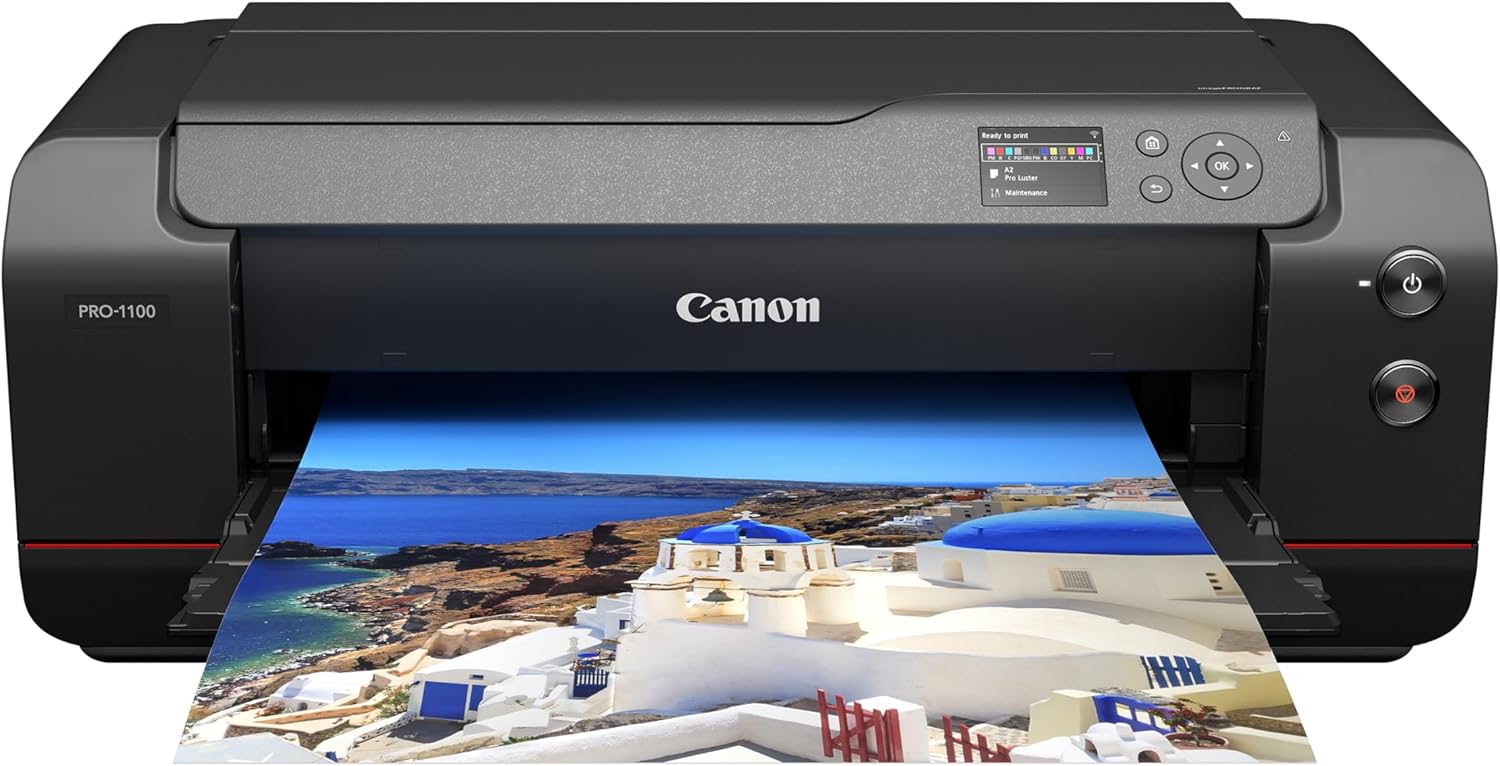
Canon imagePROGRAF PRO-1100
| Printer Type | Inkjet |
|---|---|
| Maximum Media Size | 17 X 22 Inch |
| Resolution | 4800 x 2400 |
| Printer Connectivity Type | USB, Wi-Fi |
| Ink System | 11 pigment-based inks + Chroma Optimizer |
The Canon imagePROGRAF PRO-1100 is a 17" wide-format inkjet built for photographers who need gallery-quality prints from a desktop device. It uses an 11-color pigment-based LUCIA PRO II ink set plus a Chroma Optimizer to deliver deep blacks, wide color gamut, and improved gloss uniformity, and the FINE print head and anti-clogging features help maintain consistent output. The printer accepts a broad range of media up to 17 x 22 inches and supports automatic duplexing and borderless printing, making it suitable for proofing and final prints alike. Connectivity includes USB and Wi‑Fi and Canon's professional print/layout software and color-management tools simplify color calibration and workflow. Expect slow page throughput since this model prioritizes image quality over speed, and the unit is large and heavy compared with consumer printers, so it best fits a studio or dedicated workspace. Replacement inks and the initial ink set are part of the box, but ongoing ink costs should be anticipated for frequent high-volume use.
Best for: Photographers and imaging professionals who prioritize print fidelity, wide color gamut, and precise color management for studio proofing and fine-art output.
Less Ideal for: Users who need fast, high-volume document printing or a compact, portable desktop printer for casual home use.
- 11-pigment LUCIA PRO II ink system with Chroma Optimizer for wide color gamut and improved gloss uniformity
- Supports up to 17 x 22-inch media and borderless printing for large photographic and fine-art prints
- Automatic duplexing and air feeding system reduce skew and simplify media handling
- Includes professional print/layout software and color calibration tools for accurate color management
- Slow print speed focused on quality rather than throughput
- Large, heavy chassis requires dedicated space and handling
Verdict: Choose the PRO-1100 when you need desktop gallery-quality 17" prints with a wide color gamut and professional color management.
Brother Work Smart 1360

| Printer Type | Inkjet |
|---|---|
| Functions | Print, Copy, Scan |
| Duplex | Automatic |
| Maximum Sheet Capacity | 150 |
| Printer Connectivity Type | USB, Wi-Fi |
The Brother Work Smart 1360 is a compact all-in-one inkjet aimed at home and small home-office use, combining printing, copying, and flatbed plus ADF scanning in a single small footprint. It connects via Wi‑Fi or USB and supports mobile printing through AirPrint and Mopria and the Brother Mobile Connect app, which simplifies setup and remote printing. Key productivity features include automatic two-sided printing, a 20-sheet single-sided automatic document feeder, and a 150-sheet input tray, while print speeds reach up to 16 ppm black and 9 ppm color. Print quality is rated up to 1,200 x 6,000 dpi on Windows, delivering sharp text and decent color for reports and flyers. Practical touches like Page Gauge ink monitoring and compatibility with Brother LC501 inks make ongoing supply management straightforward. Trade-offs are typical for budget inkjets: small starter cartridges, modest photo color performance compared with dedicated photo printers, and a basic 1.8" display rather than a large touchscreen. For routine document work and occasional color prints this model balances useful features with a small footprint and easy mobile connectivity.
Best for: Buyers who value a compact, productivity-focused all‑in‑one that handles everyday documents, two-sided printing, and mobile workflows without needing a large office printer.
Less Ideal for: Users who require professional photo-quality output, large-volume commercial printing, or advanced on-device controls should consider more specialized models.
- All-in-one functions (print, copy, scan) in a compact design suitable for home offices
- Automatic duplex printing and a 20-sheet ADF speed common two-sided and multi-page tasks
- Wireless connectivity plus AirPrint, Mopria, and Brother Mobile Connect app for easy mobile printing
- 150-sheet input tray supports typical home/office print volumes without constant refills
- High maximum print resolution on Windows for sharp text and good color output for documents
- Starter ink yields are limited so replacement cartridges are needed sooner than high-yield options
- Not optimized for high-end photo printing compared with dedicated photo printers
- Small 1.8" color display provides limited on-device navigation compared with larger touchscreens
Verdict: A space-saving, productivity-focused all‑in‑one that delivers reliable document printing, duplexing, and easy mobile connectivity for home and small home‑office use.
HP DeskJet 2955 All-in-One

| Printer Type | HP Thermal Inkjet |
|---|---|
| Maximum Sheet Capacity | 60 |
| Color Pages per Minute | 5.5 pages_per_minute |
| B&W Pages per Minute | 7.5 pages_per_minute |
| Printer Connectivity Type | Apple AirPrint; USB; Wireless (Wi-Fi); Wireless direct printing; Mopria |
The HP DeskJet 2955 is a small, budget-friendly all-in-one that handles everyday home tasks like printing letters, school worksheets, and occasional photos while offering flatbed scanning and copying. Setup and mobile printing are straightforward thanks to the HP Smart app, AirPrint and Wi‑Fi Direct support, and the intuitive icon LCD. It has a single 60-sheet input tray and modest print speeds—about 7.5 ppm black and 5.5 ppm color—so it is best for light intermittent use rather than heavy daily batches. Print quality is adequate for text and casual color documents, and the printer is eligible for HP Instant Ink which can lower ongoing ink costs during the included three-month trial. Duplex printing is manual via driver support, and the machine relies on HP 68-series cartridges, so ongoing supply cost and page yield are important to consider. Its compact footprint and recycled-plastic construction make it an easy fit for small home offices or dorm rooms where simple wireless printing and low up-front cost matter most.
Best for: Buyers seeking the lowest-cost, compact all-in-one for light home printing, scanning, and copying who prioritize easy mobile setup and low initial outlay.
Less Ideal for: Users who need fast, high-volume printing, automatic duplexing, or the lowest long-term ink cost without relying on a subscription service.
- Compact all-in-one design with print, scan, and copy in one unit
- Easy mobile and wireless printing via HP Smart app, AirPrint, and Wi‑Fi Direct
- Includes a three-month Instant Ink trial to reduce short-term ink costs
- Made with at least 70% recycled plastics and ENERGY STAR certified
- Slow print speeds and small 60-sheet tray limit high-volume use
- Manual duplex requires user intervention and driver support
Verdict: A compact, wallet-friendly all-in-one that delivers simple wireless printing and scanning for light home use while keeping up-front cost low.
HP LaserJet Pro MFP 3101sdw

| Printer Type | Laser |
|---|---|
| Maximum Print Resolution Black and White | Up to 1200 x 1200 dpi |
| B&W Pages per Minute | 40 |
| Maximum Sheet Capacity | 250 |
| Duplex | Automatic |
The HP LaserJet Pro MFP 3101sdw is a compact monochrome laser multifunction printer built for small teams and busy home offices. It prints, scans (ADF and flatbed), and copies at business-class speeds, with up to 35–40 B&W pages per minute and a first-page-out time under 10 seconds, so routine print jobs finish quickly. The 250-sheet input tray and 50-sheet automatic document feeder reduce trips to the feeder for multi-page jobs, and automatic two-sided printing saves paper on reports and handouts. Connectivity is broad: Ethernet, USB, Wi‑Fi, Apple AirPrint and mobile printing tools let you print from laptops and phones and manage devices remotely. Output quality is sharp at up to 1200 x 1200 dpi for text and line art. On the downside, it is monochrome only and uses HP-chipped toner cartridges, which restricts third-party consumable options. For offices that need reliable, high-volume black-and-white output, this MFP delivers consistent performance and easy network setup.
Best for: Buyers who prioritize dependable, high-speed black-and-white printing and simple network management for small teams or home offices.
Less Ideal for: Users who need color printing, craft/photo output, or who want unrestricted use of third-party toner alternatives.
- Fast monochrome print speeds suitable for high-volume office tasks
- 50-sheet ADF plus flatbed scanner for efficient multi-page scanning and copying
- 250-sheet input tray reduces paper refills for typical office runs
- Automatic duplex printing saves paper and speeds two-sided jobs
- Multiple connectivity options including Ethernet, Wi‑Fi, USB and mobile printing
- Monochrome-only printing limits use where color output is needed
- Requires HP-chipped toner cartridges which blocks many third-party refills
Verdict: Choose this HP LaserJet Pro MFP when you need a reliable, fast monochrome all-in-one printer built for steady office workloads.
Canon PIXMA TR4720

| Printer Type | Inkjet |
|---|---|
| Print Resolution | 4800 x 1200 |
| Paper Capacity | 100-sheet front tray |
| Connectivity | USB, Wi-Fi |
| Auto Duplex | Automatic |
The Canon PIXMA TR4720 is a small-footprint 4-in-1 inkjet aimed at home and small-office use. It handles everyday document tasks and occasional photos, offering wireless and USB connectivity so you can print from a PC, smartphone, or the Canon Print app. Notable conveniences include a 100-sheet front paper tray, automatic two-sided printing to save paper, and an auto document feeder for multi-page scans and copies. The hybrid ink system yields sharp black text and decent color for casual photo printing up to letter size, and a two-line LCD plus simple buttons make basic operation straightforward. Speed is modest at about 8.8 ipm for black and 4.4 ipm for color, so it is better for light to moderate print volumes than heavy daily workloads. Replacement cartridges are proprietary Canon CL-276/PG-275, so running costs scale with usage. Setup is generally simple via the app, but power and feature set are intentionally limited to keep the unit compact and affordable.
Best for: Buyers who want a reliable, space-saving all-in-one for home or small-office tasks and value straightforward setup, wireless mobile printing, and proven brand support.
Less Ideal for: People who need fast high-volume color printing, photo-lab quality images, or the lowest possible long-term ink cost should consider higher-capacity or business-focused printers instead.
- All-in-one functions: print, copy, scan, and fax in one compact unit.
- Auto document feeder and automatic duplex printing for easier multi-page workflows and reduced paper use.
- Wireless printing and Canon Print app support for printing from smartphones and cloud services.
- 100-sheet front paper tray and simple LCD interface make daily use and basic maintenance easy.
- Relatively slow color print speed compared with higher-end models.
- Uses Canon CL-276/PG-275 cartridges which can be costly with frequent printing.
Verdict: A compact, user-friendly 4-in-1 that fits home and light office needs while prioritizing easy mobile setup and everyday document convenience.
Epson EcoTank ET-2800

| Printer Type | Inkjet |
|---|---|
| Printer Connectivity Type | USB, Wi-Fi |
| Maximum print Resolution Color | 5760 x 1440 dpi |
| B&W Pages per Minute | 10 |
| Color Pages per Minute | 5 |
The Epson EcoTank ET-2800 is a compact all-in-one inkjet that replaces cartridges with refillable high-capacity ink tanks, making it well suited for routine home printing, scanning, and copying. It connects via Wi-Fi or USB and supports mobile and voice-activated printing for quick jobs from phones or tablets. The refillable bottles deliver a lot of pages before replacement, which lowers running costs and reduces cartridge waste compared with cartridge-based models. Print quality is good for documents and casual photos thanks to Epson's PrecisionCore technology and high maximum resolution, and the flatbed scanner handles typical home scanning tasks. The printer is rated for up to 10 pages per minute for black and 5 ppm for color, so it handles moderate daily workloads but is not built for heavy office throughput. Paper handling is basic with a single tray and simplex printing only, and some buyers may prefer an automatic duplex or larger input capacity. Setup and ink filling are straightforward, and Epson recommends using genuine ink to maintain performance and warranty coverage.
Best for: Buyers who prioritize low running costs, minimal ink fuss, and reliable everyday home printing will appreciate this model’s cartridge-free design and straightforward wireless features.
Less Ideal for: Users who routinely print large volumes, need automatic two-sided printing, or require faster commercial-grade throughput should consider more robust office-focused models.
- Cartridge-free EcoTank system with high-capacity refillable ink bottles reduces replacement frequency and plastic waste
- Wireless and mobile printing plus voice-activated support for convenient on-the-go printing
- High print resolution for sharp text and detailed color prints
- Includes flatbed scanner and simple color display for basic all-in-one tasks
- Print speeds are modest compared with office-focused laser or higher-end inkjet models
- Single paper tray and no automatic duplex limits paper handling for bulk jobs
Verdict: Choose the ET-2800 if you want a worry-free, low-cost home printer that uses refillable EcoTank bottles to avoid frequent cartridge changes.
Choosing the Right Printer: Key Factors to Consider
Print Volume and Duty Cycle
Estimate how many pages you print monthly and choose a printer with a duty cycle that exceeds that volume. A machine rated for a higher monthly duty cycle will handle heavier use without premature wear.
Matching duty cycle to your output needs reduces the risk of frequent maintenance and component failure. For occasional home printing, compact consumer models often suffice. For small offices or households with multiple users, prioritize models built for higher monthly workloads.
Consumable Costs and Yield
Ink and toner are ongoing costs that often exceed the initial price of the printer. Look at cartridge or tank yields and calculate cost per page for both black and color output. High-yield cartridges or refillable ink tanks usually lower long-term costs, especially for heavy black-and-white printing.
Also consider the availability of replacement supplies and how easy they are to install. Machines that use common, widely available cartridges or long-life toner deliver predictable running costs and less downtime.
Print Quality and Resolution
Decide whether your priority is crisp text, accurate color photos, or versatile mixed use. Text documents rely on sharp black-and-white performance and precise nozzle control, while photo printing benefits from wider color gamuts and higher resolution.
Resolution numbers (DPI) give a baseline, but real-world results depend on ink formulation and paper quality. If image fidelity matters, plan to use higher-grade photo paper and test color profiles where possible.
Connectivity and Mobile Printing
Modern printers offer a range of connectivity options including USB, Ethernet, Wi-Fi, and mobile printing standards. Choose models that support the devices you use daily, such as laptops, tablets, and smartphones, and verify whether the printer supports standard mobile print protocols.
Networked models simplify shared access in a household or office, but they require reliable router performance and occasional firmware updates. Consider security features like user access controls if the printer will be on a shared network.
Maintenance and Reliability
Ease of routine maintenance affects long-term satisfaction. Tasks to review include replacing cartridges or toner, cleaning printheads, and clearing paper jams. Models designed with easily accessible consumable bays and straightforward service menus reduce downtime.
Check for user-replaceable parts and available support documentation. Machines with problematic maintenance histories can become costly through service calls or repeated part replacements.
Features and Workflow Integration
Consider additional capabilities such as duplex printing, built-in scanning, automatic document feeders, and finishing options that fit your typical tasks. Duplex units cut paper use on two-sided documents, while robust scanners and feeders accelerate multi-page workflows.
Also evaluate driver compatibility with your operating systems and whether the printer integrates with cloud services or networked storage if you rely on remote or automated print workflows.
Choosing Between Inkjet and Laser
Inkjet machines generally excel at color photos and offer lower entry costs. They are a good fit for users who need occasional high-quality color prints or flexible media handling for labels and photo paper. Expect more frequent consumable replacement with heavy color use.
Laser printers are typically better for high-volume black-and-white printing and deliver faster text output and lower cost per page for mono documents. Color laser models exist but often trade higher upfront cost for lower long-term toner spending on mixed workloads.
- Inkjet: stronger photo quality, better at varied media, potentially higher per-page color cost
- Laser: faster text, higher duty cycles, lower per-page cost for monochrome-heavy use
How to Evaluate Print Speed Claims
Manufacturers publish PPM figures that indicate idealized throughput for simple documents. Real-world speed depends on document complexity, resolution settings, and connectivity method. If you frequently print high-resolution files or photos, expect slower effective speeds than the quoted PPM.
Look for stated First Page Out times for a better sense of responsiveness for small jobs. Also verify whether quoted speeds apply to black-and-white or color output, since color jobs are often slower.
- Consider first-page-out and spool-to-print latency for short jobs
- Expect slower speeds on high-resolution or photo prints
Paper Handling and Media Support
Check input tray capacity, supported paper sizes, and whether the printer includes a manual feed or specialty tray for envelopes and thicker stock. Larger input capacity reduces the need for frequent refilling in busy environments.
If you plan to print brochures or photos, verify the available paper weights and whether duplexing works reliably on heavier media. Reliable paper handling prevents jams and preserves print quality.
- Tray capacity affects convenience for multi-user environments
- Specialty trays and manual feed options help with envelopes and thick paper
Scanning and Copying Features
All-in-one printers combine printing with scanning and copying, which is useful when you need to digitize documents or make quick copies. Check scanner resolution and whether the unit offers an automatic document feeder for multi-page scans.
Consider whether the scanner software supports searchable PDFs and basic image correction. These features speed up routine tasks and improve the usefulness of scanned documents.
- ADF presence is important for batch scanning
- OCR and searchable PDF support boost productivity
Security and Network Management
Networked printers should include basic security features such as password-protected admin settings, secure Wi-Fi support, and, if available, user authentication for shared devices. Regular firmware updates help address vulnerabilities.
For small offices, look for support for standard network management protocols to ease integration into existing infrastructure. If you handle sensitive documents, prioritize models that offer job-hold or secure-print functions.
- Verify Wi-Fi security modes and firmware update procedures
- Secure print options help control confidential document access
How We Chose the Best Printer
We focused on practical, measurable attributes that matter to people who use printers daily. Selection prioritized units with clearly documented print speeds, duty cycles, and consumable costs so we could compare real-world running expenses. We evaluated output quality using manufacturer PPM and published resolution figures alongside reports of color accuracy for photo-capable models. Connectivity options were scored for Wi-Fi reliability, mobile printing support, and available wired interfaces. Usability factors included setup complexity, driver availability, and straightforward maintenance tasks like replacing cartridges or clearing paper jams. Durability considerations relied on rated monthly duty cycles and common reports about component longevity. We excluded specialty or industrial machines that are not targeted at home or small-office buyers, and we left out units lacking reliable specifications or adequate support documentation. The products that made the list consistently balanced acceptable upfront usability with manageable long-term cost and dependable performance.
Our full evaluation process is outlined in our review methodology.
FAQ
How do I estimate the real cost per page for a printer?
Divide the cost of a replacement ink or toner cartridge by its advertised yield to get a per-page figure, then add paper cost. For color output, account for combined yields of color cartridges or the typical mix of color and black pages in your prints.
Is wireless printing reliable for shared home use?
Wireless printing is convenient and usually reliable on a stable home network. Reliability depends on router performance, signal strength, and firmware updates. Wired Ethernet remains the most stable option for busy shared environments.
Should I buy an all-in-one for occasional scanning?
All-in-ones are a good choice if you scan or copy documents periodically because they consolidate devices and save space. If you need high-volume or high-resolution scanning routinely, consider a dedicated scanner instead.
How often should I do maintenance to avoid printhead issues?
Run a quick nozzle check and cleaning cycle when you notice streaks or missing lines, and perform a preventive check if the printer sits unused for long stretches. Follow the manufacturer's maintenance recommendations for periodic cleaning and keep the printer in a dust-free environment.
Can I use third-party or refilled cartridges?
Third-party cartridges and refills can lower upfront consumable costs but results vary. They sometimes lead to lower yields, inconsistent color, or recognition issues. If you value long-term reliability, choose widely tested aftermarket options or models designed for high-yield cartridges.
Final Verdict
Focus on the combination of monthly print volume, consumable costs, and the types of documents you produce most often. Prioritize a printer whose duty cycle and consumable yield match your expected use to avoid frequent replacements and service issues. Balance desired features such as duplexing, scanning, and mobile connectivity against long-term running costs. Choose confidently by listing your top priorities—volume, cost per page, or photo fidelity—and select a model that aligns with those tradeoffs rather than trying to optimize every attribute at once.