
Note: This article contains affiliate links. If you click on these links and make a purchase, we may earn a small commission at no extra cost to you. This helps support our research and content. Read our full affiliate disclosure here.
Buying a printer on a strict budget means balancing limited hardware capability against acceptable print quality and ongoing costs. If you need basic document or occasional photo printing without spending much, the right low-cost printer can still handle school forms, receipts, and light home-office tasks. This guide shortlists seven top picks that suit frugal buyers and small-space setups. We evaluated models for real-world priorities like ease of setup, print clarity for black text, and affordability of replacement ink or toner. The following selections reflect practical choices for buyers who want predictable performance without extra features they will not use.
Top Picks at a Glance
| Best Overall The best all-around choice for most situations | iDPRT MT610 Pro Portable Printer |  |
| Best Quality Built to a higher standard if you want something more solid | KNAON Y813BT Thermal Label Printer |  |
| Best Value The sweet spot between price and what you get | Mvgges POS-9270 Thermal Label Printer |  |
| Best Budget The cheapest option that still gets the job done reliably | Nelko P21 Label Maker |  |
| Top Rated A top-rated pick with lots of positive feedback | Rongta F11 Portable Thermal Printer |  |
| Most Popular A crowd favorite that many people choose with confidence | NDYIN N80 Portable Printer |  |
| Best Seller A high-volume bestseller chosen again and again | Phomemo D30 Portable Label Printer | 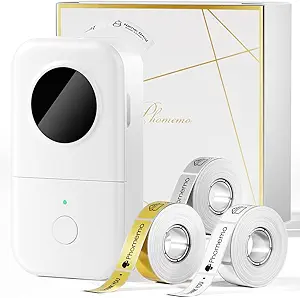 |
iDPRT MT610 Pro Portable Printer

| Print Resolution | 300 dpi |
|---|---|
| Maximum Media Size | 8.5 x 11 inch |
| Connectivity | Bluetooth, USB |
| Battery | 2000 mAh built‑in |
| Power Consumption | 7.4 watts |
The iDPRT MT610 Pro is a lightweight inkless thermal printer designed for mobile and small‑office use, able to print US Letter and A4 sheets at 300 DPI. It pairs with phones through the HerePrint app for quick Bluetooth printing and connects to laptops via USB with a downloadable driver, making it useful for travel, vehicle use, or occasional home/office tasks. The built‑in 2000 mAh battery supports several hours of continuous printing and claims up to 360 sheets per charge, while 4‑6 second first‑page times and a rated 35 ppm speed keep short jobs moving. Because it uses thermal paper, prints are sharp for text, forms, and monochrome graphics but cannot produce color and require compatible thermal media. Setup requires the app for mobile printing and a driver for desktop use, and blank pages can appear if noncompatible paper is used. For buyers who need a lightweight, inkless solution for black‑and‑white documents on the go, the MT610 Pro delivers solid print quality and portability at a low price.
Best for: Buyers who want an affordable, portable inkless printer for on‑the‑go black‑and‑white documents, travel receipts, or occasional home/office printouts where convenience and light weight matter most.
Less Ideal for: Users who need color printing, heavy daily office output, or full desktop printer features like automatic duplexing and standard toner/ink workflows.
- 300 DPI thermal print resolution produces clear monochrome text and simple graphics
- Bluetooth and USB connectivity let you print from smartphones (HerePrint app) and laptops
- Built‑in 2000 mAh battery for several hours of portable use and up to hundreds of sheets per charge
- Supports full US Letter/A4 media so you can print standard documents without cutting or scaling
- Prints only on thermal paper and cannot produce color
- Requires the HerePrint app for Bluetooth setup and a driver for computer use, adding setup steps
Verdict: A budget-friendly, truly portable inkless thermal printer that delivers sharp monochrome US Letter/A4 prints for travel and light-duty use.
KNAON Y813BT Thermal Label Printer
| Printer Type | Thermal |
|---|---|
| Maximum Print Resolution | 203 dpi |
| Maximum Media Size | 4.2 inches |
| Printer Connectivity Type | Bluetooth |
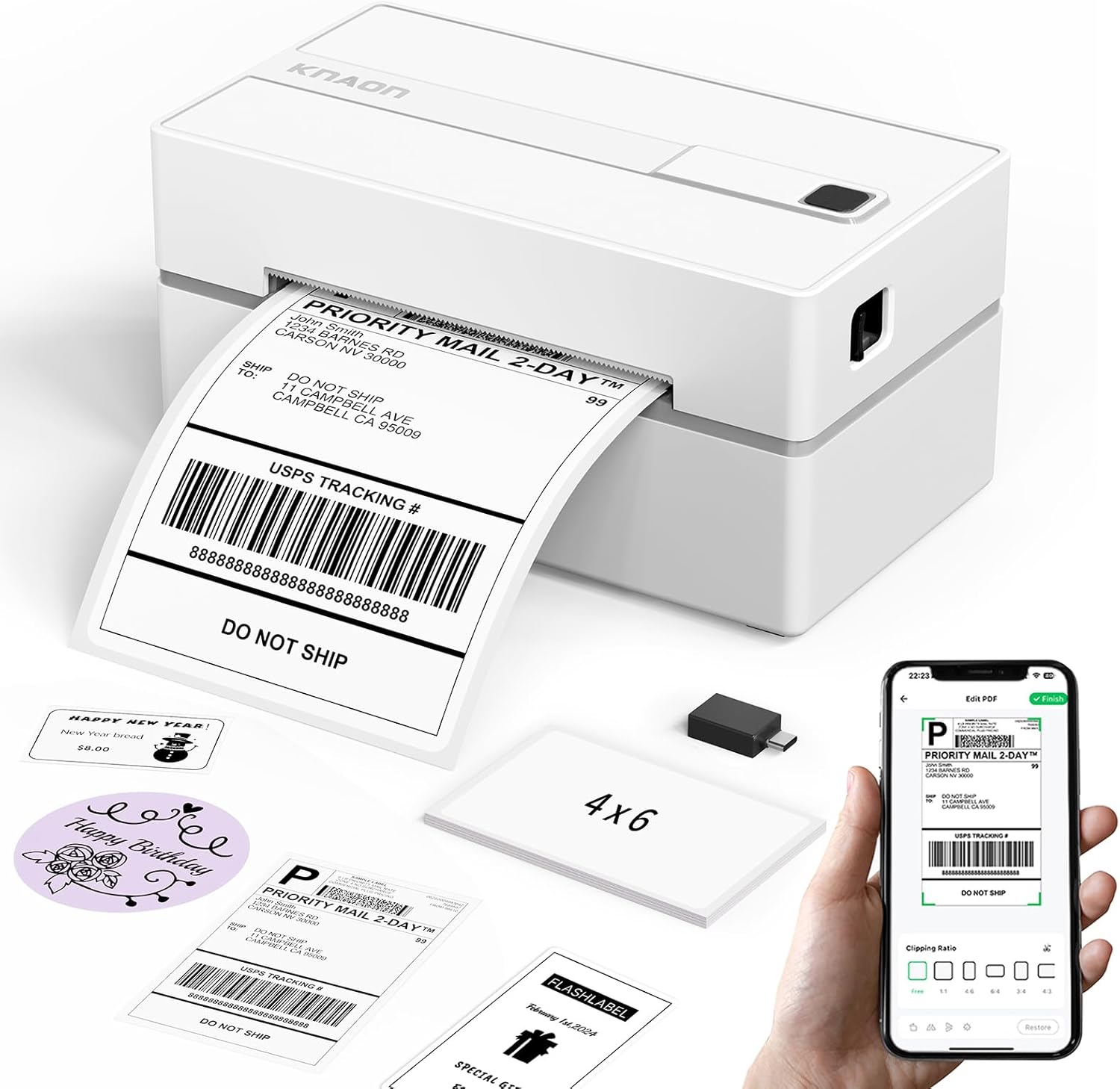
The KNAON Y813BT is a small Bluetooth thermal label printer aimed at shipping labels and general-purpose tag printing. It connects wirelessly via Bluetooth or by USB to phones, tablets, Windows, macOS, ChromeOS, and Linux and works with the vendor app to import PDFs and use templates, fonts, and icons. In regular use it prints up to 4.2-inch labels at a claimed 180 mm/s (about 60 pages per minute for comparable output) and uses thermal media so you do not need ink or toner. The unit ships with test label rolls, a USB cable, power adapter, and basic setup materials, and includes on-device drivers and tutorials to simplify installation. Trade-offs are its modest 203 dpi resolution, which is fine for shipping barcodes and text but not for high-detail graphics, and the app-based Bluetooth workflow that can require extra steps when printing platform-generated labels. For buyers focused on fast, ink-free label printing on a tight budget, this model balances speed, portability, and cross-platform support.
Best for: Buyers who need an affordable, fast, ink-free printer for shipping labels and basic barcode or text tags and who prioritize speed and cross-platform connectivity over high-resolution output.
Less Ideal for: Users who need high-resolution photo-quality labels, color printing, or a plug-and-play solution that bypasses app-based workflows.
- Bluetooth and USB connectivity for mobile devices and computers
- Inkless thermal printing eliminates ink and toner purchases
- Supports up to ~4.2-inch label width suitable for 4×6 shipping labels
- Fast print speed suitable for moderate-volume shipping workflows
- Includes starter label rolls, drivers, and setup materials
- 203 dpi resolution is lower than label printers designed for fine graphics
- Bluetooth printing relies on the vendor app and extra import steps for some platforms
Verdict: A fast, portable, inkless thermal label printer that delivers practical shipping- and barcode-grade output for budget-conscious users.
Mvgges POS-9270 Thermal Label Printer

| Printer Type | Thermal |
|---|---|
| Resolution | 203 x 203 dpi |
| Print Speed | 72 B&W pages per minute |
| Maximum Media Size | 4 x 6 inch |
| Printer Connectivity Type | Bluetooth, USB |
The Mvgges POS-9270 is a small thermal label printer built for printing 4×6 shipping labels from phones or computers without ink. It connects over Bluetooth for iOS and Android phones using companion apps and via USB for Windows and Mac when you install the provided driver, making it suitable for both mobile and desktop workflows. At 203 dpi it produces clear monochrome labels for USPS, UPS, Etsy and other shipping platforms, and the supplied power adapter, USB-C cable and starter labels let you start printing right away. The printer handles media from about 1.37 to 4.1 inches and has a modest roll capacity, so it is best for light to moderate daily label volumes rather than continuous heavy-duty use. Setup may require installing an app or driver depending on your device, and Bluetooth printing is limited to mobile devices only. For the price this unit offers straightforward, fast thermal printing and a compact footprint that fits small workspaces.
Best for: Buyers who want an affordable, compact printer to handle occasional to moderate shipping and inventory labels from phones or a computer and prefer a low-maintenance thermal solution.
Less Ideal for: If you need an industrial or high-volume label printer for constant daily throughput, or require built-in Wi-Fi for direct network printing, choose a more robust model.
- Bluetooth and USB connectivity for phones, tablets, Windows and Mac
- Thermal printing at 203 dpi produces clear black-and-white shipping labels
- Compact footprint with included power adapter, USB-C cable and starter labels
- Supports standard 4×6 labels used by major shipping platforms
- Bluetooth printing requires specific mobile apps and is not available for desktop
- Not designed for continuous high-volume industrial printing
Verdict: A budget-friendly, no-ink 4×6 thermal printer that delivers clear shipping labels from phones or PCs and is ideal for small businesses and home sellers on a tight budget.
Nelko P21 Label Maker
| Printer Type | Thermal |
|---|---|
| Print Resolution | 203 DPI |
| Connectivity | Bluetooth |
| Hardware Interface | USB Type C |
| Paper Size | 14x40mm, 14x50mm, 14x75mm, 15x40mm, 12x40mm |
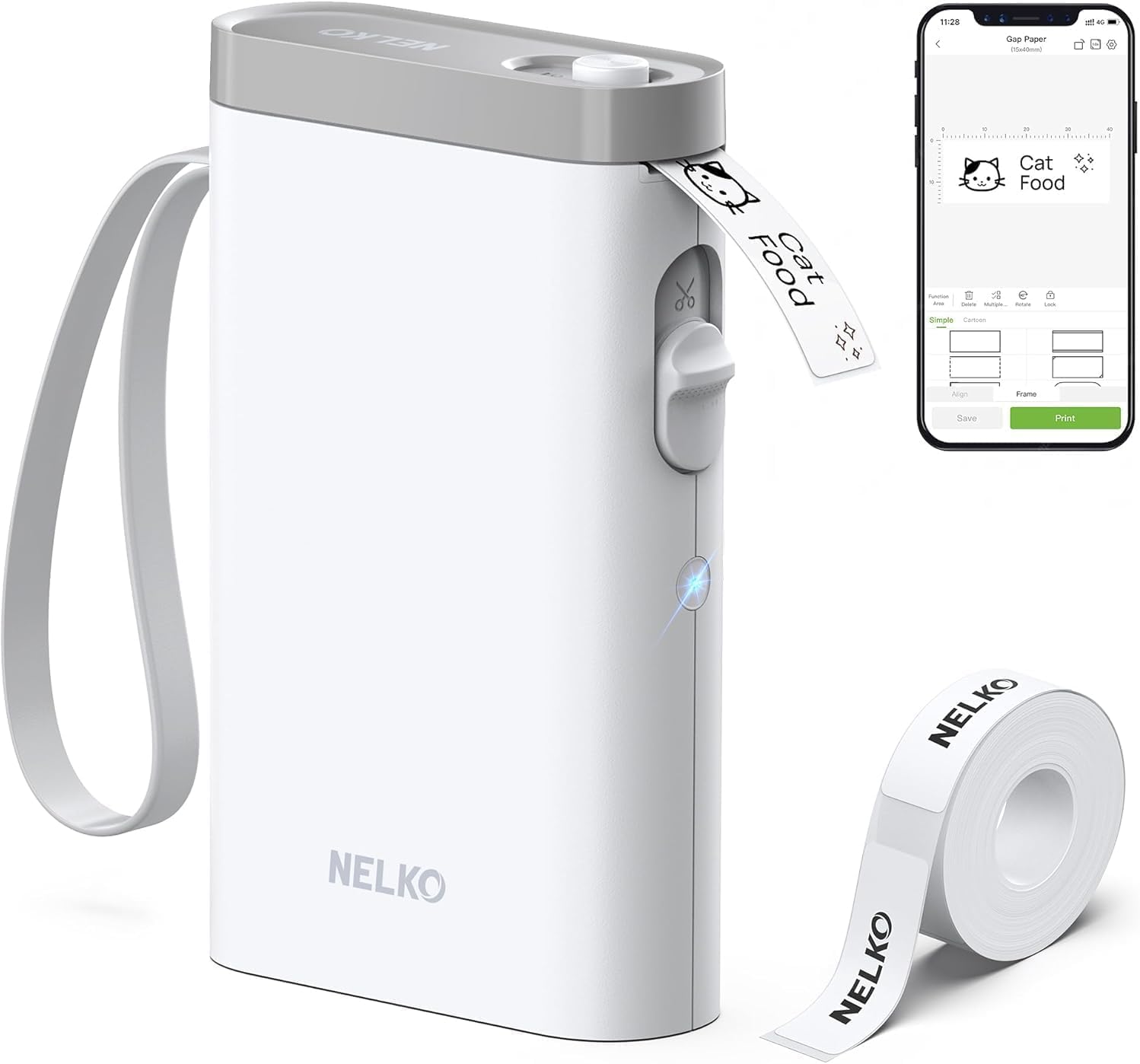
The Nelko P21 is a pocketable thermal label maker that connects over Bluetooth to a companion mobile app for designing and printing monochrome labels without ink. You use the app to pick templates, add text, barcodes or QR codes and select one of the supported tape sizes, then print through the device's built-in cutter. Its 203 DPI thermal engine and rechargeable battery make it convenient for quick household, classroom, or small-business tasks such as bin labeling, price tags, and name badges. The unit ships with one roll of white label paper and a USB-C charging cable, and the app includes many icons, borders and templates so you can create decorative or functional labels. Limitations to note are app-only control (no PC support), potential compatibility quirks with some Android 14 phones, and monochrome output only unless you use patterned colored tape; label length and tape types are fixed to a few thermal sizes. For buyers on a tight budget who want a simple, portable labeler, the P21 covers the essentials well.
Best for: Buyers looking for an inexpensive, portable label maker to quickly organize home, classroom, or small-business items using a phone app and pre-sized thermal tapes.
Less Ideal for: Anyone who needs full-color printing, PC-based control, variable continuous tape lengths, or guaranteed compatibility with the latest Android 14 devices.
- Compact, lightweight design that is easy to carry and store
- Thermal printing at 203 DPI delivers clear, inkless monochrome labels
- Bluetooth pairing with iOS and Android app provides many templates, icons, and customization options
- Built-in rechargeable battery and USB-C charging for portable use
- App-only control with no computer support
- Not fully compatible with some Android 14 phones per manufacturer notes
- Prints only monochrome text unless using decorative colored tapes
Verdict: If you want a budget-friendly, pocketable label printer that produces clear inkless labels and is controlled from your phone, the Nelko P21 is a practical choice.
Rongta F11 Portable Thermal Printer

| Printer Type | Thermal |
|---|---|
| Maximum Media Size | 8.5 x 11 inch |
| Printer Connectivity Type | Bluetooth, USB |
| B&W Pages per Minute | 15 pages_per_minute |
| Maximum Print Resolution Black and White | 203 dots_per_inch |
The Rongta F11 is a lightweight portable thermal printer that prints monochrome documents without ink, using thermal paper up to 8.5 x 11 inches. It connects to phones over Bluetooth via the RONGTA app and to PCs or laptops over USB with a driver, making it suitable for quick travel printing, receipts, labels, or single-sheet documents. At up to 15 pages per minute and 203 dpi black-and-white resolution, print quality is clear enough for text, basic graphics, and forms but not for high-detail photos. The unit's small form and 8 ounce weight make it easy to carry, and relying on thermal media eliminates ink costs and mess. Limitations include the need to use thermal paper only and the requirement to install a PC driver for USB printing, which adds setup steps for desktop use. Battery or power details are not provided, so expect to plan around a tethered USB power source for longer sessions. For buyers seeking a simple, reliable, inkless printer under $50, the F11 does the job with minimal fuss.
Best for: Buyers who prioritize a simple, low-maintenance inkless printer for travel or occasional document printing and want a compact device that reliably handles standard letter-size thermal media.
Less Ideal for: Users who need photo-quality prints, full-color output, or those who prefer broad media compatibility and battery-powered portable operation.
- Inkless thermal printing eliminates ink replacements and related mess
- Supports full-sheet thermal media up to 8.5 x 11 inches for standard documents
- Bluetooth for mobile printing plus USB for PC/laptop connection
- Compact, lightweight design that is easy to carry for travel
- Requires thermal paper only, which limits media choices and longevity of prints
- PC printing needs a driver install rather than plug-and-play Bluetooth
- No clear battery or standalone power information for untethered use
Verdict: A budget-friendly, inkless portable printer that reliably produces clear black-and-white letter-size prints for travel and light office tasks.
NDYIN N80 Portable Printer

| Printer Type | Thermal |
|---|---|
| Maximum Media Size | 8.5 inch |
| Printer Connectivity Type | Bluetooth |
| Hardware Interface | USB Type C |
| Maximum Print Resolution Black and White | 203 dots_per_inch |
The NDYIN N80 is a small, travel-friendly thermal printer intended for quick, inkless printing from phones, tablets, laptops and PCs. It connects to smartphones and tablets over Bluetooth via the Nada Print app and to computers via USB-C with a driver, and it prints only on special thermal US Letter or A4 media. With 203 dpi resolution and a claimed 1500 mAh battery that can produce about 160 US Letter pages per charge, it works well for boarding passes, receipts, simple contracts, tattoo transfer templates and single-page documents when you need a portable solution. Setup is straightforward for mobile users, and the included paper roll and USB-C cable make it ready to use out of the box. Limitations are notable: it does not print on ordinary paper, color, or double-sided documents, Bluetooth printing to laptops is not supported, and print speed and fidelity are appropriate for text and simple graphics but not high-detail images. For buyers who need a lightweight, inexpensive way to print single monochrome pages on the go, the N80 delivers practical convenience within those constraints.
Best for: Buyers who prioritize a low-cost, highly portable printer for one-page monochrome outputs on the go and who want a simple, ink-free solution they can carry in a bag.
Less Ideal for: People who need high-resolution photo, color, or double-sided printing or those who expect to use standard office paper for everyday documents.
- True inkless thermal printing eliminates ink, toner, and ribbons
- Bluetooth for mobile printing and USB-C for PC/laptop connection
- Compact, lightweight design with included paper roll and cable for travel
- 203 dpi resolution suitable for clear text and simple graphics
- Prints only on special thermal US Letter/A4 paper and cannot use regular paper
- No color or duplex printing and limited image detail
- Bluetooth printing not supported for laptops and requires a PC driver over USB
Verdict: A compact, inkless thermal printer that gives you inexpensive, on‑the‑go monochrome printing for single-page needs under $50.
Phomemo D30 Portable Label Printer

| Printer Type | Thermal |
|---|---|
| Printer Output Type | Monochrome |
| Resolution | 203 x 203 DPI |
| Connectivity | Bluetooth, USB |
| Power Consumption | 7 watts |
The Phomemo D30 is a pocketable thermal label printer that pairs with Android or iOS devices over Bluetooth to print monochrome text, barcodes, QR codes and simple images onto pre-cut or continuous label tapes. It is primarily used for household organization, school name tags, cable labeling and small retail tags where quick, inkless prints are handy. The companion app provides many templates, fonts, icons and basic image/QR printing tools, plus OCR and voice input for faster label creation. Because it uses direct thermal printing there is no ink, toner or ribbon to buy, and the rechargeable battery and USB interface make it convenient to charge and carry. Limitations to note are that output is black-only and fairly low-resolution compared with office laser printers, and label width is narrow so long text may need smaller fonts or manual line breaks. For buyers seeking a simple, low-cost label solution the D30 covers common tasks well but it is not suited for high-volume, full-color, or wide-format labeling.
Best for: Buyers who want an easy, low-maintenance label maker for home, school or light small-business tasks and prefer a predictable, app-driven printing experience.
Less Ideal for: Users who need high-volume, full-color, wide-format, or production-grade label printing should consider a more capable desktop label or laser printer.
- Inkless thermal printing removes the need for ink, toner, or ribbons
- Bluetooth app control with many templates, fonts and icons for quick label design
- Small, lightweight and rechargeable for portable use
- Supports both pre-cut and continuous label tapes for flexible lengths
- Prints only black on label media so color requires patterned tapes
- Narrow maximum media width limits long or wide-format labels
- Resolution and print quality are lower than full-size office printers
Verdict: A compact, app-driven inkless label printer that delivers convenient monochrome labels for home and light business use under $50.
Choosing the Right Printer: Key Factors to Consider
Print Quality
Print quality determines whether documents look professional and whether photos or colored graphics are acceptable. For budget printers under $50, text clarity is usually the most important element because many buyers primarily print invoices, homework, or forms. Color output on these models will be limited; expect less vibrant photos and visible banding on gradients.
When evaluating print quality, look for machines that render crisp, legible type at common sizes and handle thin lines without smudging. If you need occasional photos, accept that color prints will be serviceable rather than gallery-grade. Prioritize models that maintain readable output at standard dpi settings to avoid reprinting and wasted consumables.
Running Cost Efficiency
Initial purchase price is only part of ownership cost. Low-cost printers can have expensive consumables relative to their upfront price, so running cost efficiency is crucial. Consider pages per cartridge, availability of high-yield or third-party cartridges, and whether the design encourages frequent replacement cycles.
Estimate your monthly page volume and compare typical pages-per-cartridge figures. Machines that use separate black and color cartridges often let you replace only the depleted unit, which can reduce expense. Also check for automatic duplexing if it is available at this price point since duplex printing can cut paper consumption and lower long-term costs.
Setup and Connectivity
A simple, reliable setup saves time and frustration. For home users, look for printers that support USB and at least one wireless option, such as Wi-Fi or basic mobile printing protocols. Clear on-device controls and straightforward driver installation reduce the barrier for nontechnical users.
Consider how you will send print jobs: direct USB, networked Wi-Fi, or mobile printing from a phone. If you plan to use the printer from multiple devices, choose a model that supports sharing over the local network. Also check whether the manufacturer provides drivers for your operating system or whether the printer supports generic standards that work without special software.
Physical Size and Placement
Budget printers are often purchased for small apartments, dorm rooms, or home desks, so physical footprint matters. A compact design can fit on a shelf or under a monitor, while larger paper trays and output bins will require more space.
Measure the available area before buying and pay attention to access panels for replacing cartridges to ensure there is clearance. Portable options are useful if you move between rooms, but they may sacrifice paper capacity and rigidity. Evaluate how often you want to refill paper and whether a small tray will force frequent loading.
Reliability and Ease of Maintenance
Reliability affects how often you will need repairs or replacements. For an inexpensive printer, prioritize machines with straightforward maintenance routines: easy cartridge swaps, accessible paper paths, and clear error indicators. Avoid units that require complex disassembly for common jams.
Check for user-serviceable parts and whether the design minimizes the chance of paper jams. Simple firmware update paths are also helpful for keeping compatibility with modern devices. Reliable entry-level printers reduce downtime and minimize the frustration of troubleshooting.
Feature Set and Usability
While advanced features like scanning, faxing, or automatic document feeders are rare at this price point, basic usability features still matter. Look for intuitive control panels, clear status lights, and basic print settings that let you choose draft versus standard modes to conserve ink.
Consider whether front-loading paper trays, visible ink level indicators, and straightforward reset procedures are provided. Minimal but well-implemented features often yield a better real-world experience than flashy extras that do not work reliably.
Is a Sub-$50 Printer Right for You
A printer under $50 is a good fit if your printing needs are light: occasional documents, school assignments, or quick color flyers. These units prioritize affordability and compactness over high throughput and premium photo reproduction.
If you print frequently or need professional-quality photos, a low-cost printer may become expensive over time because of consumables and slower speeds. For sporadic use, however, a basic model can be a sensible, space-saving choice.
- Best for light, occasional printing
- Not recommended for heavy office workloads
- Good for tight spaces and simple document needs
Ways to Lower Long-Term Printing Costs
Running cost is a common pitfall with budget printers. To keep long-term expenses down, print in draft mode for internal documents, reduce color usage when possible, and use two-sided printing to save paper. Replacing cartridges only when necessary and monitoring estimated page yield helps avoid unnecessary waste.
Where compatible, consider high-yield cartridges or refillable options if available for the model you choose. Regularly cleaning print heads and keeping the printer in a dust-free environment can also extend cartridge life and avoid reprints.
- Use draft mode for noncritical prints
- Prefer black-and-white when color is not required
- Enable duplex printing to save paper
Common Setup and Troubleshooting Tips
Before setup, place the printer on a stable surface with enough clearance to open cartridge doors and paper trays. Follow initial alignment and calibration steps in the setup prompts, and connect via the simplest method available for your environment, usually USB or a local Wi-Fi network.
If you encounter streaks or faded output, run the built-in head-cleaning utility before replacing ink. For frequent paper jams, check paper size settings and avoid overfilling the input tray. Keep firmware updated when updates are available to maintain compatibility.
- Perform initial alignment after installing cartridges
- Run head-clean routines for streaks before replacing consumables
- Avoid overfilling paper trays to reduce jams
Where Low-Cost Printers Excel
These printers deliver simple, direct printing capabilities with minimal setup complexity. They are ideal for users who need a basic device to produce readable documents, quick labels, or simple color handouts without investing in extras they will not use.
Because of their size and simplicity, low-cost printers also lend themselves well to temporary setups, such as a summer dorm room or a home office where space and budget are constrained.
- Compact and easy to tuck away
- Sufficient for homework, receipts, and basic flyers
- Low learning curve for first-time users
When to Consider Spending More
If your monthly page volume is moderate to high, or you need higher-resolution color prints regularly, spending above the $50 threshold often yields better total cost of ownership and faster, more reliable performance. Midrange models typically offer higher-yield cartridges, faster print speeds, and improved reliability.
Also consider a higher budget if you need integrated scanning or copying without buying a separate device. Those multifunction features are uncommon at very low price points but are valuable for households that handle many document workflows.
- High monthly volume favors midrange models
- Frequent color printing benefits from better color handling
- Multifunction needs may require a higher-priced device
How We Chose the Best Printer
We prioritized criteria that matter most to buyers shopping for printers under $50. First, we examined print quality for typical home uses, focusing on black text sharpness and acceptable color photo output for casual prints. Second, we assessed running cost efficiency by looking at likely ink or toner consumption and how easy cartridges are to replace. Third, setup and connectivity were weighed since straightforward Wi-Fi or USB setup and reliable drivers reduce frustration for nontechnical users. Fourth, physical footprint and build practicality were considered because low-cost printers are often used in small home desks or dorm rooms. Finally, reliability signals such as duty-cycle ratings and basic feature sets were factored in to avoid picks that are likely to fail with normal light use. We excluded specialty or high-end models that exceed the $50 target or require proprietary consumables that drastically increase total cost of ownership. Our filters removed devices intended for heavy office workloads or industrial use. The resulting shortlist focuses on compact, user-friendly printers that deliver reasonable print performance, low ongoing costs, and straightforward setup.
Our full evaluation process is outlined in our review methodology.
FAQ
Can a printer under $50 handle occasional photo printing?
Often yes, but photo output will be basic. Expect limited color gamut and visible banding on gradients. These models are best for casual snapshots rather than high-quality photo projects.
How do I estimate running costs for an inexpensive printer?
Estimate your monthly page volume and compare typical pages-per-cartridge figures for each model. Factor in the cost of replacement cartridges divided by their expected page yield to get a per-page cost.
Will a cheap printer work with my phone or tablet?
It depends. Many low-cost printers support basic mobile printing or can be used over a shared network via Wi-Fi. If mobile printing is essential, verify that the model supports your device's printing protocols or common mobile print standards.
Are third-party cartridges a safe way to save money?
Third-party cartridges can reduce expenses but vary in reliability. They often work fine for basic prints, but may increase the risk of clogging or reduced longevity. Weigh savings against potential maintenance tradeoffs.
How often should I perform maintenance on a budget printer?
Perform basic maintenance like keeping the paper path clean and running head-clean utilities when print quality drops. For light home use, a monthly check and occasional cleaning are usually sufficient.
Final Verdict
For buyers focused on the lowest upfront cost, a printer under $50 can be a practical choice for light document printing and occasional color jobs. Prioritize models with clear text output, reasonable consumable efficiency, and straightforward setup to avoid frustration. Balance the tradeoffs between purchase price and long-term running costs. If you print frequently or need higher-quality color, consider stretching the budget for better page yields and durability. Otherwise, choose a compact, easy-to-maintain unit that matches your expected usage and space constraints for dependable, low-cost printing.