
Note: This article contains affiliate links. If you click on these links and make a purchase, we may earn a small commission at no extra cost to you. This helps support our research and content. Read our full affiliate disclosure here.
If you handle fulfillment, returns, or frequent parcel shipments from a Mac computer, the right thermal shipping label maker can save minutes on every package and reduce printing errors. Mac users need devices with reliable driver support, easy macOS integration, and consistent print quality so labels scan cleanly and adhere to parcels. This guide presents seven shortlisted thermal shipping label makers for Mac that meet those needs. We evaluated their Mac connectivity, print speed, label handling, and software compatibility to find options that fit home offices and small shipping stations alike. Read on to compare key features and decide which unit best fits your Mac-based workflow.
Top Picks at a Glance
| Best Overall The best all-around choice for most situations | MUNBYN RealWriter 130B |  |
| Best Quality Built to a higher standard if you want something more solid | Arkscan 2054A Thermal Label Printer |  |
| Best Value The sweet spot between price and what you get | KNAON Y813BT Thermal Label Printer |  |
| Best Budget The cheapest option that still gets the job done reliably | Rongta RP425 Thermal Label Printer |  |
| Top Rated A top-rated pick with lots of positive feedback | Rollo USB Shipping Label Printer X1038 |  |
| Most Popular A crowd favorite that many people choose with confidence | JADENS JD268BT Thermal Label Printer |  |
| Best Seller A high-volume bestseller chosen again and again | NULLTONEX Y813 Thermal Label Printer |  |
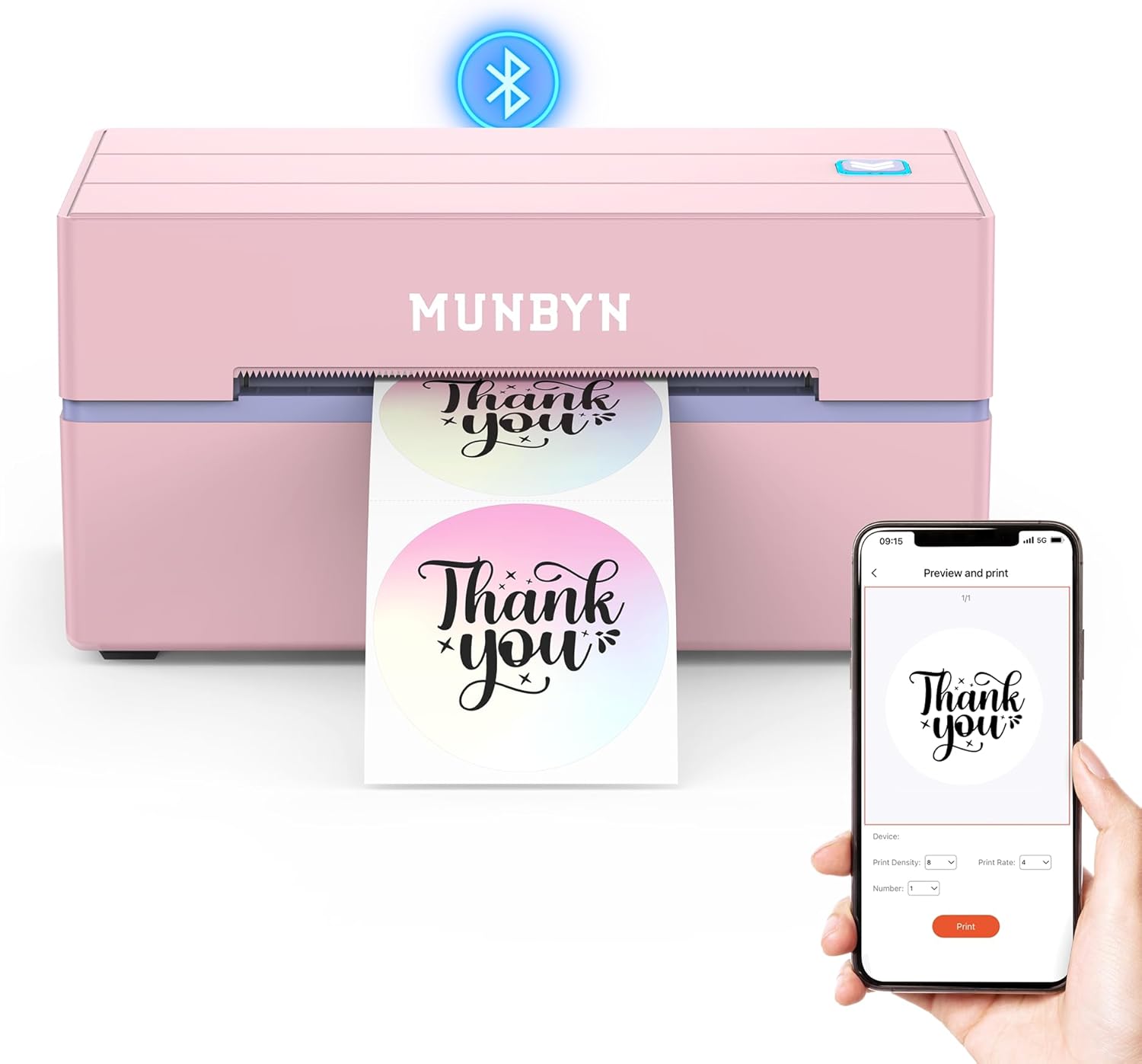
MUNBYN RealWriter 130B
| Printer Type | Thermal |
|---|---|
| Maximum Media Size | 4 x 6 inch |
| Print Resolution | 203 x 300 dpi |
| Printer Connectivity Type | Bluetooth |
| Hardware Interface | USB |
The MUNBYN RealWriter 130B is a small thermal label printer built for shipping and general label tasks, with Bluetooth and USB connectivity for phones, tablets, and computers. Setup is straightforward using the MUNBYN Print mobile app or the Munbyn Editor in Chrome on a Mac, and the printer handles 4×6 shipping labels plus smaller circle and rectangle label sizes. It prints at 203 dpi so text, barcodes, and simple graphics come out crisp enough for postage and inventory tags, and the unit supports custom templates, OCR imports, and thousands of design elements for branding and organization. The pink compact housing and built-in label handling make it fit easily on a desk or shipping station, and the app-driven workflow removes the need for drivers on macOS. Limitations include thermal-only monochrome output and a 203 dpi ceiling that is not ideal for high-resolution logos or color prints, and the vendor recommends using genuine Munbyn labels for best results which may add recurring cost.
Best for: Mac users who need a compact, app-driven printer for regular shipping labels and small-business branding, and who value an easy Bluetooth or Chrome-based setup.
Less Ideal for: People who need color labels, photographic-quality prints, or extremely high-resolution logo reproduction should consider other label solutions.
- Bluetooth and USB connections for flexible Mac and mobile workflows
- Supports standard 4×6 shipping labels plus smaller circle and rectangle labels
- App and web editor with templates, fonts, and OCR for quick label customization
- 203 dpi thermal printing produces reliable barcodes and readable text
- Compact, portable design fits on small desks or shipping stations
- Monochrome thermal printing only, no color output
- 203 dpi resolution limits fine-detail logo reproduction
Verdict: If you want a compact, Mac-friendly thermal printer that streamlines 4×6 shipping label printing via Bluetooth or Chrome, the MUNBYN RealWriter 130B is a practical choice.
Arkscan 2054A Thermal Label Printer

| Power Source | USB Powered |
|---|---|
| Connectivity Technology | USB Cable |
| Compatible Devices | Laptop, PC |
The Arkscan 2054A is a compact direct-thermal desktop printer aimed at printing 4×6 shipping and product labels via USB. It handles roll or fanfold media and prints at up to about 5 inches per second, which makes it suitable for moderate-volume shipping workflows. Setup is straightforward for Mac and Windows when using the provided USB connection and the included BarTender Ultralite design software for Windows; Mac users can print labels natively once drivers are installed. The unit supports a wide range of label widths from about 0.75" to 4.25" and accepts common 4×6 shipping formats used by major carriers. Because it is a thermal printer there is no ink or toner to replace, lowering operating hassle and consumable costs. Limitations include USB-only connectivity on this model, so remote or Wi-Fi printing requires a different Arkscan variant or network adapter, and print speed and duty cycle are aimed at SMB or home office volumes rather than heavy industrial use.
Best for: Buyers who need a reliable, no-ink desktop label printer for moderate-volume shipping and product labeling and prioritize straightforward local printing and setup.
Less Ideal for: Teams that require native Wi-Fi or Ethernet network printing for multiple users or operations with high daily label throughput should consider networked or industrial models instead.
- Direct thermal printing requires no ink or toner
- Accepts roll or fanfold labels and standard 4×6 shipping label sizes
- Compact desktop footprint suitable for home office or small shipping stations
- Includes BarTender Ultralite label design software (Windows) for quick template setup
- USB-only connectivity limits wireless or network printing from Macs without workaround
- Print speed and build are designed for moderate volumes rather than heavy industrial throughput
Verdict: A compact, ink-free thermal printer that delivers dependable local USB printing for Mac and Windows users who need solid performance for small to medium shipping volumes.
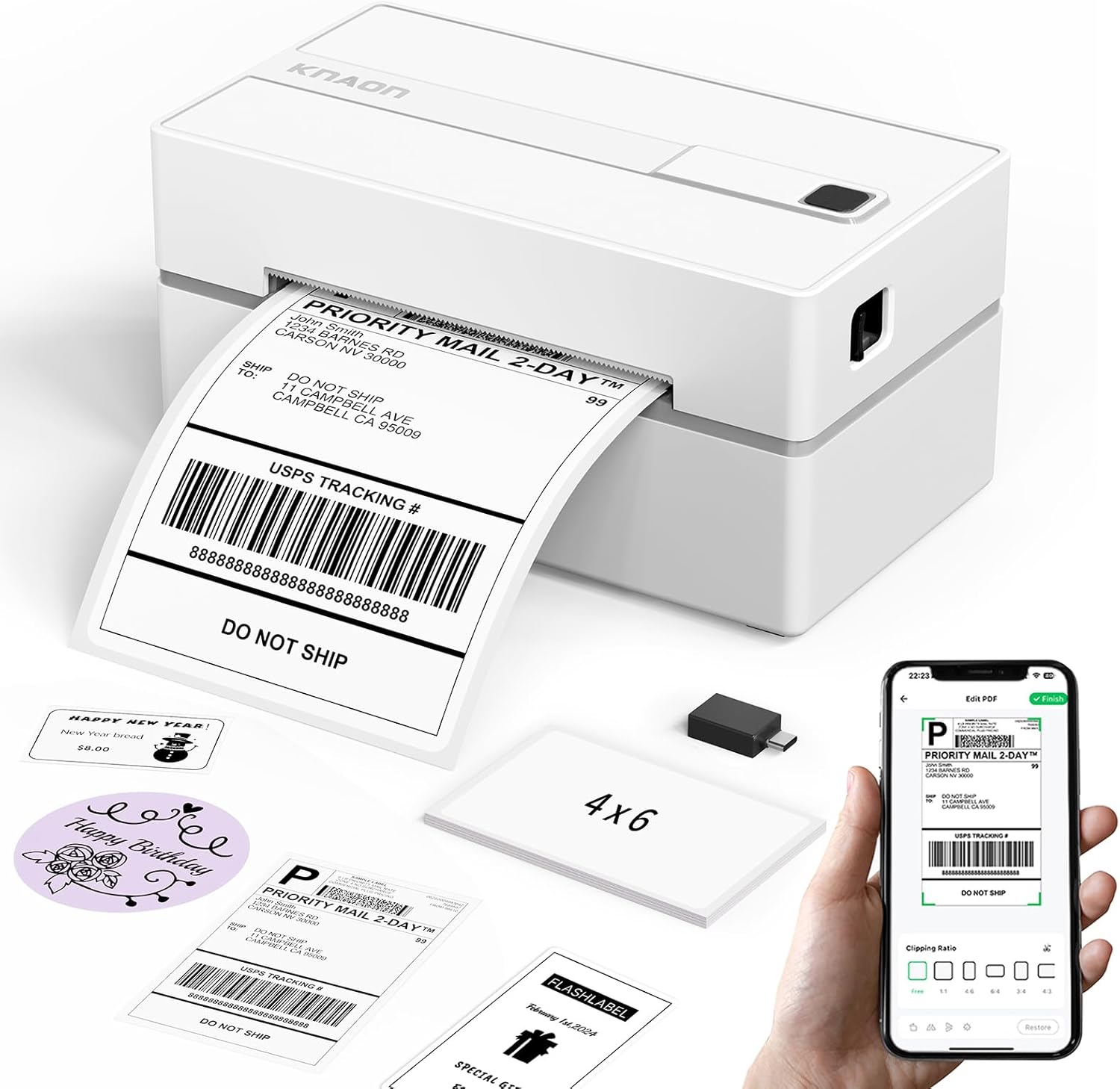
KNAON Y813BT Thermal Label Printer
| Printer Type | Thermal |
|---|---|
| Print media | Labels, Thermal Paper |
| Maximum Print Resolution Black and White | 203 dpi |
| Printer Connectivity Type | Bluetooth |
| Paper Size | 4.2 inches |
The KNAON Y813BT is a compact thermal label printer built for small-business and home shipping tasks. It prints monochrome thermal labels up to about 4.2 inches wide and connects via Bluetooth for mobile printing or USB for direct computer connections, with a preloaded driver and app (FlashLabel Pro) to simplify setup on macOS and other platforms. The unit supports many label templates, icons, and fonts in-app, so you can produce shipping labels, barcode tags, price stickers, and thank-you labels without ink. Practical benefits include fast thermal output and a small footprint that fits a busy packing station, plus a starter pack of sample labels in the box. Important limitations are that Bluetooth printing requires use of the vendor app workflow rather than native pairing from all devices, and true AirPrint or direct platform-native printing may need extra steps such as saving labels as PDFs then importing into the app. The printer is best when you need reliable, inkless label printing tied to the FlashLabel ecosystem and a simple USB fallback for Mac and Windows machines.
Best for: Mac users who prioritize a compact, inkless label printer that integrates with a mobile app workflow and offers a fast USB fallback for easy setup and day-to-day shipping tasks.
Less Ideal for: Buyers who need native AirPrint or direct platform printing without using a vendor app, or those who require color labels or multifunction office printing beyond labels.
- Bluetooth and USB connectivity for mobile and computer printing
- Supports up to 4.2-inch thermal media for standard 4×6 shipping labels
- Preloaded drivers and tutorial media for faster setup
- Large selection of in-app templates, icons, and fonts for label customization
- Compact, lightweight design suitable for tight packing stations
- Bluetooth printing depends on the vendor app workflow rather than universal native pairing
- Does not print in color; limited to monochrome thermal output
Verdict: A compact, app-driven thermal label printer that gives Mac users an easy, inkless way to print standard 4×6 shipping labels with a quick USB fallback.
Rongta RP425 Thermal Label Printer

| Printer Type | Thermal |
|---|---|
| Resolution | 203 x 203 dpi |
| Maximum Media Size | 4 x 6 inches |
| Printer Connectivity Type | Bluetooth, USB |
The Rongta RP425 is a small direct thermal label printer designed for printing 4×6 shipping labels from phones, tablets, and computers. It connects over Bluetooth for mobile printing and over USB for desktops, and it uses inkless thermal media so you only need labels to run it. Setup requires installing the RONGTA app on mobile or a driver on Mac and Windows for USB use, and Bluetooth pairing codes are documented if needed. The unit prints at 203 x 203 dpi and handles standard 4×6 media, making text and barcode output clear enough for carrier scanners. Its compact footprint and single USB port make it easy to fit on a small desk or packing station, and it is aimed at small business shipping workflows. Limitations include monochrome-only output and modest resolution compared with higher-end models, and macOS users must download the driver from the manufacturer site and complete the manual setup steps.
Best for: Buyers on a tight budget who need a simple, no-ink 4×6 label printer for everyday shipping and want both Bluetooth mobile printing and USB desktop connectivity.
Less Ideal for: Users who need color labels, very high-resolution printing, or plug-and-play macOS support without installing drivers should look at higher-end or factory-integrated alternatives.
- Bluetooth and USB connectivity for mobile and desktop printing
- Direct thermal printing requires no ink or toner
- Supports standard 4×6 shipping labels and common carrier barcodes
- Compact footprint suitable for small packing stations
- 203 x 203 dpi resolution is modest compared with higher-end label printers
- Requires downloading and installing a driver on macOS for USB use
Verdict: A budget-friendly, compact 4×6 thermal printer that delivers reliable monochrome shipping labels with Bluetooth and USB connectivity for small businesses.
Rollo USB Shipping Label Printer X1038

| Printer Type | Thermal |
|---|---|
| Print Resolution | 203 x 203 DPI |
| Paper Size | 4 inch x 6 inches |
| Hardware Interface | USB |
| Maximum Media Size | 4.1 Inch Width |
The Rollo USB Shipping Label Printer is a direct thermal desktop printer built for frequent label production without ink or toner. It connects via USB to Windows and Mac systems and is primarily used for printing 4×6 shipping labels, barcode labels, and custom stickers from shipping platforms and design apps. Notable features include automatic label detection, a 203 DPI print head for crisp barcodes, and a fast output rate that produces roughly one 4×6 label per second. The printer accepts label widths from about 1.57 to 4.1 inches and handles fanfold or roll media with a maximum sheet capacity of 30. Practical benefits include low ongoing costs from inkless printing, simple setup with downloadable drivers, and broad compatibility with courier and ecommerce platforms. Important limitations are the wired USB-only connectivity on this model and a resolution limited to 203 DPI, which is fine for shipping but not for very small dense graphics. The unit is compact and made for steady daily use rather than mobile or color label printing.
Best for: Buyers who prioritize a rugged, low-maintenance label printer for daily shipping and inventory tasks on Mac or Windows systems and want dependable, ink-free operation.
Less Ideal for: People who need wireless printing from phones or tablets, require higher-resolution graphic labels, or need a portable labeler for on-the-go use.
- Direct thermal printing eliminates ink and toner costs
- Auto label detection simplifies alignment for common label sizes
- Fast output suitable for high-volume shipping workflows
- Compatible with Mac and Windows and many shipping platforms
- Accepts a broad width range from about 1.57" to 4.1" for versatile label types
- USB-only wired connection on this model limits wireless or mobile printing
- 203 DPI limits fine-detail graphic or photo-quality printing
Verdict: A reliable, high-speed inkless USB label printer built for steady Mac and Windows shipping workflows.
JADENS JD268BT Thermal Label Printer

| Printer Type | Thermal |
|---|---|
| Resolution | 203 x 203 DPI |
| Maximum Media Size | 4 x 6 inches |
| Printer Connectivity Type | Bluetooth |
| Total Usb Ports | 1 |
The JADENS JD268BT is a compact thermal label printer aimed at small shipping operations and home offices. It prints 4×6 and smaller labels using a 203 x 203 DPI thermal head, so you get inkless, mess-free labels compatible with roll and fanfold media. Connectivity includes Bluetooth for wireless printing and a USB 2.0 port for Mac and Windows connections, and the unit ships with a USB cable, power cord, and 50 test labels making initial setup straightforward. In practice it handles routine shipping labels from platforms like Shopify, eBay, and common postage software, with a nominal maximum sheet capacity of 50 and support for multiple label sizes. Expect basic monochrome output suitable for postage and barcodes rather than high-resolution graphics. The printer is simple to operate with a feed/calibrate button, but mobile Bluetooth printing from phones requires the vendor app for Android and iOS, and Mac users will rely on the USB driver for the most reliable connection. For buyers seeking an affordable, no-ink thermal printer for Mac-based shipping workflows, this model covers the essentials without extras like Wi-Fi or advanced print quality.
Best for: Mac users who need a straightforward, low-maintenance label printer for shipping and small-batch fulfillment and who prioritize reliable USB connection and simple operation.
Less Ideal for: Businesses that need networked printing across multiple workstations or require higher-resolution label graphics should consider models with Wi‑Fi or higher DPI.
- Inkless thermal printing eliminates toner and reduces maintenance
- Supports 4×6 and multiple common label sizes for shipping and inventory
- Bluetooth plus USB connectivity provides flexible connection options
- Includes basic accessories and 50 test labels for quick setup
- No built-in Wi‑Fi for networked printing
- 203 x 203 DPI limits fine-detail or photo-quality prints
Verdict: A simple, inkless 4×6 thermal printer that fits Mac shipping workflows when you want reliable USB or Bluetooth printing without extra network features.
NULLTONEX Y813 Thermal Label Printer

| Printer Type | Thermal |
|---|---|
| Maximum Media Size | 4 x 6 Inches |
| Resolution | 203 x 203 dpi |
| Printer Connectivity Type | Bluetooth, USB, wireless |
| Power Consumption | 24 watts |
The NULLTONEX Y813 is a direct thermal 4×6 label printer built for fast, no-ink shipping and barcode printing. It connects via Bluetooth for phone/tablet use or by USB to a Mac or PC and prints at 203 dpi so barcodes and addresses scan reliably. The vendor app (FlashLabel Pro) offers templates, fonts, and offline storage for quick label setup, and the unit includes power and USB cables plus starter labels so you can start printing right away. Its compact footprint and built-in overheat protection make it suitable for a busy desktop or small packing station, and dual connectivity helps when you need a stable USB link for heavier batch jobs. Expect monochrome output only and basic tray capacity since this is a single-roll, print-only device without duplex or ink options. Setup on Mac is usually straightforward via USB, but Bluetooth pairing relies on the app and driver installation on desktop systems may require following the included troubleshooting steps.
Best for: A buyer who wants a reliable, low-maintenance 4×6 label printer for routine Mac-based shipping workflows and values easy setup, compact footprint, and stable USB or phone printing options.
Less Ideal for: Not a good fit for users needing color labels, large industrial throughput, or heavy-duty continuous printing without frequent media changes.
- Direct thermal printing eliminates ink or toner and lowers ongoing costs
- Bluetooth and USB dual connectivity for phones, tablets, and computers
- 203 dpi resolution suitable for crisp barcodes and addresses
- Compact, desktop-friendly design with built-in overheat protection
- Includes cables and starter 4×6 labels so it is ready to use out of the box
- Monochrome-only printing limits use to black labels and text
- Single media path and small output capacity mean frequent label refills during high-volume runs
- Bluetooth pairing and driver setup on desktop can require extra troubleshooting
Verdict: Choose the NULLTONEX Y813 if you need a compact, ready-to-run 4×6 thermal label printer that reliably prints crisp black shipping labels from a Mac via USB or phone over Bluetooth.
Choosing the Right Thermal Shipping Label Maker for Mac: Key Factors to Consider
Mac Compatibility and Drivers
Mac compatibility is the foundation for a smooth shipping workflow when you use a Mac. macOS driver support determines whether the label maker appears as a standard printer and whether you can print directly from shipping software or system print dialogs.
Lack of native macOS drivers can force reliance on workarounds like virtual machines, older OS versions, or third-party utilities that add friction and slow down packing. Confirming driver updates for current macOS releases reduces the risk of future incompatibility. Also check whether the device supports standard printing protocols such as AirPrint or network printing, which can simplify multi-user setups.
Connectivity Options
How the label maker connects affects placement and reliability in your packing area. USB connections are straightforward and tend to be reliable for a single workstation, while Ethernet or Wi-Fi options let multiple Macs on the same network print without physically swapping cables.
Consider whether you need Bluetooth for a mobile Mac or laptop setup. Networked printers often support centralized label queues, but they also require stable network configuration and may need static IP or network permissions in office environments. Choose the connectivity mix that matches where you package and whether several users will share the device.
Print Speed and Throughput
Print speed matters when you process many shipments. A faster label maker reduces per-package handling time and can prevent bottlenecks during peak shipping windows. Look beyond peak DPI claims and check actual labels-per-minute figures and warm-up times.
Throughput also depends on roll capacity and how often you need to reload labels. Higher-capacity rolls cut interruptions and keep a steady packing flow. If you print batches of many labels at once, ensure the device handles continuous printing without jamming or overheating.
Label Size Support and Media Handling
Shipping labels come in common sizes used by carriers and shipping platforms. Make sure the label maker supports the standard dimensions you use, plus any specialty labels for returns or fragile notices. Adjustable guides and clear roll-loading mechanisms reduce misfeeds and skewing during printing.
Media handling also includes adhesive quality and label stock compatibility. Some printers are picky about blank versus pre-perforated rolls, so verify supported media types to avoid unreadable or poorly adhered labels that cause scanning or transit issues.
Print Quality and Barcode Readability
Labels must be highly scannable to avoid delays in carriers' sorting systems. Thermal print quality affects barcode sharpness and contrast, which influence scanner read rates. Higher DPI produces crisper barcodes and smaller text, but density and calibration also matter.
Consider how the printer performs with common barcode formats used by carriers and whether it can produce consistent prints on typical shipping label stock. Good print quality reduces scanning errors and return-to-sender events caused by unreadable labels.
Ease of Setup and Software Integration
A device that installs cleanly on a Mac and integrates with shipping platforms saves time and reduces setup headaches. Check whether the label maker offers macOS-specific utilities, drivers that appear in system printers, or plugins for popular shipping apps.
User interfaces for basic tasks like label templates, alignment, and calibration should be approachable. If you plan to automate label printing directly from order management software, verify supported workflows and whether the company provides sample drivers or APIs for integration.
Typical Shipping Label Sizes and When to Use Them
Most parcel carriers and shipping services use a handful of standard label sizes. Understanding which sizes match your shipping paperwork and returns labels helps you choose a machine that handles your most-used dimensions without wasting blank space or requiring manual cutting.
Common sizes include full-length parcel labels used for address and carrier barcodes, small return labels, and multi-label formats for packing lists. Pick a label maker that supports the full range you expect to print to avoid switching devices or manually trimming labels.
- 4 x 6 inches: typical parcel shipping label
- 3 x 3 / 2 x 1 inches: small barcode or return labels
- Continuous rolls: useful for custom-cut labels and high-volume environments
Setting Up a Label Station with a Mac
Designing an efficient label station reduces steps when processing shipments. Place the label maker near your packing table, tape gun, and scale to keep the flow linear from weighing to labeling. Ensure your Mac has a reliable connection to the device, and that power and roll storage are easily accessible.
Organize spare label rolls and cleaning supplies nearby. Periodic printhead cleaning and regular roll changes keep print quality consistent. If multiple users will print from separate Macs, test network printing and user access before peak shipping periods.
- Keep label rolls in a dry area to prevent adhesive issues
- Label adhesives perform differently on various box surfaces; test before full runs
- Set up a calibration routine to maintain barcode readability
Troubleshooting Common Mac Integration Issues
The most common integration issues are driver conflicts, permission problems, and networking hiccups. Start troubleshooting by confirming the Mac recognizes the device in System Settings and that the correct driver version is installed for your macOS release. Restarting the Mac and the label maker often resolves intermittent connectivity.
For networked printers, verify IP address settings and ensure the Mac and printer are on the same subnet. When barcodes print faintly, check the thermal head for debris and run a test print to calibrate darkness settings. Keep a simple checklist for recurring issues to speed repairs during busy packing times.
- Verify macOS driver version and System Settings printer list
- Check cable integrity for USB connections
- Run built-in test prints to isolate printer vs software issues
Maintenance Tips to Extend Printhead Life
Thermal printheads are sensitive to dust and adhesive residue. Regular cleaning with manufacturer-recommended swabs and isopropyl alcohol prevents buildup that causes faint printing or streaks. Schedule cleanings based on volume; high-volume stations may need weekly maintenance while light users can follow a monthly routine.
Avoid over-tightening label rolls or forcing media that is not specified for the printer. Store spare rolls in original packaging or sealed containers to protect adhesive quality and prevent dust contamination. Proper maintenance lowers downtime and ensures consistent barcode readability.
- Clean printhead and platen roller at manufacturer-recommended intervals
- Use approved label stock to avoid residue and premature wear
- Keep spare parts like rollers and cutters on hand for quick replacement
Integrating Label Printing Into Order Workflows
Automating label printing from order software speeds fulfillment. Many shipping platforms allow direct printing to a system printer or export of label files that can be sent to the label maker. Confirm that your Mac-based order system can target the label device as a printer or produce compatible PDF/label files.
If you need batch printing, test how the label maker handles queued jobs and whether it preserves label layout across multiple prints. Also verify whether you can embed return labels or packing slips easily within the same workflow to keep operations lean.
- Test single-label and batch scenarios before peak times
- Ensure label templates align with carrier barcode placement requirements
- Check whether software can auto-select label size based on order type
How We Chose the Best Thermal Shipping Label Maker for Mac
We prioritized products that deliver dependable macOS support and real-world shipping performance. Our selection filters focused on compatibility with current Mac operating systems and popular shipping platforms, ensuring the device connects cleanly over USB or network and supports common label sizes used for parcels. We tested documentation and driver availability to confirm straightforward setup on a Mac. Print reliability and label adhesion were treated as core criteria, so we favored designs with consistent thermal heads and proven label path engineering. Speed and throughput matter for packing workflows, so print rate and warm-up behavior were included. We also weighed build quality and label roll capacity because they affect uptime and maintenance. We excluded devices that rely solely on proprietary or Windows-only software and units without clear macOS driver support. The final choices reflect a balance between software compatibility, print consistency, operational speed, and practical maintenance considerations.
Our full evaluation process is outlined in our review methodology.
FAQ
Will a thermal shipping label maker work with the latest macOS?
Often it will, but compatibility depends on driver availability. Check that the manufacturer publishes macOS drivers or that the device supports standard network printing protocols recognized by macOS.
Do I need special label rolls for a thermal printer?
Yes. Thermal printers need direct thermal label stock or thermal transfer ribbon depending on the model. Using the recommended media prevents printhead damage and ensures barcode contrast.
Can I print labels from multiple Macs to one device?
Usually, if the printer is networked over Ethernet or Wi-Fi. For USB-only models, you may need a dedicated host Mac or a network print server to allow multiple users to print.
How often should I clean the printhead?
Frequency varies with volume, but for moderate to heavy use clean the printhead weekly. Light users can follow a monthly schedule. Clean whenever you notice faint text or streaking.
What causes barcodes to fail scanning?
Poor barcode scanning is often due to low print density, wrong label stock, or damaged printheads. Verify print darkness, use compatible media, and inspect the printhead for residue or wear.
Final Verdict
Prioritize macOS compatibility, consistent barcode readability, and a connectivity setup that matches how you package and ship. Faster print speeds and larger roll capacity benefit higher-volume operations, while simple setup and reliable drivers are critical for Mac workstations. Balance print quality and maintenance needs against throughput to find a device that minimizes downtime and scanning errors. With those priorities in mind, you can confidently select a thermal shipping label maker that keeps your Mac-based fulfillment running smoothly.