
Note: This article contains affiliate links. If you click on these links and make a purchase, we may earn a small commission at no extra cost to you. This helps support our research and content. Read our full affiliate disclosure here.
Picking a Wi-Fi printer on a budget matters because the wrong low-cost device can cost more over time through slow output and expensive consumables. You want dependable wireless setup, acceptable print speed, and ink or toner that does not erase the savings from a cheap upfront price. This guide shortlists the top compact Wi-Fi printers suited for home and small-office use, focusing on models that balance purchase cost with reasonable running expenses. Below you will find concise evaluations of each shortlisted option and clear criteria we used to compare them, so you can pick the best budget Wi-Fi printer for your printing patterns and space.
Top Picks at a Glance
| Best Overall The best all-around choice for most situations | Epson WorkForce Pro WF-3823 |  |
| Best Quality Built to a higher standard if you want something more solid | Canon PIXMA TR7120 |  |
| Best Value The sweet spot between price and what you get | Brother Work Smart 1360 |  |
| Best Budget The cheapest option that still gets the job done reliably | HP DeskJet 2955 All-in-One |  |
| Top Rated A top-rated pick with lots of positive feedback | HP OfficeJet 3830 |  |
| Most Popular A crowd favorite that many people choose with confidence | Canon PIXMA TR4720 |  |
| Best Seller A high-volume bestseller chosen again and again | Epson EcoTank ET-2800 |  |
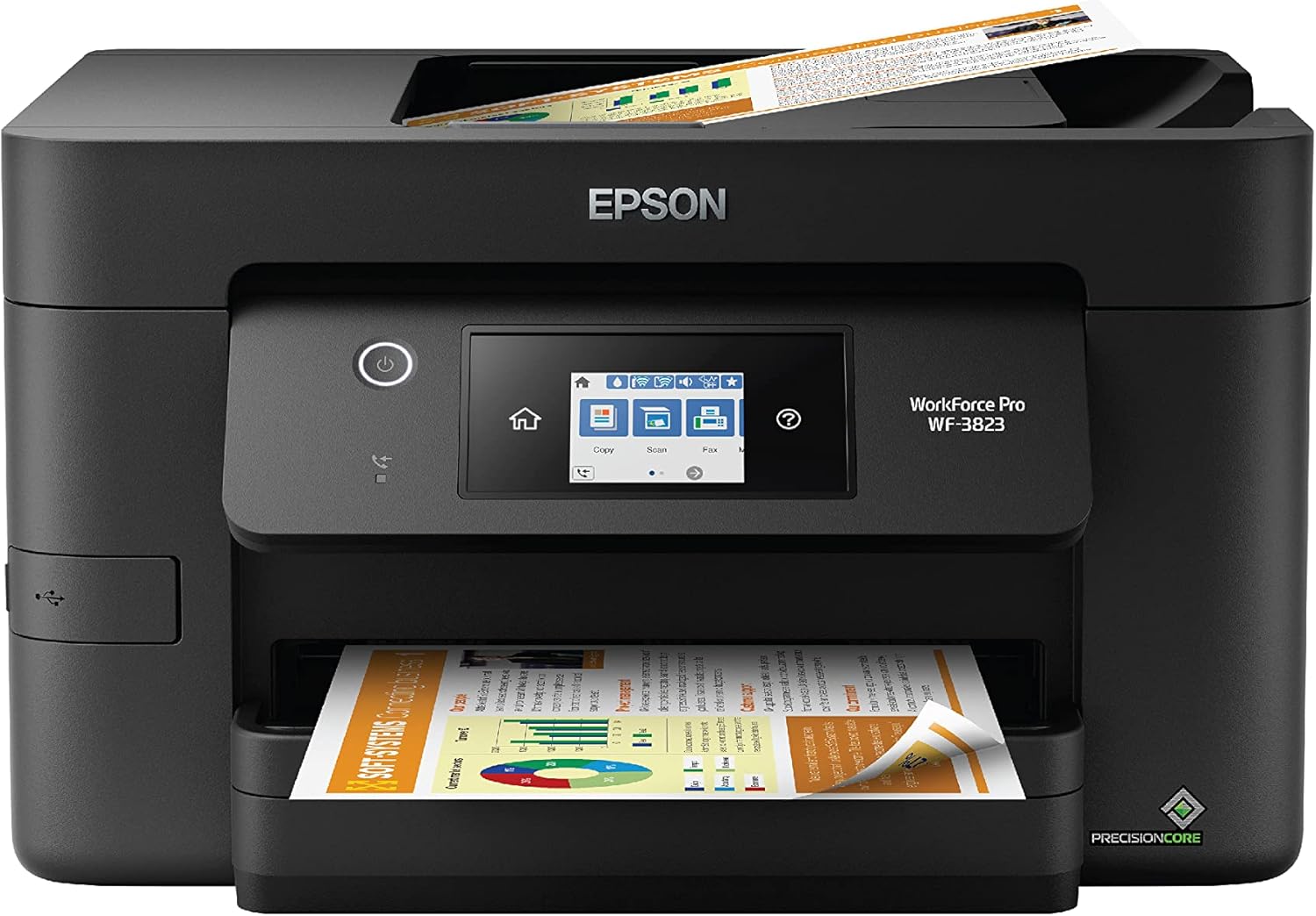
Epson WorkForce Pro WF-3823
| Printer Type | Inkjet |
|---|---|
| Print Speed B&W | 21 pages_per_minute |
| Print Speed Color | 11 pages_per_minute |
| Paper Capacity | 250 |
| Connectivity | wired, wireless |
The WorkForce Pro WF-3823 targets small offices and budget-conscious home users who need a solid all-in-one with reliable daily performance. It uses Epson PrecisionCore heat-free printhead technology and DURABrite Ultra pigment inks to deliver sharp text and decent color output at rated speeds of up to 21 ppm black and 11 ppm color. Practical features include a 250-sheet paper tray, automatic two-sided printing, a 35-sheet automatic document feeder for multi-page scans and copies, a 2.7-inch color touchscreen, and Ethernet plus built-in Wi-Fi with app-based setup and control. The scanner offers flatbed and sheetfed scanning and the unit supports common paper sizes through legal. Ink uses the T822 cartridges, which provide good image durability but require genuine Epson cartridges for guaranteed compatibility. Power draw is modest at 17 watts, helping efficiency in always-on small office use. If you want fast black text, ADF convenience, and straightforward mobile printing on a modest budget, this model covers those bases, though color photo output and long-term ink cost should be considered when comparing total ownership expenses.
Best for: Buyers who need a dependable, feature-rich all-in-one for daily office tasks and value fast black printing, ADF scanning, and straightforward mobile connectivity on a budget.
Less Ideal for: Users who prioritize low ongoing ink cost or professional photo-quality color prints should consider other options tailored to high-volume color output or economy ink systems.
- Fast black text printing up to 21 ppm for quick document throughput
- 250-sheet paper tray and automatic duplexing reduce refills and paper handling
- 35-sheet ADF and combined flatbed/sheetfed scanner speed multi-page workflows
- Built-in Wi-Fi, Ethernet, Wi‑Fi Direct and Epson Smart Panel app for easy mobile setup and control
- Requires genuine T822 Epson cartridges which can raise long-term ink costs
- Color print speed and photo quality are modest compared with photo-focused models
Verdict: A budget-minded all-in-one that delivers fast black text, useful office features like ADF and duplexing, and easy mobile connectivity for small offices and home workgroups.
Canon PIXMA TR7120

| Printer Type | Inkjet |
|---|---|
| Printer Connectivity Type | USB, Wi-Fi |
| Display Type | OLED |
| Maximum print Resolution Color | 1200 x 1200 dots_per_inch |
| Duplex | Automatic |
The PIXMA TR7120 is a budget-friendly Wi‑Fi all‑in‑one aimed at home and hybrid users who need reliable everyday performance. It handles single-page and multi-page jobs with its 20-sheet automatic document feeder and automatic two-sided printing, and the 1.42” OLED makes basic setup and status checks straightforward. Print quality is strong for documents and decent for photos thanks to Canon's hybrid two‑cartridge ink system and up to 4800 x 1200 resolution for color copies and scans. Connectivity covers USB and dual‑band Wi‑Fi plus mobile printing via the Canon PRINT app, AirPrint, and Mopria, so sending jobs from phones or laptops is easy. Where it trades off is speed and professional photo fidelity: 9 ppm color and 14 ppm black-and-white are fine for home use but modest for heavy workloads, and the two‑cartridge system increases running costs versus separate pigment/CLI setups. If you value compact size, versatile media support up to letter/legal, and convenient wireless features on a budget, the TR7120 delivers practical performance without premium frills.
Best for: Buyers who want a compact, budget Wi‑Fi multifunction that balances photo-capable output with easy wireless and multi-page handling for home or hybrid work use.
Less Ideal for: Users who need high-speed bulk printing, lowest possible cost-per-page, or studio-grade photo reproduction should look at higher-end or office-focused models instead.
- Auto document feeder for multi-page scanning and copying
- Automatic duplex printing to save paper and speed workflows
- Dual‑band Wi‑Fi plus mobile printing support for easy wireless setup
- Compact footprint with an intuitive 1.42" OLED status display
- Supports a variety of media including envelopes and photo sizes
- Two‑cartridge hybrid ink system can be more expensive per page than separate high‑capacity cartridges
- Print speeds are modest for intensive or office-heavy use
Verdict: A compact, budget-friendly Wi‑Fi all‑in‑one that delivers versatile home performance with ADF and duplex printing for buyers focused on practical everyday results.
Brother Work Smart 1360

| Printer Type | Inkjet |
|---|---|
| Duplex | Automatic |
| Automatic Document Feeder | 20-sheet |
| Maximum Sheet Capacity | 150 |
| Connectivity | USB, Wi-Fi |
The Brother Work Smart 1360 is an affordable all-in-one inkjet designed for home and small home-office use, offering print, copy, and scan in a compact footprint. It connects via Wi-Fi or USB and supports AirPrint and Mopria for printing from phones and tablets, plus a 1.8-inch color display for simple menu navigation. Productivity features include automatic two-sided printing, a 20-sheet automatic document feeder for short multi-page jobs, and a 150-sheet input tray so you do not refill paper constantly. Print speeds are competitive for the price at up to 16 ppm mono and 9 ppm color, and Page Gauge and Brother Mobile Connect simplify monitoring and ordering ink. Image and copy resolution are solid for everyday documents and color graphics, though this is not a photo-lab substitute and ink yield depends on cartridge choice. Expect modest running costs unless you opt for high-yield cartridges or a refresh subscription, and advanced office features like large ADF capacity or fax are not present. For buyers prioritizing reliable basic Wi-Fi printing and compact multi-function capability on a budget, it covers the essentials well.
Best for: Buyers who want an inexpensive, space-saving all-in-one that reliably handles everyday home or small home-office printing, scanning, and copying with easy mobile and cloud connectivity.
Less Ideal for: Users who need heavy daily print volumes, high-capacity ADF scanning, or professional photo-quality color—they should look at larger business or photo-focused models instead.
- Automatic duplex printing saves paper and handles two-sided jobs without intervention
- Wi-Fi, Wi‑Fi Direct, AirPrint and Mopria support enable easy mobile and cloud printing
- 20-sheet ADF and 150-sheet tray improve productivity for small multi-page jobs
- Compact footprint with simple 1.8-inch color display for straightforward setup and use
- Standard yield starter inks produce modest page counts unless you upgrade to high-yield cartridges
- Not designed for high-volume office use due to limited ADF capacity and basic feature set
Verdict: A compact, budget-friendly wireless all-in-one that delivers reliable everyday printing and mobile/cloud convenience for home and small home-office users.
HP DeskJet 2955 All-in-One

| Printer Type | HP Thermal Inkjet |
|---|---|
| Maximum Media Size | 8.5 x 11.69 in |
| Maximum Sheet Capacity | 60 |
| Color Pages per Minute | 5.5 pages_per_minute |
| Printer Connectivity Type | Apple AirPrint; USB; Wireless (Wi-Fi); Wireless direct printing; Mopria |
The HP DeskJet 2955 is an entry-level all-in-one designed for everyday home printing tasks like documents, school worksheets, and occasional photos. It prints, copies, and scans from its flatbed scanner and supports mobile printing via the HP app, AirPrint, and Mopria, which makes sending jobs from a phone straightforward. The printer has a 60-sheet input tray and manual duplex capability, and HP highlights AI-driven formatting to reduce wasted pages when printing web content. Print speeds are modest at around 7.5 ppm black and 5.5 ppm color, so it is best for intermittent rather than heavy daily use. Setup and wireless connectivity are simple, and the included three-month Instant Ink trial helps lower running costs initially. Trade-offs are its slow speeds, manual two-sided printing, and basic control panel, but for budget buyers who need a compact, eco-minded printer with easy mobile connectivity, it covers the essentials without extra bells and whistles.
Best for: Buyers looking for an affordable, space-saving home printer that handles basic color documents and occasional scans while prioritizing easy mobile printing and lower initial ink costs.
Less Ideal for: Users who need fast, high-volume output, automatic duplexing, or advanced photo printing features should consider a higher-end model instead.
- Compact all-in-one design with print, copy, and flatbed scan functionality
- Wireless printing support including HP App, Apple AirPrint, and Mopria for smartphone printing
- Includes a 3-month Instant Ink trial to reduce initial ink costs
- Made with recycled plastics and meets ENERGY STAR and EPEAT standards
- Modest print speeds that make it slow for heavy or frequent printing
- Duplex printing is manual rather than automatic
Verdict: A compact, budget-friendly Wi-Fi all-in-one that delivers basic home printing and easy mobile connectivity with low initial ink cost via a trial subscription.
HP OfficeJet 3830

| Printer Type | Inkjet |
|---|---|
| Functions | Print, Scan, Copy, Fax |
| Print Speed B&W | 20 pages_per_minute |
| Printer Connectivity Type | USB, Wi-Fi |
| Automatic Document Feeder | 35-sheet |
The HP OfficeJet 3830 is a space-saving all-in-one designed for home or small-office use that combines printing, copying, scanning, and faxing with wireless and mobile printing. Setup is straightforward from a smartphone or PC and the 2.2-inch display plus HP mobile apps make everyday tasks easy to start. The 35-sheet automatic document feeder speeds small multi-page scans and copies, and compatibility with HP Instant Ink and optional high-yield cartridges helps lower running costs for regular users. Print quality is good for photos and documents thanks to up to 4800 x 1200 color resolution, and print speeds reach up to 20 ppm black and 16 ppm color for typical jobs. Connectivity includes USB and Wi-Fi and the printer supports voice control. Trade-offs are a small mono touchscreen, manual duplex only, and modest paper handling compared with larger office models, so heavy duty or large-volume users will find the input capacity limiting. For reliable everyday printing in a compact footprint, this model covers the essentials well.
Best for: Buyers who prioritize a dependable, simple-to-use Wi-Fi all-in-one for home or a small office and want reliable daily printing with easy mobile setup.
Less Ideal for: Users who need high-volume, automatic duplexing, or heavy-duty paper handling for large workgroups should consider a larger business-class model.
- Compact all-in-one design packs print, scan, copy, and fax into a small footprint
- Wireless and mobile printing with easy smartphone setup and HP mobile app support
- 35-sheet automatic document feeder for quicker multi-page scans and copies
- Compatible with HP Instant Ink and optional high-yield cartridges to reduce ink costs
- Duplex printing is manual rather than automatic
- Limited paper input/output capacity compared with larger office models
Verdict: A compact, dependable Wi-Fi all-in-one that delivers easy mobile printing and consistent everyday performance on a budget.
Canon PIXMA TR4720

| Printer Type | Inkjet |
|---|---|
| Print Resolution | 4800 x 1200 |
| Paper Capacity | 100-sheet front tray |
| Connectivity | USB, Wi‑Fi |
| Duplex | Automatic |
The Canon PIXMA TR4720 is a compact 4‑in‑1 inkjet designed for home or small-office use where space and simplicity matter. It handles everyday document and photo tasks, offering wireless and USB connectivity plus the Canon Print app for mobile printing and scanning. The front-loading 100-sheet tray and automatic two-sided printing make it convenient for multi-page jobs, while the auto document feeder speeds scanning or copying of short stacks. Print quality is solid for text and casual photos thanks to Canon's hybrid ink system, and borderless prints up to letter size are supported. Speeds are modest — about 8.8 ipm for black and 4.4 ipm for color — so it is best for light to moderate workloads rather than heavy daily printing. The unit is easy to set up and use via the 2-line LCD, but cartridge replacement and ink yield are typical of entry-level inkjets, so running costs can add up over time. Overall, it delivers essential Wi‑Fi printing features and convenient duplexing in a small footprint at a budget-friendly feature set.
Best for: Buyers who want a compact, easy‑to‑use wireless all‑in‑one for home or small‑office tasks and who prioritize straightforward setup and basic duplexing over high volume throughput.
Less Ideal for: Users who need fast, high‑volume printing or the lowest long‑term ink costs should consider higher‑speed or cartridge‑efficient models instead.
- All‑in‑one functionality with print, scan, copy and fax in a compact chassis
- Automatic duplex printing and a 100‑sheet front tray reduce manual work and paper use
- Auto document feeder simplifies multi‑page scanning and copying
- Wi‑Fi and Canon Print app support convenient mobile printing and cloud access
- Relatively slow color print speed compared with faster office models
- Ink consumption and cartridge costs can be high for frequent color printing
Verdict: A compact, budget‑minded Wi‑Fi all‑in‑one that delivers essential duplexing and mobile printing for light to moderate home or small‑office use.
Epson EcoTank ET-2800

| Printer Type | Inkjet |
|---|---|
| Printer Connectivity Type | USB, Wi‑Fi |
| Maximum print Resolution Color | 5760 x 1440 dpi |
| B&W Pages per Minute | 10 |
| Color Pages per Minute | 5 |
The Epson EcoTank ET-2800 is a budget-minded all-in-one that swaps cartridges for refillable ink tanks, so you get far more pages between replacements and lower ongoing ink cost. It prints, scans and copies with wireless and app control plus voice-activated printing, making it convenient for home use and basic photo tasks. Notable features include high-resolution output up to 5760 x 1440 dpi, a flatbed scanner, a color LCD, and simple refill bottles that reduce cartridge waste. Print speeds are modest — about 10 ppm for black and 5 ppm for color — so it is best for everyday documents, schoolwork and casual photos rather than large office batch jobs. The ET-2800 is simple to set up on Wi-Fi and the integrated tanks mean fewer interruptions to swap consumables, though Epson recommends using genuine ink to protect performance. Expect a compact footprint and straightforward controls, but no automatic duplexing and only a single tray, which limits heavier paper handling. For a cautious buyer wanting low long-term ink cost and reliable basic wireless printing, the ET-2800 is a practical choice.
Best for: Buyers who prioritize low ongoing ink cost, simple wireless setup, and dependable home printing for documents, schoolwork, and occasional photos.
Less Ideal for: Users who need fast high-volume color printing, automatic duplexing, or advanced paper handling for heavy office workloads should look at more capable office-focused models.
- Cartridge-free refillable ink tanks greatly reduce frequency of ink replacements
- Wireless and app-based control with voice-activated printing for easy everyday use
- High nominal print resolution suitable for sharp text and decent photos
- Includes flatbed scanner and color LCD for basic all-in-one functionality
- Relatively slow color print speed compared with higher-end models
- No automatic two-sided (duplex) printing and limited paper handling
Verdict: Choose the ET-2800 if you want a worry-free, cartridge-free Wi‑Fi all-in-one that minimizes ink costs for everyday home printing.
Choosing the Right Wi-Fi Printer on a Budget: Key Factors to Consider
Print Speed and Real-World Throughput
Print speed matters because slow devices create bottlenecks during busy home-office days or when printing multi-page documents. Manufacturers list theoretical pages-per-minute figures, but real-world throughput depends on document complexity, color versus black printing, duplexing, and the printer's processor. Faster printers reduce wait time and make batch printing practical without constant supervision.
If you often print long documents or several jobs in a row, prioritize higher sustained speeds. For occasional printing, a slower but cheaper-to-run model might be acceptable.
Ink or Toner Cost and Replacement Frequency
Upfront price is only part of the cost equation. Consumable cost per page determines long-term expense and can quickly outweigh a low purchase price. Compare page-yield figures and the price of replacement cartridges or tanks to estimate monthly running costs based on your typical page volume.
Also consider cartridge availability and whether printers support high-yield or refillable options. Lower ongoing costs usually matter more than a marginally cheaper initial purchase for buyers who print regularly.
Wi-Fi Setup, Security, and Reliability
Wireless printing is only useful when the connection is stable and secure. Easy setup with modern wireless standards and support for common authentication options reduces frustration. Look for printers that offer both 2.4 GHz and 5 GHz support if you have a mixed network and clear instructions for connecting phones and laptops.
Reliability matters for shared households. Frequent dropouts or flaky cloud printing features will slow you down and add support headaches.
Paper Handling and Media Flexibility
Paper capacity, input tray design, and support for different media sizes affect convenience. A small-capacity tray might be sufficient for light home use, but if you print school handouts or newsletters regularly, larger trays or an auto-document feeder can save time.
Also check whether the printer supports manual feed for envelopes and thicker paper. A printer that handles the media you use without frequent jams will be more productive and less frustrating.
Size, Noise, and Placement
Budget printers are often compact, which is helpful for small desks or apartments. Still, you should evaluate actual footprint and how noisy the unit is during use. A small but loud printer can be disruptive in shared living spaces, while a slightly larger, quieter model may be a better fit.
Consider access to the paper tray and cartridge compartments where you plan to place the printer. A printer that requires clearance to open trays or doors can be awkward in tight setups.
Mobile Printing and Driver Support
Mobile printing features let you print directly from phones and tablets, which is essential for many users. Support for common protocols like AirPrint, Mopria, or vendor mobile apps simplifies printing from different devices. Also verify driver support for your desktop operating system to avoid compatibility problems.
Good driver support reduces setup headaches and ensures essential features like duplexing and color management are available from your preferred devices.
Choosing Between Inkjet and Laser on a Budget
Inkjet and laser technologies each have strengths suited to different users on a budget. Inkjet printers typically cost less upfront and can produce good color photos and mixed documents. They often work well for households that print occasionally and want photo capability.
Laser printers usually offer lower per-page costs for black-and-white text and faster first-page-out times. They can be a smarter long-term choice for users who print frequent documents and prioritize sharp text at a low running cost.
- Inkjet: better for color photos and versatile media types.
- Laser: better for high-volume black-and-white text and lower per-page cost.
Estimating Monthly Running Costs
To estimate ongoing expenses, calculate approximate monthly page volume and use published page yields to derive a cost-per-page. Include both black and color usage in your estimate. Remember that manufacturers report yields under standardized tests that may differ from your real-world mix.
Factor in options like high-yield cartridges or ink tanks, which often lower cost per page. Also consider whether you will need specialty paper or frequent color prints, as these raise total monthly costs.
- Estimate pages per month based on past usage.
- Divide cartridge cost by yield to get cost-per-page.
- Adjust for color-heavy or photo printing.
Setting Up a Reliable Home Wi-Fi Print Workflow
A reliable workflow starts with a simple network setup and consistent device compatibility. Place the printer where it receives a strong Wi-Fi signal and register it on the network using the recommended method in the manual. If you have a dual-band router, check which band gives the most stable connection for your devices.
Also configure any mobile printing services you plan to use and test printing from each device. Routine steps like assigning a static IP or reserving an address in your router can reduce occasional disconnections and make printing more predictable.
- Position printer for strong Wi-Fi reception.
- Test printing from all devices during setup.
- Consider static IP or DHCP reservation for stability.
Maintaining a Budget Printer for Longevity
Regular maintenance keeps a budget printer working smoothly. Simple tasks like running scheduled heads-cleaning cycles for inkjets, updating firmware, and keeping paper paths clear reduce jams and print defects. For laser printers, periodic cleaning of the paper path and occasional toner cartridge handling helps maintain output quality.
Store spare cartridges and compatible paper properly, and avoid low-quality consumables that increase wear. Following basic upkeep extends the useful life of an inexpensive printer and preserves value over time.
- Run cleaning cycles and firmware updates.
- Use recommended paper and store cartridges correctly.
- Address jams carefully to avoid damaging feed mechanisms.
When to Upgrade Instead of Repair
For budget printers, repair costs can sometimes exceed the value of a replacement. If a device has repeated hardware failures, frequent connectivity issues that firmware updates do not resolve, or if replacement parts are hard to find, upgrading is usually more economical.
Consider replacing a printer when running costs are high due to scarce cartridges, or when essential features you need are missing and unavailable in firmware. Evaluate repairs against the likely lifespan and ongoing consumable costs.
- Compare repair estimate to replacement cost and running expenses.
- Replace if parts are unavailable or failures recur frequently.
How We Chose the Best Wi-Fi Printer on a Budget
We focused on real-world cost and usability for budget-minded buyers. Our selection filters prioritized printers that pair an affordable purchase price with lower ongoing costs and reliable wireless connectivity. We excluded devices that required proprietary, unusually expensive consumables or that lacked straightforward network setup. Concrete evaluation criteria included print speed at typical consumer settings, cost per page for black and color output, ease of Wi-Fi setup and stability, paper handling and tray capacity for common home tasks, and build footprint for small workspaces. We also considered mobile printing support and driver availability for current desktop and mobile platforms. Devices with frequent user reports of persistent connectivity problems, hard-to-find replacement cartridges, or extremely slow output under normal duty were not included. Each shortlisted printer met minimum quality and availability standards while showing distinct strengths in the metrics above.
Our full evaluation process is outlined in our review methodology.
FAQ
How do I estimate actual cost per page for a budget Wi-Fi printer?
Calculate cost per page by dividing the cartridge or toner price by the manufacturer-stated page yield, then adjust for your mix of black and color prints. Remember yields are based on test patterns and real use may differ.
Is a wireless-only setup reliable for printing from multiple devices?
Wireless setups are convenient and usually reliable if the printer is within strong Wi-Fi coverage. For shared households, consider reserving an IP address or using a wired fallback if reliability becomes an issue.
Can refillable ink systems save money on a budget printer?
Refillable or high-capacity tank systems typically lower ink cost per page and can be cost-effective for higher-volume users. However, they sometimes require more careful handling and maintenance than sealed cartridges.
What should I do if my budget printer frequently drops its Wi-Fi connection?
Start by moving the printer closer to the router and checking for interference. Update firmware, confirm network credentials, and try assigning a static IP or DHCP reservation. If problems persist, the unit may have marginal wireless hardware and could be a candidate for replacement.
Are compact budget printers noisy?
Noise varies by model. Many compact budget printers are louder during warm-up and first-page output but quiet down during steady printing. Check reviews for noise observations if a quiet environment is important.
Final Verdict
Prioritize the factors that match how you print: choose inkjets when color versatility and low upfront cost matter, and choose laser if you need economical black-and-white text and higher throughput. Balance purchase price against realistic consumable costs and network reliability to avoid surprises. Ultimately, select a budget Wi-Fi printer that aligns with your monthly page volume, media needs, and placement constraints. Focus on dependable wireless setup, reasonable cost per page, and practical paper handling to get the best long-term value.