
Note: This article contains affiliate links. If you click on these links and make a purchase, we may earn a small commission at no extra cost to you. This helps support our research and content. Read our full affiliate disclosure here.
Picking the right Wi-Fi printer matters because a poor wireless connection or weak print quality can derail everyday tasks and slow productivity. Whether you need reliable document printing, occasional photos, or a compact machine for a home office, the right Wi-Fi Printer keeps workflows moving without constant troubleshooting. This guide shortlists the top models across common use cases and evaluates each based on setup and daily performance. We focus on wireless reliability, output quality, and the features that matter for home and small-office users. Read on for a clear breakdown of what to expect from the best options.
Top Picks at a Glance
| Best Overall The best all-around choice for most situations | Canon PIXMA TR8620a |  |
| Best Quality Built to a higher standard if you want something more solid | Epson EcoTank ET-2800 |  |
| Best Value The sweet spot between price and what you get | Brother Work Smart 1360 MFC-J1360DW |  |
| Best Budget The cheapest option that still gets the job done reliably | Canon PIXMA TS3720 | 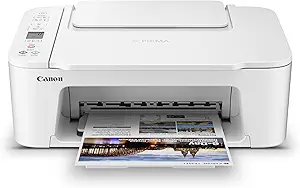 |
| Top Rated A top-rated pick with lots of positive feedback | Xerox C300 Color Printer |  |
| Most Popular A crowd favorite that many people choose with confidence | HP DeskJet 2855e |  |
| Best Seller A high-volume bestseller chosen again and again | Brother DCP-L2640DW Laser All-in-One |  |
Canon PIXMA TR8620a

| Printer Type | Inkjet |
|---|---|
| Print Resolution | 4800 x 1200 dpi |
| Print Speed (B&W) | 15 pages_per_minute |
| Print Speed (Color) | 10 pages_per_minute |
| Duplex | Automatic |
The Canon PIXMA TR8620a is a compact wireless all‑in‑one inkjet designed for home office users who need photo-capable color printing plus scanning, copying and faxing in one machine. It supports wireless printing from PCs and smartphones and works with AirPrint and voice assistants for basic hands‑free jobs. The five individual ink tanks and high maximum print resolution mean photos and color documents come out with good detail, while the automatic duplexing and 20‑sheet ADF make short multi‑page jobs easier. Paper handling is flexible with a rear feed and a cassette for a combined 200‑sheet capacity and borderless photo printing up to letter size. Print speed is modest at around 10 color and 15 black pages per minute, so it is better suited to intermittent home or small office use rather than high‑volume environments. Setup and touch control are straightforward, though ink costs for individual tanks should be considered if you print a lot of color pages. Overall this printer balances features and connectivity for everyday mixed printing needs.
Best for: Buyers who want a single, Wi‑Fi connected machine that prints photos and documents reliably for home or small office tasks and value convenience features like duplexing and an ADF.
Less Ideal for: Users who need very high monthly page volumes or the fastest office throughput should consider higher‑speed laser or business‑class models.
- Wireless printing with AirPrint and mobile device support for easy remote jobs
- Five individual ink tanks for better color replacement control and sharp photo-quality output
- Automatic duplex printing and 20‑sheet ADF speed up multi‑page scanning and copying
- Two paper feeds with up to 200‑sheet combined capacity and borderless photo printing
- Print speeds are moderate, not ideal for heavy daily volume
- Ink replacement costs can add up with frequent color photo printing
Verdict: A versatile Wi‑Fi all‑in‑one that delivers good photo and document quality with handy duplex and ADF features for balanced home or small office use.
Epson EcoTank ET-2800

| Printer Type | Inkjet |
|---|---|
| Connectivity | USB, Wi-Fi |
| Maximum print Resolution Color | 5760 x 1440 dpi |
| B&W Pages per Minute | 10 |
| Additional Printer Functions | All In One |
The Epson EcoTank ET-2800 is a Wi-Fi capable all-in-one inkjet that replaces cartridges with high-capacity refillable ink tanks to deliver long runs of color and black printing without frequent replacements. It prints up to 10 ISO pages per minute for black text and about 5 ppm for color, and produces high-resolution output suitable for documents and borderless photos thanks to its 5760 x 1440 dpi print resolution and PrecisionCore-based Micro Piezo technology. Setup and daily use are straightforward: fill the keyed EcoFit tanks from the included bottles, connect over Wi-Fi or USB, and use the app or voice-activated printing for mobile workflows. The ET-2800 also includes a flatbed scanner and an LCD for local control. The main compromises are modest paper handling with a 100-sheet capacity and simplex-only printing, so heavy duplex office workflows will be slower or require manual flipping. For home and small office users who value low running costs and reliable color quality, the ET-2800 delivers strong real-world performance without cartridge hassles.
Best for: Buyers who prioritize low running costs and reliable color output for home or small-office use and who want easy mobile printing over Wi-Fi.
Less Ideal for: Users who need fast, high-volume duplex printing or large paper capacity for heavy office workloads should consider more robust office-focused models.
- Cartridge-free EcoTank system with high-capacity refillable ink tanks for long print runs
- Wi-Fi and app-based printing plus voice-activated support for easy mobile workflows
- High maximum print resolution (5760 x 1440 dpi) for detailed documents and photos
- Decent ISO black print speed up to 10 ppm for typical home and small office jobs
- No automatic duplex printing, requiring manual page flipping for two-sided jobs
- 100-sheet tray and modest paper handling limit large continuous print jobs
Verdict: Choose the ET-2800 if you want a Wi-Fi all-in-one that cuts cartridge costs with refillable EcoTank bottles while delivering sharp color and reliable everyday performance.
Brother Work Smart 1360 MFC-J1360DW

| Printer Type | Inkjet |
|---|---|
| Duplex | Automatic |
| Maximum Sheet Capacity | 150 |
| ADF Capacity | 20-sheet |
| Connectivity | USB, Wi-Fi |
The Brother Work Smart 1360 is a compact Wi‑Fi capable color inkjet all‑in‑one aimed at home and small home‑office use. It handles everyday print, copy, and scan tasks, offers automatic two‑sided printing and a 20‑sheet single‑side ADF for basic multi‑page jobs, and connects via wireless, Wi‑Fi Direct, or USB. Setup and mobile printing are simplified by the Brother Mobile Connect app and support for AirPrint and Mopria, letting you print from phones and cloud services directly from the 1.8" color display. Print speeds are reasonable for the class at up to 16 ppm black and 9 ppm color, and Brother Genuine LC501 cartridges include standard and high‑yield options to manage running costs. The printer is compact with a 150‑sheet tray which keeps footprint small but means heavier print volumes will require more frequent refills. Photo and color quality are good for documents and casual graphics but will not match higher‑end photo printers; also initial starter inks are limited compared with full supplies. For users who need straightforward wireless printing, duplexing, and scanning in a small package, this model delivers a practical mix of features at an entry level.
Best for: Buyers who prioritize reliable wireless printing, mobile/cloud convenience, and a compact multifunction device for home or a small home office.
Less Ideal for: Businesses or users who print large monthly volumes, need professional photo output, or require a higher paper capacity and faster throughput.
- Wireless printing with Wi‑Fi, Wi‑Fi Direct, AirPrint and Mopria support for easy mobile/cloud printing
- Automatic duplex printing and a 20‑sheet ADF for basic two‑sided and multi‑page workflows
- Compact footprint with a 150‑sheet tray suitable for home and small office spaces
- Brother Mobile Connect app simplifies setup, scanning to cloud, and ink monitoring via Page Gauge
- Starter ink yields are limited so expect to buy replacement cartridges sooner than high‑yield options
- 150‑sheet capacity and modest speed make it less suitable for high‑volume office use
Verdict: A practical, compact Wi‑Fi multifunction printer that delivers easy mobile/cloud printing, automatic duplexing, and basic ADF scanning for home and small office users.
Canon PIXMA TS3720

| Printer Type | Inkjet |
|---|---|
| Maximum print Resolution Color | 4800 x 1200 dpi |
| Printer Connectivity Type | USB, Wi-Fi |
| Maximum Sheet Capacity | 60 |
| Compatible Cartridge | Canon CL-276, Canon PG-275 |
The Canon PIXMA TS3720 is a small, budget-focused all-in-one inkjet that handles printing, copying, and flatbed scanning for home use. It connects via USB or dual-band Wi-Fi so you can print from computers and mobile devices using the Canon PRINT app, AirPrint, or Mopria, and setup is straightforward for nontechnical users. The two-cartridge hybrid ink system pairs a pigment black for sharp text with dye color inks for reasonably vivid photos, and the printer supports borderless photos and multiple paper sizes up to 8.5 x 14 inches. Practical strengths are its compact footprint, simple 1.5 inch LCD control, and a rear tray that holds about 60 sheets for occasional home workloads. Limitations to expect are simplex-only printing (no automatic duplex) and modest color print speed and photo throughput compared with higher-end models, and using two separate cartridges means color output depends on the tri-color cartridge. For people who need reliable wireless printing for documents and occasional photos without extra features, this is a sensible entry-level choice.
Best for: Buyers looking for an affordable, compact Wi-Fi all-in-one for everyday home documents and occasional photo prints who prioritize ease of setup and space savings over advanced features.
Less Ideal for: Users who need fast color throughput, automatic duplexing, or high-volume paper capacity for a home office should consider more feature-rich models.
- Dual-band Wi-Fi and mobile printing support (Canon PRINT, AirPrint, Mopria) for easy wireless setup
- Compact all-in-one design provides print, copy, and scan without taking much space
- Hybrid two-cartridge ink system yields sharp black text and decent color photos
- Supports borderless photos and multiple media types up to 8.5 x 14 inches
- No automatic duplex printing; only single-sided (simplex) output
- Modest color print speed and lower paper capacity limit heavy home-office use
Verdict: A budget-friendly compact Wi-Fi all-in-one that delivers easy mobile printing and decent print quality for everyday home use.
Xerox C300 Color Printer

| Print Speed | 32 ppm (color & B&W) |
|---|---|
| Connectivity | Wi-Fi, Ethernet, USB |
| Duplex | Automatic |
| Maximum Print Resolution | 2400×600 dpi |
| Power Consumption | 432 watts |
The Xerox C300 is a single-function color laser designed for small to mid-size offices that need dependable, fast color output. It prints up to 32 pages per minute in both color and black-and-white, supports automatic two-sided printing, and connects over Wi‑Fi, Ethernet, or USB for flexible placement and mobile printing via AirPrint and Mopria. The 2.8-inch color touchscreen and Xerox Easy Assist app simplify setup and routine tasks, while high-yield toner options and an expandable 751-sheet capacity help keep running costs and maintenance interruptions low for busy teams. Print quality is strong with a maximum 2400×600 dpi resolution for crisp text and vibrant graphics, and built-in security features reduce the risk of unauthorized access. Trade-offs include a relatively high power draw and the fact that it is print-only with no scanning or copying functions, so it is best where dedicated, high-volume color printing is required rather than as an all-in-one office centerpiece.
Best for: Small business or hybrid teams that prioritize dependable, fast color printing and low-maintenance operation for regular, high-volume document production.
Less Ideal for: Users who need an all-in-one device with scanning or copying, or home users with only light, occasional printing needs.
- Fast 32 ppm print speed for both color and black-and-white jobs
- Built-in Wi‑Fi, Ethernet, USB and mobile printing support (AirPrint, Mopria)
- Automatic duplexing reduces paper use and speeds two-sided jobs
- High-resolution output (2400×600 dpi) suitable for professional documents
- High-yield toner options and large expandable paper capacity for lower running costs
- Single-function print-only unit with no scan or copy capability
- Relatively high power consumption at 432 watts
Verdict: Choose the Xerox C300 when you need a reliable, high-speed Wi‑Fi color laser that keeps running costs down for busy small business printing.
HP DeskJet 2855e

| Printer Type | Inkjet |
|---|---|
| Printer Connectivity Type | single band wi-fi (2.4ghz only) |
| Maximum Sheet Capacity | 60 |
| Compatible Cartridge | HP 67 |
| Color Pages per Minute | 5.5 pages_per_minute |
The HP DeskJet 2855e is a small all-in-one inkjet designed for home use, offering color printing, flatbed scanning, and copying in a compact footprint. It connects over single-band 2.4 GHz Wi‑Fi or USB 2.0 and is controlled from the HP app for printing from smartphones and tablets. The printer includes a 60-sheet input tray and supports common media like plain paper, envelopes, and glossy photo paper, while HP AI formatting tools aim to clean up web pages and emails before printing. Print speeds are modest at about 7.5 ppm black and 5.5 ppm color, so it is best for intermittent home tasks rather than heavy daily office workloads. Setup with HP+ adds three months of Instant Ink trial and cloud-enabled features, but ongoing Instant Ink requires a subscription after the trial. Manual duplexing is available but there is no automatic two-sided printing. If you want a compact, app-driven Wi‑Fi printer for occasional home documents and scans, the DeskJet 2855e covers the basics well with straightforward smartphone integration.
Best for: Buyers who prioritize a compact, app-friendly Wi‑Fi printer for occasional home printing, scanning, and copying and who value easy smartphone integration and subscription ink convenience.
Less Ideal for: Users who need fast, high-volume printing, automatic duplexing, or 5 GHz Wi‑Fi support should look at more robust models aimed at frequent home office or small business use.
- Compact all-in-one design with printing, flatbed scanning, and copying
- Simple wireless setup and smartphone control via the HP app
- 60-sheet input tray supports common media including envelopes and glossy paper
- Includes three months of Instant Ink with HP+ activation for convenient ink delivery
- Single-band 2.4 GHz Wi‑Fi only, no 5 GHz support
- Modest print speeds and no automatic duplex printing
Verdict: A compact, app-driven Wi‑Fi all‑in‑one that is a sensible choice for occasional home printing and easy smartphone workflows.
Brother DCP-L2640DW Laser All-in-One

| Printer Type | Laser |
|---|---|
| Printer Output Type | Monochrome |
| B&W Pages per Minute | 36 pages_per_minute |
| Maximum Sheet Capacity | 250 |
| Printer Connectivity Type | Ethernet, USB, Wi-Fi |
The Brother DCP-L2640DW is a compact black-and-white laser all-in-one designed for busy home offices and small businesses that need dependable document throughput. It prints up to 36 ppm, supports automatic duplex printing, and includes a 50-sheet auto document feeder for faster multi-page scanning and copying. Connectivity covers dual-band Wi‑Fi, Ethernet, and USB, and the Brother Mobile Connect app lets you print and manage jobs from smartphones. A 250-sheet input tray and toner-save features reduce how often you restock supplies, and Brother genuine TN830/TN830XL cartridges and an optional Refresh subscription simplify toner management. The printer favors efficiency and reliability over color output or advanced photo quality, so it handles text-heavy reports, invoices, and multi-page scans very well but is not suitable when color printing is required. Setup and mobile printing are straightforward for nontechnical users, and built-in security options help protect networked printing in small office environments.
Best for: Buyers who prioritize reliable, high-speed black-and-white printing and simple mobile/Wi‑Fi setup for a small office or home office environment and want low-maintenance supply options.
Less Ideal for: Anyone who needs color printing, photo-quality output, or a multifunction device with built-in fax capabilities should look elsewhere.
- Fast monochrome printing up to 36 pages per minute
- Automatic duplexing and 50-sheet ADF for multi-page jobs
- Dual-band Wi‑Fi, Ethernet, and USB for flexible connectivity
- 250-sheet tray and toner-save mode reduce refill frequency
- Works with Brother Mobile Connect app for remote printing and management
- Monochrome only so no color or photo printing
- Initial in-box toner yield is modest compared with high-yield options
Verdict: A fast, reliable monochrome Wi‑Fi all-in-one that delivers dependable text and multi-page workflows for risk-averse small office buyers.
Choosing the Right Wi-Fi Printer: Key Factors to Consider
Wireless Connection Stability
A Wi-Fi Printer must maintain a reliable link to your home or office network to avoid failed jobs and repeated retries. Look for devices that support modern wireless standards and clear setup flows. Robust stability reduces time spent troubleshooting print failures and interruptions.
Connection stability affects printing from multiple devices, scheduled tasks, and shared access. For small offices, a printer that drops off the network forces manual intervention and delays; for home users, flaky Wi-Fi leads to incomplete documents and wasted ink or toner.
Print Quality for Documents and Photos
Print resolution, color management, and driver options determine whether printed text is crisp and images look accurate. For most users, sharp black text and clear graphics are essential, while occasional photo printing benefits from good color gamut and halftoning.
Pay attention to advertised DPI, whether the device uses pigment or dye-based inks, and the presence of color management controls in drivers. These factors influence how well the printer reproduces fonts, line art, and photographs.
Print Speed and Duty Cycle
Pages-per-minute metrics and monthly duty cycle ratings tell you how well a printer handles workload. Faster devices reduce wait time for multi-page jobs; a higher duty cycle indicates the printer can handle frequent use without premature wear.
Consider typical weekly or monthly page counts and choose a machine rated comfortably above that level. Underestimating workload leads to slowdowns, increased maintenance, and a shorter service life.
Mobile Printing and Cloud Features
Easy printing from phones, tablets, and cloud services simplifies everyday use. Native support for common mobile printing standards and apps speeds setup and reduces friction for guests and remote devices.
Functionality to print directly from email, cloud storage, or vendor apps can save time and eliminate the need to move files to a computer first. Verify which mobile ecosystems and cloud services the printer supports if those workflows are important to you.
Consumables and Running Costs
Ink and toner consumption drives long-term ownership cost. Yield estimates and the availability of high-capacity replacement cartridges can significantly lower per-page costs over time.
Also consider whether the printer supports refillable tanks, high-yield cartridges, or subscription-based replenishment. Low up-front cost models with expensive cartridges may be poor choices for mid- to high-volume users.
Paper Handling and Finishing Options
Feed capacity, automatic duplexing, and the ability to handle different media sizes affect daily convenience. A larger input tray reduces the need to refill paper, and duplexing halves paper usage for two-sided documents.
If you regularly print envelopes, labels, or thick media, check the printer's supported paper weights and specialty trays. Finishing features like built-in stapling are uncommon in consumer Wi-Fi printers but may matter in small-office contexts.
How Wi-Fi Standards Affect Performance
Wireless standards such as single-band versus dual-band and support for the latest protocols influence both speed and range. Dual-band capability helps avoid interference by letting the printer use the 5 GHz band where congestion is lower, which can improve large-job throughput and reduce latency.
Placement relative to your router matters. A strong signal reduces packet loss and retransmissions, which are frequent causes of slow or failed print jobs. Position the printer in a location with clear line-of-sight to the router when possible and avoid dense building materials between devices.
- Prefer dual-band support for busier networks
- Place printers away from thick walls and metal objects
- Use Ethernet when wireless reliability is critical
Setting Up a Secure Wireless Print Environment
Security should not be an afterthought. Use WPA2 or WPA3 encryption and change any default admin passwords during initial setup. Many printers offer guest or cloud-only modes that restrict direct access from the local network while preserving mobile printing features.
Keep firmware updated to patch vulnerabilities. If your network has sensitive data, consider placing the printer on a segmented guest VLAN to limit exposure while still enabling printing from authorized devices.
- Enable strong Wi-Fi encryption
- Change default passwords and lock down admin interfaces
- Use network segmentation for sensitive environments
Optimizing Print Quality Settings
Driver settings often include tiers for draft, standard, and high-quality output. Use draft mode for internal documents to save ink and increase speed, and switch to high-quality settings only when print fidelity matters. Many drivers also offer paper-type presets to adjust color and ink application for different media.
Regular maintenance like printhead alignment and nozzle checks keeps output consistent. If photo printing is occasional, allow extra drying time for dye inks to prevent smudging on glossy stock.
- Use draft mode for everyday documents
- Select correct paper type for better color and detail
- Run alignment and nozzle checks periodically
Managing Consumables and Routine Maintenance
Track cartridge levels and stock replacements before running low to avoid mid-job interruptions. For high-volume environments, choose models with high-yield cartridges or refillable tanks to reduce downtime and per-page cost.
Routine maintenance tasks such as head cleaning, dusting rollers, and replacing worn feed components prolong service life. Build a simple maintenance schedule that matches your printing volume and environment to minimize unexpected failures.
- Keep spare cartridges on hand for critical workflows
- Schedule periodic cleaning and inspection
- Choose higher-yield consumables for consistent heavy use
Integration With Home and Office Workflows
Consider how the printer will fit into existing workflows. Support for shared network folders, direct scanning to email, or integration with common OS printing frameworks reduces friction. Compatibility with popular mobile ecosystems simplifies printing from phones and tablets without extra apps.
Look at available drivers and admin tools for managing multiple users or queues. Simple web-based management can make it easier to check status, update settings, and perform basic troubleshooting remotely.
- Verify scanning and network folder support if needed
- Check for mobile ecosystem compatibility
- Prefer models with intuitive web management for shared use
How We Chose the Best Wi-Fi Printer
We selected Wi-Fi printers by applying practical, buyer-focused filters that matter for everyday use. Primary evaluation criteria included wireless connection stability and ease of setup, because frequent drops or tricky network steps create the most friction. Print quality for text and photos was measured by supported resolutions and driver capabilities, since readable text and accurate color are core needs. Speed and duty cycle statistics were considered to match printers to different workloads, from occasional home use to steady small-office demands. Usability factors such as mobile printing support, duplexing, and control-panel ergonomics were also part of the assessment. Consumables and maintenance were reviewed through toner/ink yield and replacement accessibility to estimate ongoing upkeep. Models with chronic firmware issues, absent wireless standards, or missing essential features for the stated use were excluded. The resulting list highlights printers that balance dependable wireless performance, solid output, and reasonable ongoing ownership demands.
Our full evaluation process is outlined in our review methodology.
FAQ
Will a Wi-Fi Printer work with multiple devices at once?
Yes. Most modern Wi-Fi printers support connections from multiple devices, though simultaneous large jobs can queue and slow throughput. Network stability and router capacity affect how smoothly multiple users can print at the same time.
Is Ethernet better than Wi-Fi for a home printer?
Ethernet typically offers more consistent connectivity and lower latency, which helps in busy networks or small offices. Wi-Fi is more convenient, but if you experience frequent drops, switching to wired Ethernet improves reliability.
How often should I replace ink or toner cartridges?
Replacement depends on usage and the cartridge yield. For low-volume home users, cartridges may last months, while small offices can exhaust them quickly. Monitor estimated levels and keep spares for critical workflows to avoid downtime.
Can I print from my phone without installing special apps?
Often. Many printers support native mobile printing standards or have built-in email or cloud-printing features that let you print without dedicated third-party apps. Exact capabilities vary, so check support for your phone's ecosystem.
How do I improve poor print quality on a Wi-Fi Printer?
Start with a nozzle check and alignment from the printer's maintenance menu, then ensure the correct paper type and quality settings are selected in the driver. Cleaning the printhead and running a maintenance cycle often resolves streaks and misalignments.
Final Verdict
Prioritize wireless reliability and print quality when choosing a Wi-Fi Printer, and match speed and duty cycle to your expected workload. Factor in consumables efficiency and mobile printing needs to control operating costs and reduce interruptions. By balancing stable connectivity, appropriate output quality, and manageable running costs, you can select a Wi-Fi printer that fits your home or small-office routine with minimal hassle.