
Note: This article contains affiliate links. If you click on these links and make a purchase, we may earn a small commission at no extra cost to you. This helps support our research and content. Read our full affiliate disclosure here.
Choosing the right wireless color printer for home matters because it affects everyday tasks from school projects to family photos. You want a device that connects reliably, produces sharp color output, and keeps long-term costs reasonable. This guide shortlists the top wireless color printers for home use and explains the features that matter most for household workflows. Below you will find our selected picks for different needs, plus the evaluation criteria we used to vet them and practical buying advice to help you pick the best fit.
Top Picks at a Glance
| Best Quality Built to a higher standard if you want something more solid | Epson EcoTank Photo ET-8550 |  |
| Best Value The sweet spot between price and what you get | Canon PIXMA G3270 MegaTank |  |
| Best Budget The cheapest option that still gets the job done reliably | HP DeskJet 2955 All-in-One |  |
| Top Rated A top-rated pick with lots of positive feedback | Canon PIXMA TR8620a |  |
| Most Popular A crowd favorite that many people choose with confidence | HP DeskJet 2855e All-in-One Printer |  |
| Best Seller A high-volume bestseller chosen again and again | Epson EcoTank ET-2800 | 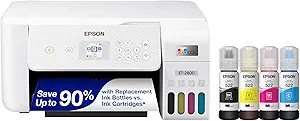 |
Epson EcoTank Photo ET-8550

| Printer Type | Inkjet |
|---|---|
| Print Resolution | Up to 5760 x 1440 dpi |
| Maximum Media Size | 13 x 19 inch |
| Color Pages per Minute | 12 pages_per_minute |
| Duplex | auto |
The Epson EcoTank Photo ET-8550 is a wireless wide-format all-in-one that targets photographers and creators who need lab-quality color prints without frequent cartridge changes. It uses a 6-color Claria ET Premium ink set in refillable tanks, which cuts running costs and produces sharp, high-resolution output up to 5760 x 1440 dpi for color copies and up to 1440 dpi for color prints. The printer handles media up to 13 x 19 inches and supports cardstock and other media up to about 1.3 mm thick, making it useful for borderless photos, proofs, and small-format artwork. Practical features include auto duplexing, a photo-capable scanner, USB connectivity, and mobile control via app and touch controls. The main compromises are size and cadence: it is relatively large and best suited for a home studio rather than casual living-room use, and print speeds are modest compared with office laser machines. For heavy photo printing the low cost per photo and flexible media support are strong advantages, while occasional users may find the upfront footprint and setup more than they need.
Best for: Buyers who prioritize print quality and low ongoing ink costs for frequent color and photo printing at home and want wide-format, studio-capable output.
Less Ideal for: Users who need a compact, low-profile printer for occasional document printing or who prioritize fastest possible page-per-minute office throughput.
- Cartridge-free EcoTank system with high-capacity ink bottles reduces running costs for frequent color/photo printing
- Supports wide-format borderless printing up to 13 x 19 inches and thicker media up to ~1.3 mm
- High maximum print and copy resolutions for detailed photo and graphic output
- Wireless printing plus app and touch controls for mobile workflows
- Auto duplexing and integrated scanner/copier add versatile in-house production
- Large physical footprint makes it less suitable for very small desks or casual home use
- Print speeds are moderate compared with dedicated office printers, especially for high-quality photo jobs
Verdict: Choose the ET-8550 if you want wide-format, photo-grade color prints with very low running costs thanks to its EcoTank refill system.
Canon PIXMA G3270 MegaTank

| Printer Type | Inkjet |
|---|---|
| Printer Connectivity Type | USB, Wi‑Fi |
| Maximum print Resolution Color | 4800 x 1200 dots_per_inch |
| B&W Pages per Minute | 11 |
| Maximum Sheet Capacity | 100 |
The Canon PIXMA G3270 MegaTank is a wireless all‑in‑one inkjet that focuses on low running costs and everyday home use. It uses refillable ink bottles that Canon rates for very high page yields, so the printer is best for people who print frequently and want to avoid frequent cartridge replacements. Setup and mobile printing are straightforward over Wi‑Fi and the 1.35" LCD makes basic navigation simple; it also supports direct USB connection. Print quality is solid for documents and casual color photos with a maximum resolution up to 4800 x 1200 dpi, while scan and copy functions are handled by a flatbed scanner. The rear paper feed and 100‑sheet capacity suit mixed media and occasional large jobs, but duplexing is limited to single‑side printing only. Speed is typical for an ink tank at about 11 ppm black and 6 ppm color, so it is not aimed at heavy office throughput. Power draw is modest at 16 watts and the unit has app control for smartphone printing and basic maintenance. If you prioritize low per‑page cost and reliable home printing, this model delivers; if you need fast duplex or high-volume office throughput, consider a different class of machine.
Best for: Buyers who want a low‑cost, no‑fuss home color printer that cuts ink expenses and handles regular photo and document printing with easy mobile support.
Less Ideal for: Users who need automatic two‑sided printing, very fast page throughput, or an office‑grade printer for large shared workgroups should look elsewhere.
- Refillable MegaTank ink with very high page yield for low ongoing cost
- Wireless and USB connectivity with smartphone app control for easy mobile printing
- High maximum print resolution (4800 x 1200 dpi) for good color and document detail
- 100‑sheet rear tray and support for various paper sizes including borderless photo sizes
- No automatic duplex printing; single‑sided only
- Print speeds are moderate, not optimized for heavy office throughput
Verdict: Choose the PIXMA G3270 if you want a home wireless color printer that minimizes ink cost with refillable MegaTank bottles while providing solid print quality and mobile printing.
HP DeskJet 2955 All-in-One

| Printer Type | HP Thermal Inkjet |
|---|---|
| Functions | Print, Scan, Copy |
| Input Capacity | 60 sheets |
| Print Speed (B&W) | Up to 7.5 ppm |
| Connectivity | AirPrint, USB, Wi‑Fi, Wireless direct, Mopria |
The HP DeskJet 2955 is a small, budget-focused all-in-one inkjet that handles everyday home tasks like printing recipes, school worksheets, and occasional photos while also offering flatbed scanning and copying. Setup and mobile printing are straightforward thanks to the HP App, AirPrint and Mopria support, and the printer includes dual-band Wi-Fi plus wireless direct printing for easy phone or tablet use. It has a modest 60-sheet input tray and print speeds suitable for light workloads, with up to 7.5 ppm black and 5.5 ppm color; manual duplexing is supported via driver. Notable extras include HP AI formatting to clean up web pages before printing and a 3-month Instant Ink trial to simplify replacement supplies. The trade-offs are predictable for the price: slower speeds and small paper capacity compared with prosumer models, and color photo quality is limited by entry-level ink behavior, so it is best for basic color documents rather than frequent high-volume or photo-centric use.
Best for: Buyers looking for an affordable, simple home printer that prioritizes easy wireless mobile printing and occasional color documents over high throughput.
Less Ideal for: Homes or small offices that need fast, high-volume printing, frequent two-sided runs, or pro-grade photo output should consider a larger or more advanced model.
- Compact all-in-one design combines printing, scanning, and copying for small spaces
- Easy mobile and wireless printing with AirPrint, Mopria, HP App, and wireless direct
- Includes 3-month Instant Ink trial to simplify ink replacement
- Energy-efficient build and use of recycled plastics for a more sustainable footprint
- Small 60-sheet tray and modest print speeds limit suitability for higher-volume use
- Manual duplexing requires user intervention rather than automatic two-sided printing
Verdict: A compact, budget-friendly wireless all-in-one that makes mobile printing and basic home color documents easy without extra frills.
Canon PIXMA TR8620a

| Printer Type | Inkjet |
|---|---|
| Print Speed B&W | 15 pages_per_minute |
| Print Speed Color | 10 pages_per_minute |
| Connectivity | wireless, USB |
| ADF Capacity | 20-sheet |
The PIXMA TR8620a is a compact wireless all‑in‑one geared toward home and small office users who need dependable everyday color and black‑and‑white printing plus scanning, copying, and faxing. It supports wireless printing from PCs and smartphones, offers a 20‑sheet auto document feeder for multi‑page scans or copies, and automatic two‑sided printing to save paper. Photo‑capable output benefits from a five‑ink system and up to 4800 x 1200 dpi resolution, while a touchscreen and microSD slot make occasional media and control tasks straightforward. Paper handling includes a 100‑sheet cassette plus a rear feed for specialty paper, and USB connectivity is available for direct connections. Practical limitations are average print speeds for a small office (15 ppm black, 10 ppm color) and the usual ongoing ink costs of a multi‑cartridge inkjet; heavy users should expect higher running costs than laser alternatives. For reliable daily home use where versatile media and features matter more than raw speed, the TR8620a is a solid choice.
Best for: Buyers seeking a dependable home‑office printer with full multifunction capability and simple wireless or mobile printing who prioritize versatility and consistent daily performance.
Less Ideal for: Users who need very high monthly page volumes or the lowest long‑term cost per page should consider business‑class lasers or dedicated high‑yield alternatives instead.
- Wireless printing from PCs and smartphones for easy setup and mobile workflows
- 20‑sheet automatic document feeder simplifies multi‑page scanning and copying
- Automatic duplex printing reduces paper usage and speeds two‑sided jobs
- Five individual ink tanks and up to 4800 x 1200 dpi resolution for better photo and color output
- Print speeds are modest compared with lasers, especially for high‑volume black‑and‑white jobs
- Multi‑cartridge ink system can be costly to maintain for heavy printing
Verdict: Choose the PIXMA TR8620a when you want a reliable, full‑feature wireless home printer that handles photos, documents, scanning, and multi‑page jobs with consistent everyday performance.
HP DeskJet 2855e All-in-One Printer

| Printer Type | Inkjet |
|---|---|
| Scanner Type | Flatbed |
| Compatible Cartridge | HP 67 |
| Printer Connectivity Type | single band wi-fi (2.4ghz only) |
| Maximum Sheet Capacity | 60 |
The HP DeskJet 2855e is a small all‑in‑one inkjet designed for everyday home tasks like letters, school handouts, recipes, and occasional photos. It prints color and black text, scans on a flatbed, and copies single pages from the top tray; the 60‑sheet input keeps basic jobs queued without constant refills. HP bundles starter ink cartridges and offers three months of Instant Ink with HP+ activation for hands‑off cartridge delivery. The printer uses single‑band 2.4 GHz Wi‑Fi and the HP mobile app for setup, printing, and scanning from smartphones, which is handy for casual users who want wireless convenience. Print speed is modest at about 5.5 ppm color and 7.5 ppm black, and duplexing is manual, so it is not suited for heavy-duty or high-volume office work. Image and photo quality are reasonable for documents and occasional snapshots but will not match dedicated photo printers. Setup and app control are straightforward, making this a practical, budget-friendly home printer if you accept slower speeds and basic feature set.
Best for: Someone who needs an affordable, easy‑to‑use home printer for occasional color documents, schoolwork, and smartphone printing and values simple app setup and bundled starter ink.
Less Ideal for: Users who print large volumes, need fast duplexing, or demand high‑end photo quality should look at higher‑capacity or photo‑focused models.
- Compact footprint fits small desks or counters
- Includes starter HP 67 cartridges and three months of Instant Ink with HP+ activation
- Wireless printing and mobile app control for smartphone printing and scanning
- 60‑sheet input tray suitable for light home printing tasks
- Limited to single‑band 2.4 GHz Wi‑Fi, no 5 GHz support
- Manual duplex only, so two‑sided printing is not automatic
- Modest print speeds and basic photo quality compared with higher‑end models
Verdict: A compact, budget‑minded all‑in‑one that makes wireless home printing and simple mobile scanning easy for light users.
Epson EcoTank ET-2800

| Printer Type | Inkjet |
|---|---|
| Functions | Print, Copy, Scan |
| Connectivity | Wired, wireless, USB |
| Black Print Speed | 10 pages_per_minute |
| Color Print Speed | 5 pages_per_minute |
The Epson EcoTank ET-2800 is a home-focused all-in-one that replaces disposable cartridges with large refillable ink tanks, making it practical for families and light office use. It prints, copies, and scans, offers wireless and USB connectivity, and supports mobile and voice-activated printing for quick jobs from phones or laptops. The built-in ink bottles included in the box are designed to cover thousands of pages so you refill far less often than with cartridge printers, and Epson's Micro Piezo heat-free print technology produces sharp text and decent color photos on ordinary photo paper. The flatbed scanner and simple color LCD make copying and setup straightforward. Speed is modest — about 10 ppm black and 5 ppm color — and duplexing is manual, so it is not optimized for heavy two-sided office workflows. Also Epson recommends genuine ink for best results, which means refill savings depend on sticking with manufacturer supplies. For everyday home use where low running cost and ease of topping up ink matter, the ET-2800 is a sensible choice.
Best for: Buyers who want a low-running-cost, low-maintenance home printer that handles everyday photo and document tasks with easy mobile connectivity and minimal ink changes.
Less Ideal for: Users who need fast duplex printing or heavy daily page volumes for a home office should consider more business-focused models with automatic double-sided printing and higher throughput.
- Cartridge-free high-capacity refillable ink tanks significantly reduce frequency of ink replacement
- Wireless and mobile printing including voice-activated commands for convenient home use
- Includes starter ink bottles that cover many pages out of the box
- Integrated flatbed scanner and color LCD for easy copying and navigation
- Micro Piezo print technology delivers sharp text and good color prints on common paper types
- Manual duplexing requires flipping pages for two-sided prints
- Print speeds are modest compared with higher-end home office models
Verdict: Choose the ET-2800 if you prioritize cartridge-free printing and low long-term ink cost for everyday home printing with easy wireless convenience.
Choosing the Right Wireless Color Printer for Home: Key Factors to Consider
Print Quality and Color Accuracy
Print quality determines how well photos and color documents reproduce, which matters when you print family photos, school projects, or marketing materials at home. Look at resolution capabilities, color gamut, and whether the printer uses multiple color cartridges or pigment options to achieve deeper blacks and more accurate tones.
Higher native resolution and additional color cartridges often produce better gradients and finer detail, but they can also increase replacement costs. Consider whether you need photo-paper support and borderless printing if you plan to print images frequently.
Wireless Connectivity and Mobile Printing
A home wireless color printer should connect reliably to your router, laptops, phones, and tablets. Check for Wi-Fi standards, dual-band support, and whether the printer supports Wi-Fi Direct for device-to-printer connections when a router is unavailable.
Mobile printing standards such as AirPrint, Mopria, and native apps make printing from phones and tablets easier. If multiple household members will print from different device types, prioritize a printer with broad mobile-printing compatibility and clear setup steps.
Operating Cost and Cartridge Yield
Operating cost is often the largest long-term expense for home printers. Evaluate how many pages each cartridge yields, whether high-capacity or XL cartridges are available, and the cost per page when using original versus third-party ink or toner.
Some printers use separate color tanks so you only replace the exhausted color rather than the entire color assembly. Others offer refillable ink-tank systems that lower per-page cost but may require more maintenance. Factor expected monthly print volume into cost projections.
Paper Handling and Media Versatility
Paper handling affects how convenient the printer is for different tasks. Consider input tray capacity, support for multiple paper sizes, and a rear feed for heavier photo or specialty papers. Duplex printing capability reduces paper use for documents.
If you print a lot of photos, look for printers that handle thicker media and offer borderless printing. For homework and everyday documents, a larger input capacity reduces the need to reload paper frequently.
Speed and Performance for Mixed Use
Print speed matters if you frequently produce multi-page documents or need quick photo prints. Manufacturers report pages-per-minute for text and draft modes; photo and high-quality color prints take longer. Consider typical home tasks to decide the importance of speed versus image fidelity.
Faster printers are helpful for busy households, but top speed often comes at the cost of higher hardware or consumable expense. Balance speed requirements against expected daily or weekly print volume.
Setup, Maintenance, and Reliability
Ease of setup reduces frustration when installing a new printer on a home network. Look for clear setup wizards, straightforward driver or app installation, and robust customer support documentation. Maintenance tasks such as printhead alignment, firmware updates, and ink maintenance routines affect reliability.
Printers that offer user-serviceable parts or accessible support guides make minor issues easier to resolve at home. Consider warranty coverage and how frequently owners report common maintenance needs for typical home use.
Choosing the Right Printer for Your Household
Assess how your household uses prints. If you mostly produce documents and occasional flyers, prioritize low operating cost and duplexing. If you print photos and crafts frequently, prioritize color accuracy, media handling, and borderless photo capability.
Think about who will use the printer and from which devices. For multi-user homes, pick a model that supports the most common mobile-printing standards and has an easy user interface to reduce setup friction for different family members.
- Estimate monthly page volume to calculate running costs.
- Decide whether occasional photo prints justify a higher-quality color engine.
- Confirm that the printer supports the mobile platforms used in your home.
Network Tips for Stable Wireless Printing
Position the printer within good range of your Wi-Fi router and avoid obstructions that can degrade signal strength. If your home has a multi-band router, connect the printer to the band that provides the best reliability for your devices.
Use static IP assignment or reserve an address in the router to avoid intermittent discovery issues. Keep printer firmware up to date to ensure compatibility with newer devices and to fix known connectivity bugs.
- Prefer dual-band-capable printers in crowded wireless environments.
- Enable WPA2 or WPA3 security and avoid open networks for safe printing.
Managing Ink and Toner to Lower Costs
Track your actual page counts for a month to estimate cartridge replacement frequency. That information helps you decide whether pay-per-page replacement (standard cartridges) or refillable tanks yields better long-term savings.
Consider whether aftermarket or refilled cartridges are acceptable for your needs. While they can lower per-page expense, they may introduce variable quality or potential warranty implications. When possible, choose printers with separate color tanks to avoid replacing surplus ink.
- Look for high-yield cartridge options for households with heavier printing.
- Store spare cartridges in a sealed, cool environment to preserve ink life.
Photo Printing at Home
If photo output is a priority, select a printer that supports photo paper sizes, borderless printing, and has settings for photo-quality color management. A multi-cartridge color system and higher DPI settings typically improve photo gradations.
Also consider the availability of dedicated photo paper sizes and whether the printer has a straight-through or rear paper feed for thick media. Test prints on the specific paper you plan to use to ensure color rendering and saturation meet expectations.
- Use ICC profiles or in-app color adjustments when color fidelity is critical.
- Allow photos to dry fully before handling to prevent smudging on glossy paper.
Space, Noise, and Physical Fit
Measure the intended installation area and allow extra clearance for paper trays and scan lids. Some printers fold flat for storage while others need continuous clearance for output trays.
Noise levels vary. If the printer will sit in a common area or near workspaces, consider models with quieter operation or power-saving modes that minimize noise during idle periods.
- Account for power and USB or Ethernet ports if you plan a wired backup connection.
- Check whether the printer's trays extend beyond the unit footprint when open.
How We Chose the Best Wireless Color Printer for Home
We focused on attributes that directly affect day-to-day home printing. Primary evaluation criteria included print quality for both text and photos, wireless connectivity reliability across common home network setups, and the cost to operate measured by ink or toner yield and replacement frequency. We also assessed speed for mixed office-and-photo workloads, ease of setup and mobile printing, and maintenance needs such as printhead care and paper handling. We excluded devices aimed solely at heavy office or commercial use, single-function black-and-white units, and printers lacking standard wireless or mobile-printing support. Our selections emphasize models that balance image quality with usability and predictable operating costs for families, students, and home offices. The final shortlist reflects real-world priorities: dependable wireless performance, consistent color accuracy, manageable running costs, straightforward maintenance, and versatile media handling.
Our full evaluation process is outlined in our review methodology.
FAQ
Can I print from my phone without installing drivers?
Often you can. Most modern wireless color printers support mobile-printing standards like AirPrint or Mopria, or have a companion app that handles printing without traditional desktop drivers. Functionality may vary by device and operating system.
How do I estimate the running cost of a home color printer?
Estimate monthly pages, then use cartridge yield figures to calculate cost per page. Factor in whether you will buy standard or high-yield cartridges, and include occasional photo-paper purchases if you print photos regularly.
Is a color inkjet or color laser better for home use?
It depends on priorities. Inkjets usually deliver better photo quality and handle a wider variety of media, while lasers often offer faster text printing and longer cartridge life. Consider print type, monthly volume, and required media handling when choosing.
What should I do if wireless printing is inconsistent?
First check signal strength and router placement. Restart the printer and router, ensure firmware is current, and consider assigning a reserved IP address. If problems persist, try connecting over a wired network temporarily to isolate wireless issues.
How often should I perform maintenance on a home printer?
Perform basic maintenance such as printhead checks, alignment, and nozzle tests monthly if you print regularly. Less frequent printing can require occasional printhead cleaning before use to prevent clogs and maintain color accuracy.
Final Verdict
When choosing a wireless color printer for home, balance color fidelity, operating cost, and connectivity. Prioritize print quality and media support if you print photos often. If most printing is documents and homework, focus on low per-page cost, duplexing, and reliable wireless features. Weigh tradeoffs between speed, maintenance, and consumable costs. A clear estimate of monthly usage and the types of prints you plan to produce will point you to the most suitable option and help you avoid surprises after purchase.